
Customers
Customers are the end users who purchase and use your licensed software. The License Manager provides both admin management and a self-service customer portal.
Customer Accounts
Each customer has:
| Field | Description |
|---|---|
| Name | Customer's display name |
| Unique email address (login) | |
| Password | Hashed authentication password |
| Client ID | Unique identifier for license associations |
| Avatar | Profile photo |
| Confirmed At | Email verification timestamp |
| Last Login | Most recent login time |
Creating Customers
Via Admin Panel
- Navigate to License Manager → Customers
- Click Create
- Fill in details:
- Name
- Email (must be unique)
- Password
- Client ID (auto-generated if empty)
- Click Save
Via Self-Registration
If enabled, customers can register at /customer/register:
- Customer fills registration form
- Email verification sent (if enabled)
- Account activated after confirmation
Via Import
Customers can also be created through data import functionality in the admin panel.
Client ID
The Client ID is a unique identifier used to:
- Associate licenses with customers
- Track activations across products
- Link orders from external systems
Format
- Auto-generated: UUID format (e.g.,
a1b2c3d4-e5f6-7890-abcd-ef1234567890) - Custom: Any unique string
Usage in Licenses
When creating a license, set the customer_id field to the customer's Client ID:
POST /api/internal/product-licenses
{
  "product_reference_id": "PROD-001",
  "license_code": "LICENSE-KEY",
  "customer_id": "CUST-001",  // Links to customer
  "email": "[email protected]"
}
Customer Portal
The customer portal allows self-service management at /customer.
Features
| Feature | Path | Description |
|---|---|---|
| Dashboard | /customer/dashboard | Overview of licenses |
| Licenses | /customer/product-licenses | View all licenses |
| Activations | /customer/product-activations | Manage activations |
| Settings | /customer/settings | Account settings |
| Logout | /customer/logout | End session |
Portal Settings
These settings in Settings → General control what customers see and can do in the portal:
| Setting | Default | Description |
|---|---|---|
| Enable Licenses page | On | Show or hide the Licenses page in the customer portal |
| Enable Activations page | On | Show or hide the Activations page in the customer portal |
| Allow customers to deactivate activations | On | When disabled, only admins can deactivate activations |
| Get More Licenses URL | Empty | URL for the "Get More Licenses" button on the Licenses page. Leave empty to hide the button |
When a page is disabled, its sidebar link is hidden and direct URL access returns a 404 page.
Dashboard
Shows:
- Total licenses owned
- Active vs expired licenses
- Recent activations
- Quick actions
Managing Licenses
Customers can:
- View license details
- See expiration dates
- Check activation count
- Download license files
TIP
Set the Get More Licenses URL in Settings → General to display a "Get More Licenses" button on this page, linking customers to your storefront or pricing page.
Managing Activations
Customers can:
- View all active installations
- See domain and IP details
- Deactivate installations (if permitted by admin)
- Free up parallel use slots
TIP
To prevent customers from deactivating their own activations, disable Allow customers to deactivate activations in Settings → General. The deactivation button will be hidden and the endpoint will reject requests.
Account Settings
Customers can update:
- Name
- Password
- Avatar/profile photo
Authentication
Customer Login
Portal login at /customer/login:
- Enter email and password
- Optional: CAPTCHA verification
- Redirect to dashboard
Social Login
The customer portal supports social login for streamlined authentication. Customers can sign in using their existing social accounts instead of creating new credentials.
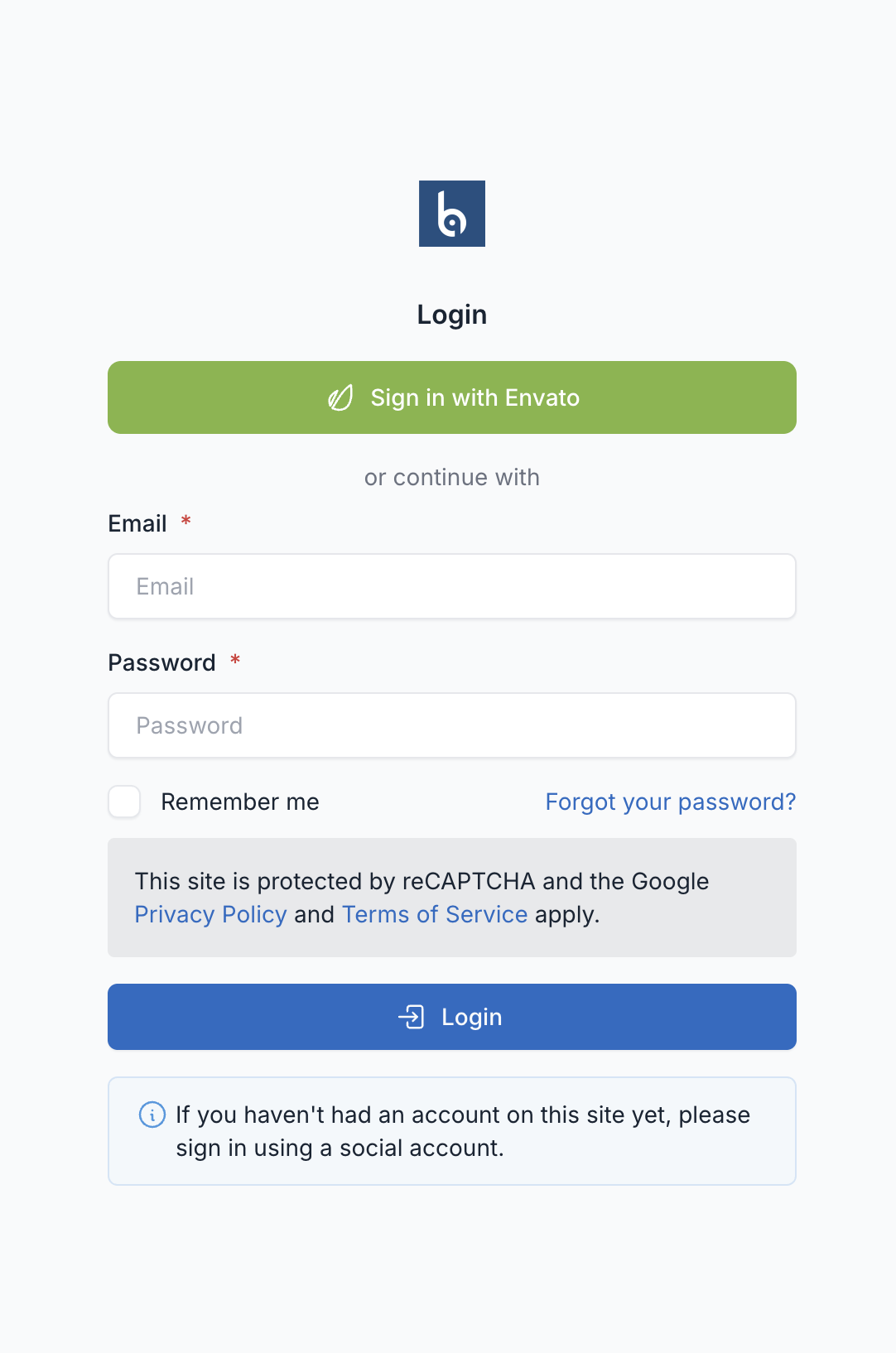
Supported Providers:
| Provider | Description |
|---|---|
| Envato | Sign in with Envato account (ideal for Envato marketplace products) |
| Google OAuth authentication | |
| Facebook login integration | |
| GitHub | GitHub OAuth for developer-focused products |
Benefits:
- Faster onboarding - no password to remember
- Automatic account linking via email
- Reduced support tickets for password resets
- Seamless experience for Envato customers
Envato Social Login:
For products sold on Envato marketplace, Envato social login is highly recommended:
- Customers can sign in with the same account used to purchase
- Automatic verification of purchase ownership
- Streamlined license management
TIP
If a customer hasn't registered yet, they can sign in using a social account to automatically create their portal account.
Password Reset
- Click "Forgot Password" at login
- Enter email address
- Receive reset link via email
- Set new password
Security Options
Configure in Settings:
- reCAPTCHA: Google reCAPTCHA on forms
- Math CAPTCHA: Simple math verification
Managing Customers
Viewing Customer Details
- Go to Customers
- Click on a customer
- View:
- Basic information
- Associated licenses
- Activation history
- Login history
Editing Customers
- Click Edit on customer row
- Update fields
- Save changes
Deleting Customers
- Click Delete on customer row
- Confirm deletion
WARNING
Deleting a customer does not delete their licenses. Update license customer_id fields as needed.
Bulk Operations
From Customers list:
- Delete: Remove multiple customers
Customer Statistics
Dashboard widgets show:
- Total customers
- New customers (recent)
- Top customers by licenses
- Customer growth over time
Top Customers Report
View customers ranked by:
- Number of licenses
- Number of products
- Total activations
Linking Customers to Licenses
By Client ID
When customer registers or is created:
- Note their
client_id - Use this value in license
customer_idfield - Licenses appear in customer's portal
By Email
Alternatively, match by email:
- Customer email stored in license
- Portal matches licenses by email
- Works when client_id not set
Email Notifications
Customers receive emails for:
- Account registration confirmation
- Password reset requests
- License expiration warnings (if enabled)
- License delivery (manual send)
Best Practices
- Verify Emails: Enable confirmation for new accounts
- Use Client IDs: Consistent linking across systems
- Encourage Portal Use: Reduces support burden
- Monitor Login Activity: Detect suspicious access
- Clean Inactive Accounts: Remove old unused accounts
- Secure Passwords: Enforce strong password requirements