
Loyalty Points Plugin - Usage Guide
This guide provides detailed instructions on how to use the Loyalty Points plugin for your e-commerce store.
Table of Contents
- Admin Dashboard Overview
- Managing Customer Points
- Managing Member Levels
- Viewing Transactions
- Reports and Analytics
- Customer Experience
- Checkout Integration
Admin Dashboard Overview
Accessing Loyalty Points
- Log in to your admin dashboard
- Click on Loyalty Points in the main navigation
- You'll see an overview of your loyalty program
Dashboard Widgets
The main dashboard displays:
- Total Customers: Number of customers with points
- Total Points Earned: Lifetime points issued
- Total Points Redeemed: Points used for discounts
- Points in Circulation: Current unredeemed points
Managing Customer Points
Viewing Customer Points
- Navigate to Loyalty Points > Customer Points
- View all customers with their:
- Current balance
- Lifetime points earned
- Current member level
- Last activity date
Searching and Filtering
- Use the search box to find specific customers by name or email
- Filter by member level
- Sort by balance, lifetime points, or activity date
Viewing Customer Details
- Click on a customer's name to view details
- See complete information:
- Current points balance
- Lifetime points earned
- Total points redeemed
- Current member level
- Transaction history
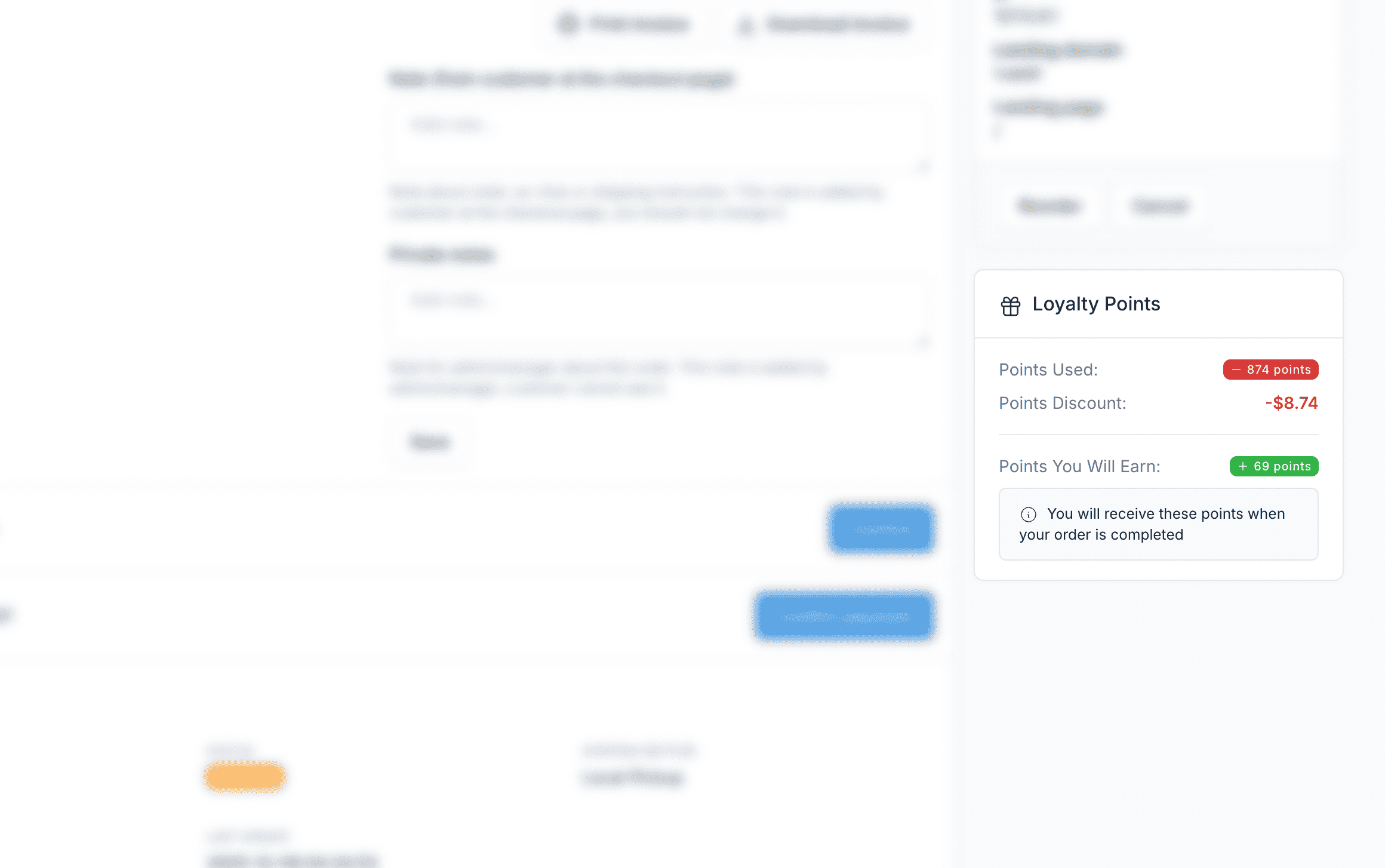
Adjusting Customer Points
To manually add or deduct points:
- Navigate to Loyalty Points > Customer Points
- Find the customer you want to adjust
- Click Adjust Points button
- Fill in the adjustment form:
- Adjustment Type: Add Points or Deduct Points
- Points Amount: Number of points to add/deduct
- Note: Reason for adjustment (optional but recommended)
- Click Save to apply the adjustment
When to Adjust Points
Common reasons for manual adjustments:
- Customer service goodwill gestures
- Correcting errors
- Promotional bonuses
- Resolving disputes
Managing Member Levels
Viewing Member Levels
- Navigate to Loyalty Points > Member Levels
- View all configured tiers with their settings
Creating a New Level
Click Create button
Fill in the level details:
- Name: Display name (e.g., "Gold Member")
- Minimum Points: Lifetime points to reach this tier
- Maximum Points: Upper limit (empty for top tier)
- Earning Rate: Points multiplier (e.g., 1.5 = 50% bonus)
- Benefits: List benefits, one per line
- Status: Enable or disable
Click Save to create the level
Editing Member Levels
- Click on the level name or Edit button
- Modify the settings as needed
- Click Save to update
Deleting Member Levels
- Click the Delete button on the level
- Confirm the deletion
WARNING
Deleting a level will not affect customers' points, but they may be reassigned to a different tier based on remaining levels.
Best Practices for Member Levels
- Clear Progression: Make tier thresholds achievable but rewarding
- Meaningful Benefits: Offer real value at each tier
- No Gaps: Ensure point ranges don't overlap or have gaps
- Communication: Clearly display tier benefits to customers
Viewing Transactions
Transaction List
- Navigate to Loyalty Points > Transactions
- View all point transactions with:
- Customer name
- Transaction type
- Points amount
- Description
- Date/time
Transaction Types
| Type | Description |
|---|---|
| Earned | Points earned from purchases |
| Redeemed | Points used for discounts |
| Adjusted | Manual admin adjustments |
| Reversed | Points taken back from cancelled orders |
| Expired | Points removed due to expiration |
| Bonus | Points from activities (registration, reviews, etc.) |
Filtering Transactions
- Filter by transaction type
- Filter by date range
- Search by customer name
- Sort by date, amount, or type
Reports and Analytics
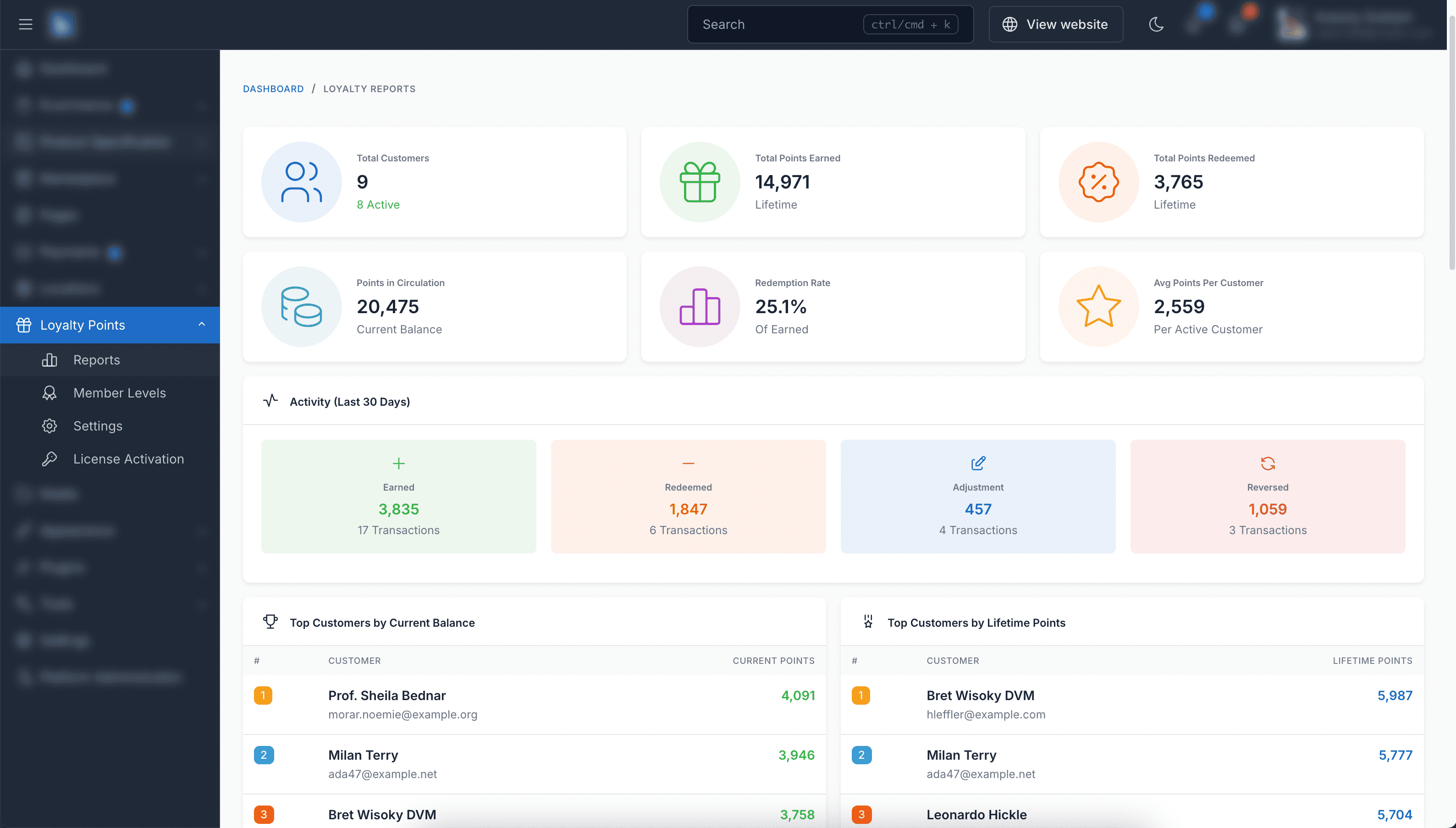
Accessing Reports
- Navigate to Loyalty Points > Reports
- View comprehensive program analytics
Available Metrics
Overview Statistics:
- Total customers with points
- Total points earned (all time)
- Total points redeemed (all time)
- Points currently in circulation
- Redemption rate percentage
- Average points per customer
Charts and Graphs:
- Points activity over time (last 30 days)
- Points earned vs redeemed comparison
- Member level distribution
Top Customers:
- Customers with highest current balance
- Customers with highest lifetime points
- Most active point redeemers
Recent Activity:
- Latest transactions
- Recent point redemptions
- New member level achievements
Using Reports for Optimization
- Low Redemption Rate: Consider reminding customers about their points or lowering redemption thresholds
- High Expiry Rate: Points may be expiring too quickly or customers aren't engaged
- Few High-Tier Members: Adjust tier thresholds to make progression more achievable
Customer Experience
Customer Dashboard
Customers can access their loyalty points information from their account dashboard:
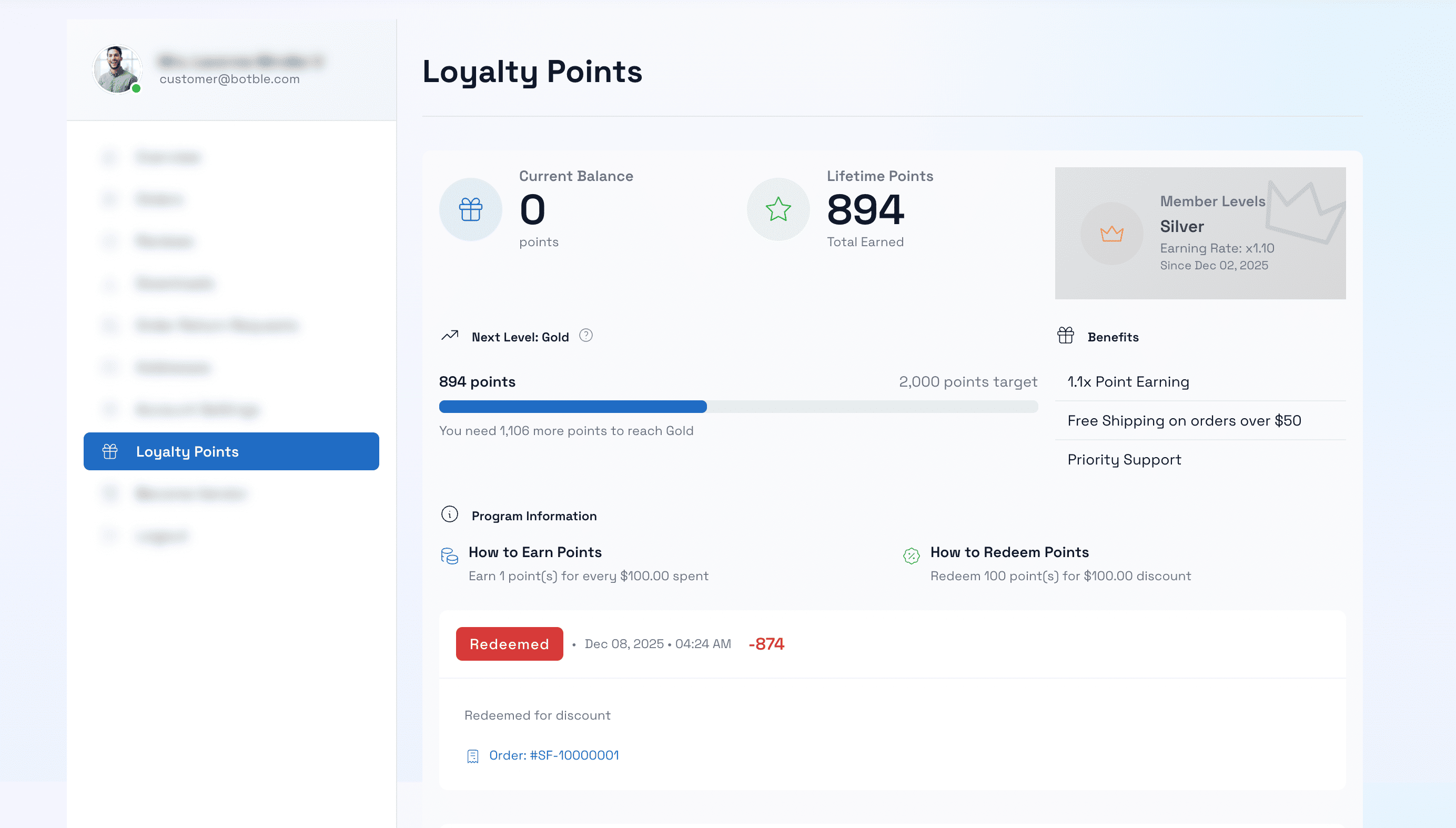
Dashboard Features:
- Current points balance
- Lifetime points earned
- Current member level with badge
- Benefits of current tier
- Progress to next tier
- Complete transaction history
- How to earn points guide
- How to redeem points guide
Customer Order Detail
After placing an order, customers can see points information:
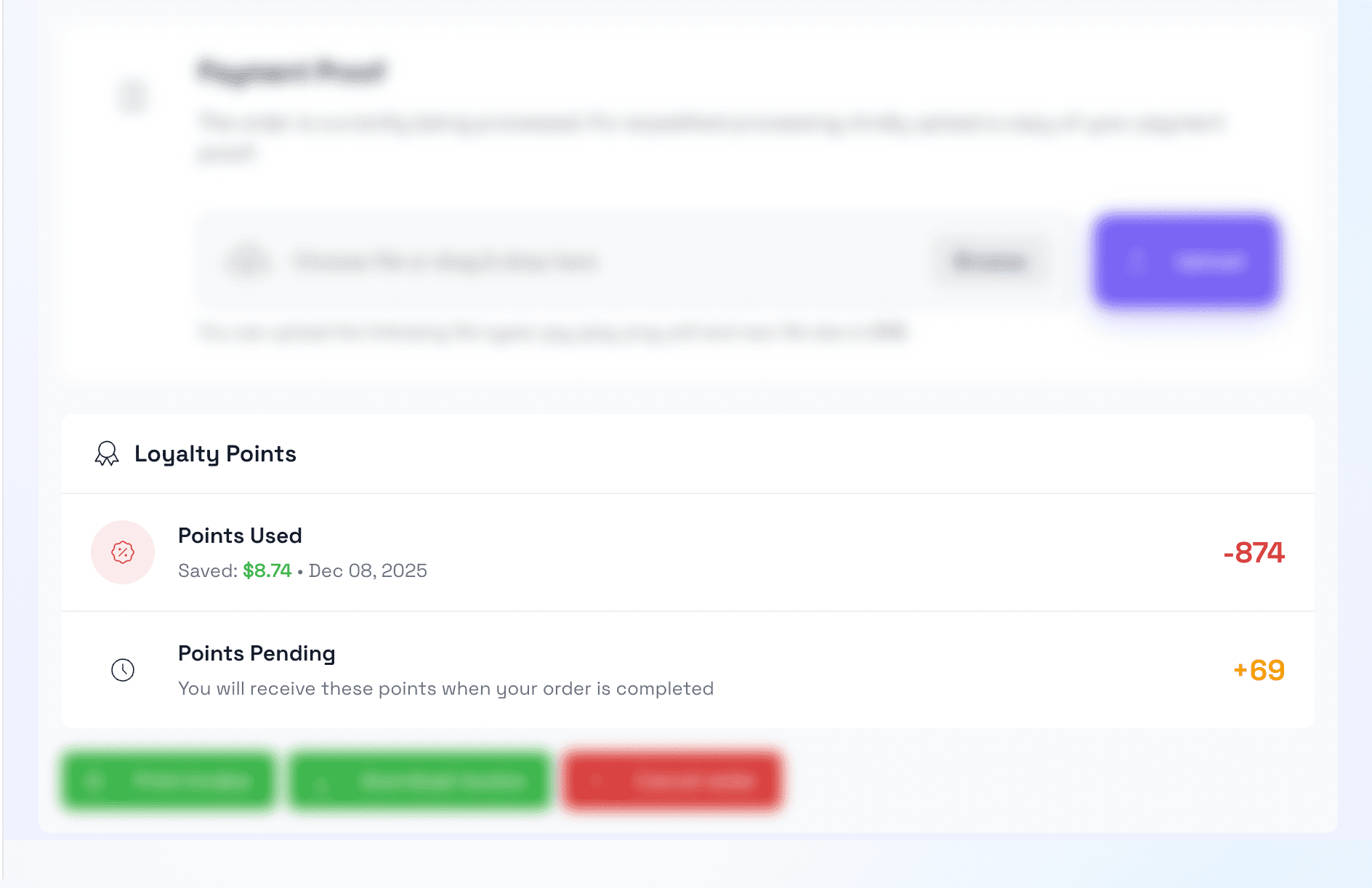
- Points earned from the order
- Points redeemed (if any)
- Discount applied from points
Product Page Display
On product pages, customers see:
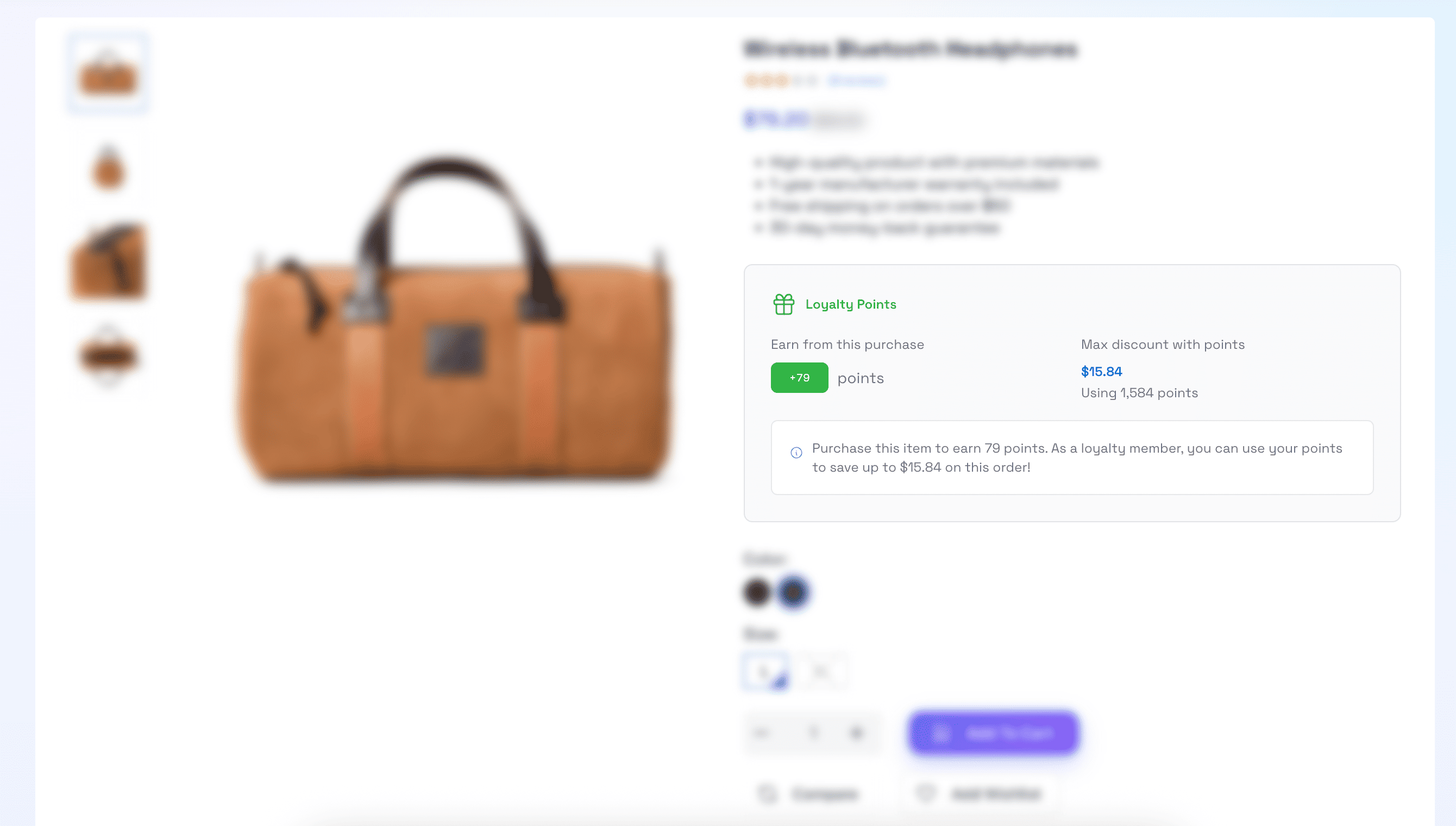
- Points they can earn from purchasing
- Maximum discount available with their points
Checkout Integration
Points Display at Checkout
During checkout, the system displays:
- Points to Earn: How many points the customer will earn from this order
- Current Balance: Customer's available points
- Redemption Option: If customer has points, option to apply them
Redeeming Points
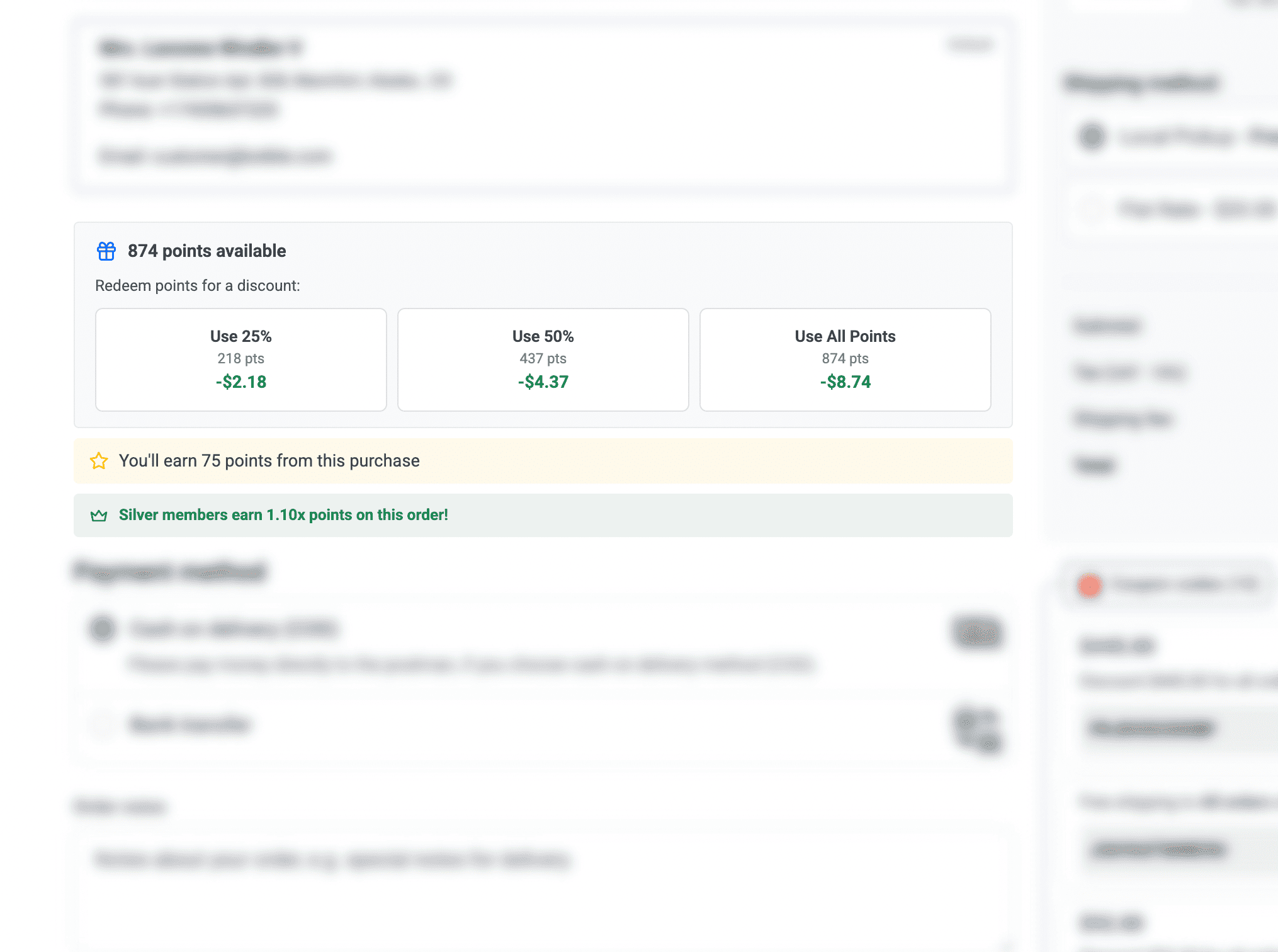
Customers can redeem points at checkout:
- View available points balance
- Enter points amount to redeem, or use quick buttons:
- 25% of available points
- 50% of available points
- 75% of available points
- 100% of available points
- System validates against:
- Minimum redeemable points
- Maximum redeemable points
- Maximum discount percentage
- Discount is applied to order total
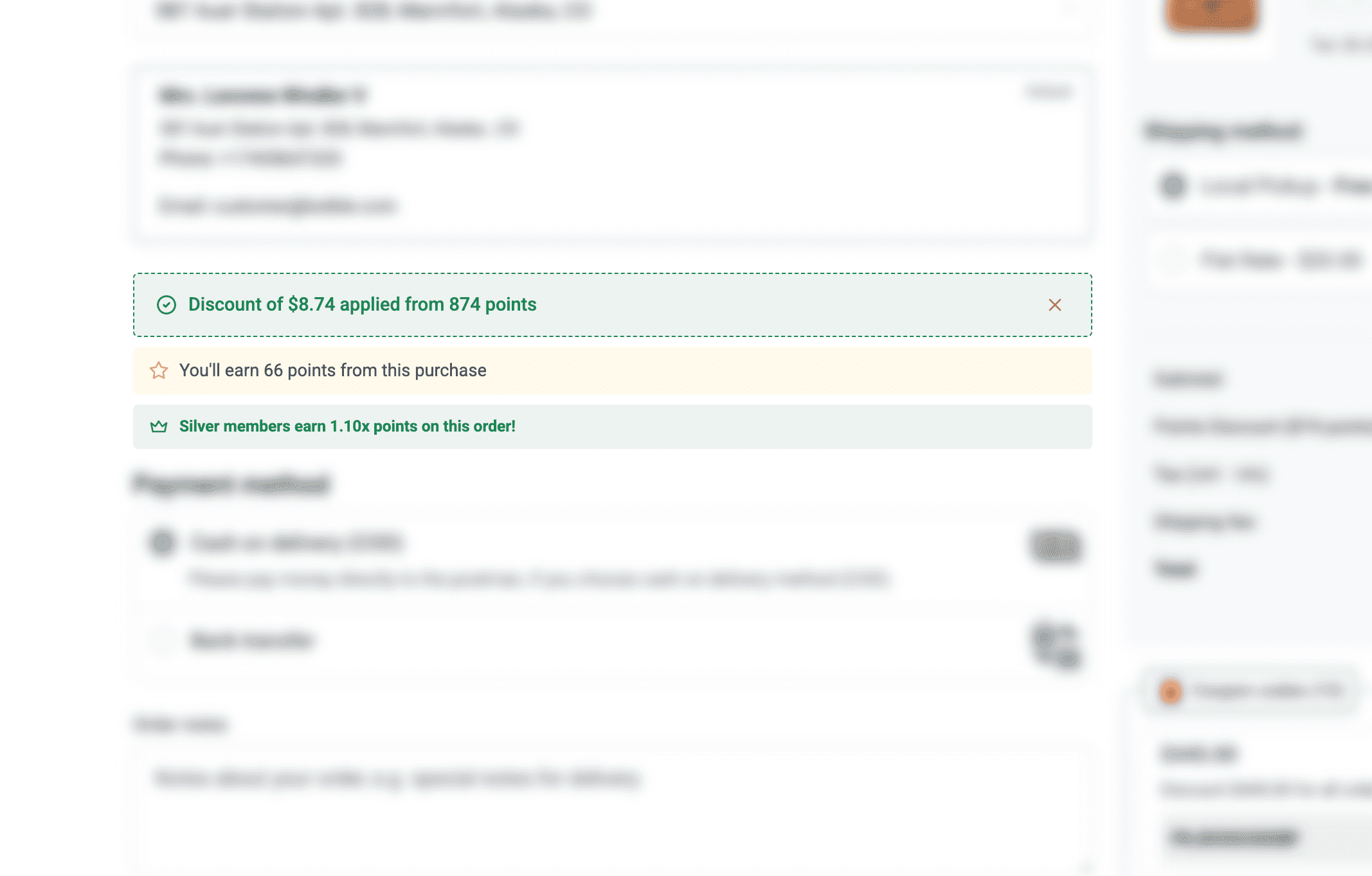
Order Confirmation
After checkout, the confirmation page shows:
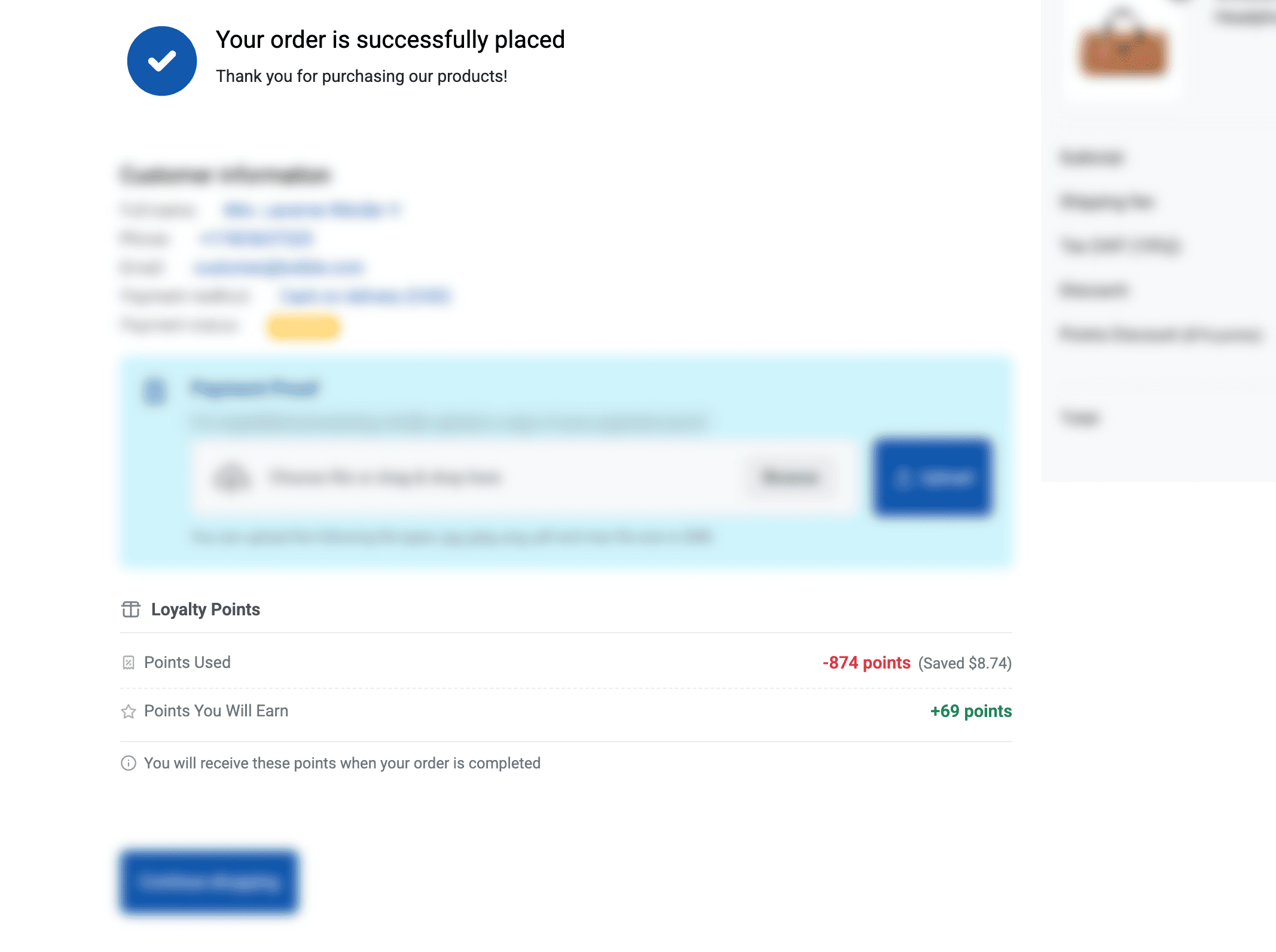
- Points earned from the order
- Points redeemed (if any)
- New points balance
Automatic Processes
Points Earning
Points are automatically awarded when:
- Orders reach eligible status (configurable)
- Customers complete activities (registration, reviews)
- Referred customers make first purchase
- Customer's birthday occurs
Points Reversal
Points are automatically reversed when:
- Orders are cancelled
- Orders are refunded
- Fraudulent activity is detected
Points Expiry
Points expire automatically when:
- Expiry period is configured (not set to 0)
- Points have been held beyond the expiry period
- Laravel scheduler is running
Level Upgrades
Customer tiers are automatically updated when:
- Lifetime points increase past tier thresholds
- Member levels are reconfigured
Email Notifications
The plugin can send notifications for:
- Points earned from orders
- Points about to expire
- Level upgrades
- Promotional point bonuses
Configure email templates in Settings > Email Templates.
Best Practices
For Store Owners
- Set Appropriate Rates: Balance earning/redemption rates to be attractive but sustainable
- Communicate Benefits: Display points information prominently
- Create Urgency: Use expiry periods to encourage redemption
- Offer Bonus Opportunities: Use bonus points to drive specific behaviors
- Monitor Analytics: Regularly review reports to optimize the program
For Customer Engagement
- Welcome Bonus: Offer registration points to encourage sign-ups
- Review Incentives: Award points for reviews to build social proof
- Birthday Rewards: Make customers feel special with birthday points
- Tier Benefits: Create compelling reasons to reach higher tiers
- Reminder Emails: Notify customers of expiring points
Program Optimization
- Track Redemption Rate: Healthy programs have 20-40% redemption
- Monitor Customer Retention: Compare repeat purchase rates
- Analyze Tier Distribution: Ensure progression is achievable
- Test Point Values: A/B test different earning/redemption rates
- Gather Feedback: Ask customers about the program
Troubleshooting Common Issues
Points Not Appearing for Customer
- Verify customer is logged in
- Check order has reached eligible status
- Verify loyalty program is enabled
- Clear cache if recently configured
Redemption Errors at Checkout
- Check minimum points requirement
- Verify maximum discount percentage
- Ensure customer has sufficient balance
- Check for JavaScript errors
Member Level Not Updating
- Tiers are based on lifetime points, not current balance
- Verify tier thresholds don't overlap
- Check tier status is enabled
- Clear cache after configuration changes
For more detailed troubleshooting, see the Troubleshooting section.