
Configuration
All preorder settings are in one place: Preorder > Settings in your admin panel.
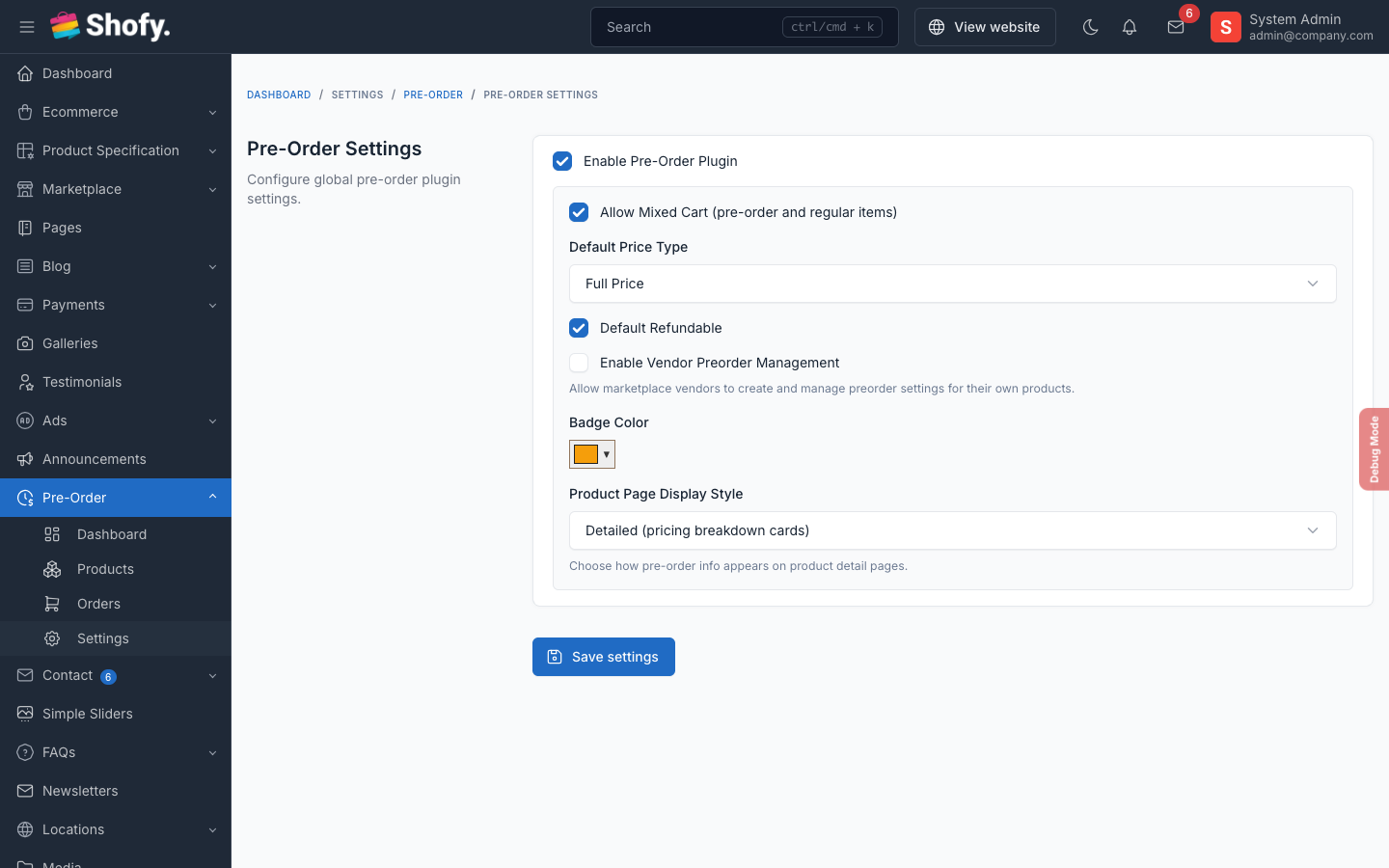
Core Settings
Enable Preorder
Turns the entire preorder system on or off without deactivating the plugin. When disabled, all preorder badges, buttons, and customer dashboard features are hidden.
Default: Enabled
Allow Mixed Cart
Controls whether customers can add both regular products and preorder products to the same cart:
- Enabled (default) — Customers can mix regular and preorder items freely
- Disabled — Cart must contain only regular items or only preorder items. Useful when preorder items have different shipping timelines.
TIP
If disabled and a customer tries to add a preorder item to a cart that already has regular items, they'll see an error message asking them to complete the current order first.
Default Price Type
Sets the default pricing strategy when creating new preorder products. You can override this per product.
| Price Type | How it works | Example ($100 product) |
|---|---|---|
| Full Price | Customer pays the full preorder price at checkout | Pays $100 now |
| Deposit Percentage | Customer pays a percentage upfront, balance due later | 30% = pays $30 now, $70 later |
| Deposit Fixed | Customer pays a fixed amount upfront, balance due later | $20 deposit = pays $20 now, $80 later |
Default: Full Price
Default Refundable
Whether new preorder products allow refund requests by default. Can be overridden per product.
Default: Enabled
Display Settings
Badge Text
Text shown on preorder product badges throughout the store (product cards, product pages, cart).
Default: "Pre-Order"
Badge Color
Hex color for the preorder badge.
Default: #f59e0b (amber)
Button Text
Text for the preorder add-to-cart button, replacing the regular "Add to Cart".
Default: "Add to Pre-Order"
Display Style
Controls how preorder information appears on the product detail page:
| Style | What it shows |
|---|---|
| Detailed (default) | Full info card with pricing breakdown, availability date, discount label, and custom message |
| Minimal | Compact badge with brief text |
Default Message
Fallback message shown on preorder products when no custom message is set. Supports the :date placeholder, which is replaced with the formatted availability date.
Example: This product is available for pre-order. Expected availability: :date
Vendor Settings
Vendor Management Enabled
INFO
Only appears when the Marketplace plugin is active.
When enabled, vendors can create and manage their own preorder products and orders from the vendor dashboard.
Default: Disabled
Permissions
Preorder adds these permissions that you can assign to admin roles at Admin > Users > Roles:
| Permission | What it allows |
|---|---|
preorder.index | Access preorder admin menu |
preorder.products.index | View preorder products list |
preorder.products.create | Create new preorder products |
preorder.products.edit | Edit existing preorder products |
preorder.products.destroy | Delete preorder products |
preorder.orders.index | View preorder orders list |
preorder.orders.edit | Update order status |
preorder.orders.destroy | Delete preorder orders |
preorder.settings | Access preorder settings page |
Suggested role setups
Store Manager — All preorder permissions
Sales Staff — View products, view and edit orders. No settings or delete access.
Customer Service — View products, view orders. Cannot edit or delete.
Cronjob
The plugin registers a daily command to automatically disable expired preorder products. Make sure your server's cronjob is configured:
* * * * * cd /path-to-your-project && php artisan schedule:run >> /dev/null 2>&1The command preorder:disable-expired runs daily at midnight. It sets any published preorder product with Auto-Disable enabled and a past availability date to draft status.
You can also run it manually:
php artisan preorder:disable-expired