
Preorder Products
Manage preorder products at Preorder > Products in the admin panel.
Creating a Preorder Product
- Go to Preorder > Products in the admin sidebar
- Click the Create button
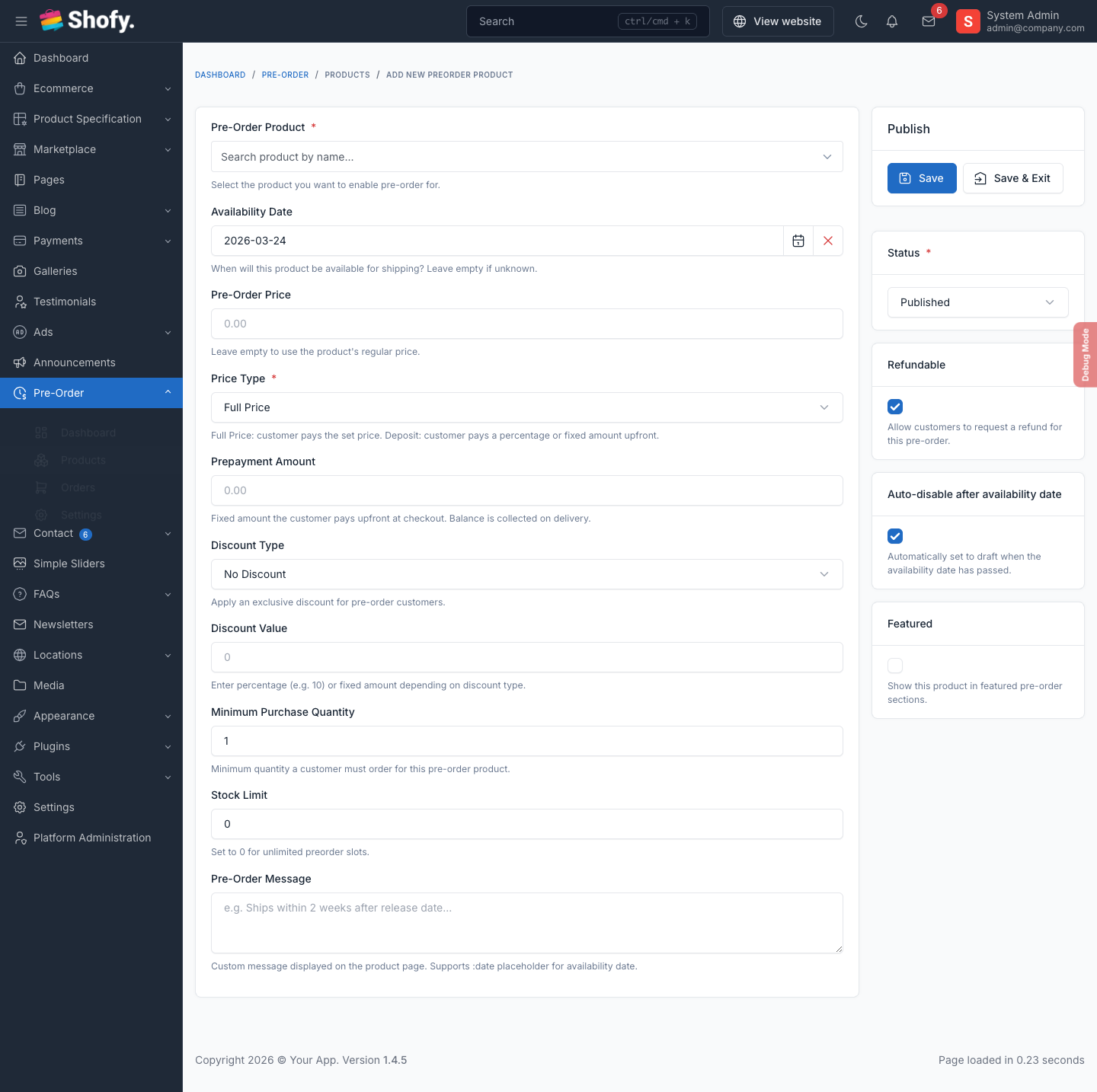
- Fill in the form:
| Field | Required | What to enter |
|---|---|---|
| Product | Yes | Search and select a product from your catalog |
| Availability Date | Yes | Expected shipping date, e.g., 2026-06-15 |
| Preorder Price | Yes | The price customers pay, e.g., 180 for $180 |
| Price Type | Yes | Full Price, Deposit Percentage, or Deposit Fixed |
| Prepayment Amount | When deposit | The deposit value — percentage (e.g., 30) or fixed amount (e.g., 50) |
| Discount Type | No | Percentage or Fixed — exclusive preorder discount |
| Discount Value | No | The discount number, e.g., 10 for 10% off or 20 for $20 off |
| Min Purchase Qty | No | Minimum units per order, e.g., 2. Default: 1 |
| Stock Limit | No | Max preorder slots. 0 = unlimited |
| Is Refundable | No | Allow refund requests on cancelled orders. Default: Yes |
| Auto-Disable | No | Auto-draft the product after availability date passes |
| Featured | No | Show in featured preorder sections |
| Custom Message | No | Displayed on product page. Use :date for the availability date |
| Status | Yes | Published to activate, Draft to save without activating |
- Click Save
WARNING
Each product can only have one preorder configuration. If a product already has one, edit the existing configuration instead of creating a new one.
How each price type works
Full Price — Customer pays the entire preorder price at checkout:
- Product price: $200, preorder price: $180
- Customer pays $180 at checkout
Deposit Percentage — Customer pays a percentage upfront, balance due later:
- Product price: $200, preorder price: $180, prepayment: 30%
- Customer pays $54 now (30% of $180), $126 later
Deposit Fixed — Customer pays a fixed amount upfront, balance due later:
- Product price: $200, preorder price: $180, prepayment: $50
- Customer pays $50 now, $130 later
TIP
Deposit-based pricing is the most common choice. It secures the order while reducing the customer's upfront commitment.
How discounts work
Discounts are applied before the prepayment calculation:
- Start with preorder price: $200
- Apply 10% discount: $200 - $20 = $180
- Calculate 30% deposit: $180 × 0.30 = $54
The discount is exclusive to the preorder — regular customers see the original price.
Quick Enable via Product Edit
You can also enable preorder directly from a product's edit page. A preorder metabox appears with a quick toggle. This creates a basic preorder configuration that you can then customize at Preorder > Products.
Product Variations
Preorder settings are configured on the parent product level. All variants of a product share the same preorder configuration (availability date, pricing strategy, stock limit).
When a customer adds a specific variant, the variant's own price is used as the base for calculating the deposit.
Preorder Products List
The table at Preorder > Products shows:
| Column | What it shows |
|---|---|
| Product | Name and image |
| Preorder Price | Configured price |
| Price Type | Full Price, Deposit %, or Deposit Fixed |
| Discount | Discount label (e.g., "10% off") |
| Availability Date | Expected shipping date |
| Slots | Current preorders / stock limit |
| Status | Published or Draft |
| Featured | Yes or No |
Setting Up a Complete Example
Let's set up a preorder for a new phone that launches June 15, 2026.
Goal: Accept preorders with a 30% deposit and a 5% early-bird discount.
Step 1: Plan your pricing
| Detail | Value |
|---|---|
| Product | Galaxy S30 Ultra |
| Retail price | $1,200 |
| Preorder price | $1,200 |
| Discount | 5% = $60 off → $1,140 |
| Deposit | 30% of $1,140 = $342 |
| Balance due | $1,140 - $342 = $798 |
| Stock limit | 500 units |
| Availability | June 15, 2026 |
Step 2: Create the preorder
- Go to Preorder > Products > Create
- Select "Galaxy S30 Ultra"
- Set Availability Date:
2026-06-15 - Set Preorder Price:
1200 - Set Price Type: Deposit Percentage
- Set Prepayment Amount:
30 - Set Discount Type: Percentage, Value:
5 - Set Stock Limit:
500 - Set Custom Message:
Pre-order now and save 5%! Ships by :date. - Set Status: Published
- Click Save
Step 3: Verify on the frontend
Visit the product page. You should see:
- Preorder badge
- "Pre-order now and save 5%! Ships by June 15, 2026."
- Price breakdown:
$1,200→ $1,140 (5% off), Deposit: $342, Balance: $798 - "Add to Pre-Order" button
Troubleshooting
Preorder badge not showing on the product page
- Check the preorder product status is Published: Preorder > Products
- Check the plugin is enabled: Preorder > Settings > Enable Preorder
- Clear cache: Admin > Platform Administration > Cache management > Clear all CMS cache
Stock limit reached but I want more preorders
Edit the preorder product and increase the Stock Limit, or set it to 0 for unlimited.
Product auto-disabled too early
The preorder:disable-expired command runs daily at midnight. If the availability date is today, the product will be disabled tonight. To keep it active longer, push the availability date forward or disable Auto-Disable on the product.