
Preorder Orders
Manage preorder orders at Preorder > Orders in the admin panel.
Order Lifecycle
Every preorder moves through these statuses:
| Status | What happens | Who acts |
|---|---|---|
| Requested | Customer submitted a preorder request | Customer |
| Accepted | Admin approved the preorder | Admin |
| Prepayment Requested | Waiting for customer to pay the deposit | Admin triggers |
| Prepayment Confirmed | Deposit payment received | Automatic |
| Final Order | Customer paid the remaining balance | Customer |
| In Shipping | Product shipped to customer | Admin |
| Delivered | Order completed | Admin |
| Cancelled | Order was cancelled | Admin or Customer |
| Refunded | Refund issued to customer | Admin |
Status flow
Requested → Accepted → Prepayment Requested → Prepayment Confirmed
→ Final Order → In Shipping → Delivered
At most stages, an order can also be Cancelled. Cancelled orders with refundable products can then be Refunded.
WARNING
Only valid next statuses are shown in the status dropdown. You cannot skip steps — for example, you can't go from "Requested" directly to "In Shipping".
The Preorder Admin Menu
| Menu Item | What it does | Admin URL |
|---|---|---|
| Dashboard | Aggregated stats and charts | /admin/preorder/dashboard |
| Products | Create and manage preorder products | /admin/preorder/products |
| Orders | View and manage preorder orders | /admin/preorder/orders |
| Settings | Configure preorder system settings | /admin/preorder/settings |
Managing Orders
Order table
The table at Preorder > Orders shows:
| Column | What it shows |
|---|---|
| Order Code | Unique code like 20260324-A1B2C3D4 |
| Product | Product name and image |
| Customer | Customer name |
| Quantity | Number of units |
| Total Amount | Full order value |
| Preorder Status | Current lifecycle status |
| Refund Status | None, Requested, Approved, Refunded, or Rejected |
| Created | When the order was placed |
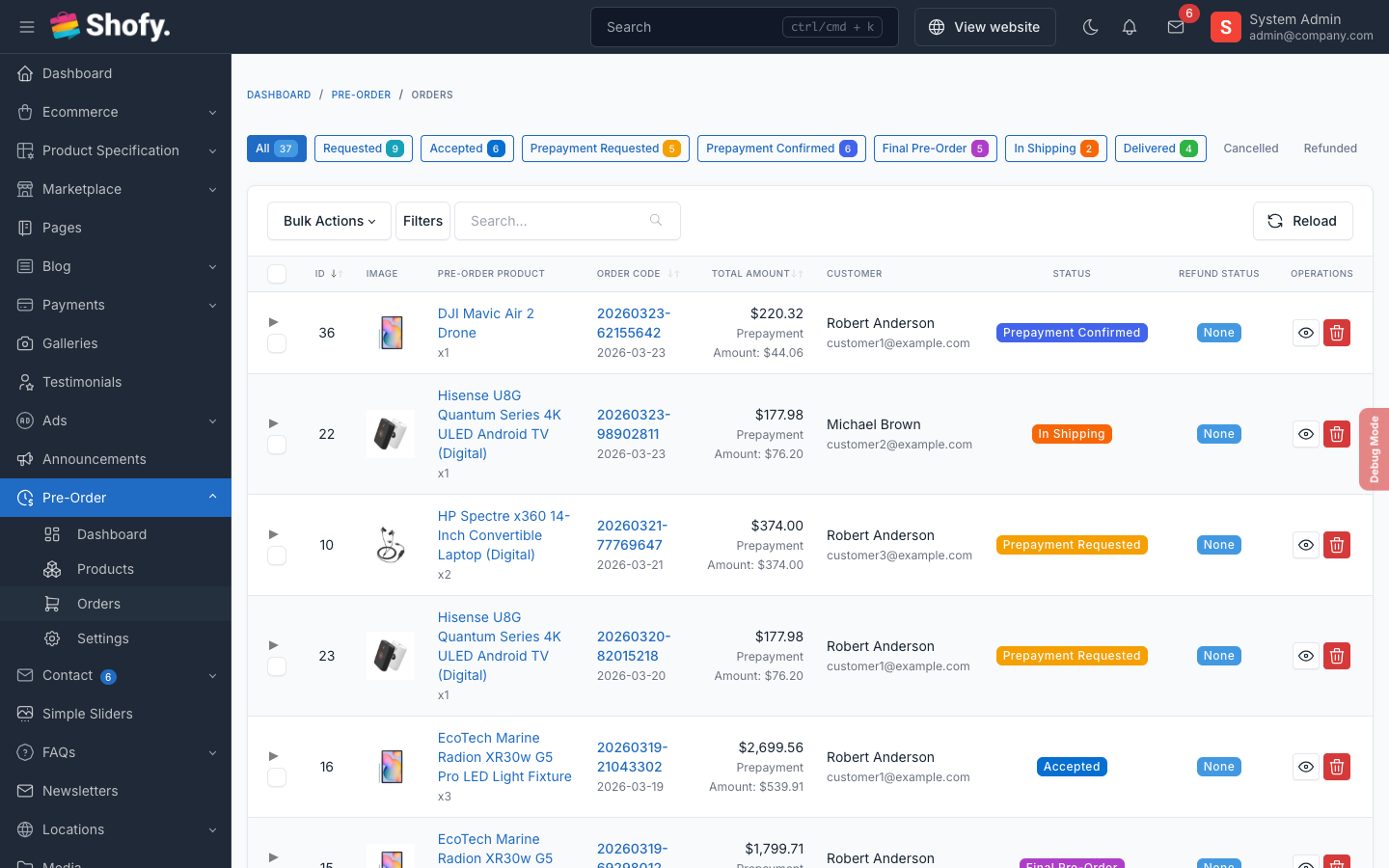
Use the status filter to show only orders in a specific status (e.g., show only "Prepayment Requested" orders that need attention).
Order detail
Click an order to view full details:
- Customer info — Name, email, link to their account
- Product info — Name, quantity, variant details
- Pricing breakdown — Product price, discount, prepayment amount, balance due, total
- Status timeline — Timestamps for each status change (prepaid_at, confirmed_at, shipped_at, delivered_at)
- Payment links — Links to prepayment and final payment records
Updating status
- Open an order at Preorder > Orders > Click order
- Use the status dropdown to select the next status
- Click Save
The plugin validates transitions automatically — invalid next statuses are not available in the dropdown.
Two-Stage Payment
For deposit-based preorders, payment happens in two stages:
Stage 1: Prepayment (Deposit)
- Customer places preorder → status is Requested
- You review and Accept the preorder
- You set status to Prepayment Requested — customer gets notified
- Customer pays the deposit from their dashboard (via COD, bank transfer, Stripe, or PayPal)
- On successful payment, status automatically moves to Prepayment Confirmed
Stage 2: Final Payment (Balance)
- When the product is ready, you advance the order to Final Order stage
- Customer pays the remaining balance from their dashboard
- Payment is linked to the order record
- You ship the product → set status to In Shipping
- Product delivered → set status to Delivered
Full price orders
For full-price preorders (no deposit split), the customer pays the complete amount at checkout. The order still moves through the same statuses, but there's no separate prepayment stage.
Payment tracking
Each preorder order tracks two payment references:
| Field | What it stores |
|---|---|
prepayment_payment_id | Links to the deposit payment record |
final_payment_id | Links to the balance payment record |
You can click through to view payment details in the standard Ecommerce payment records.
Refund Management
Refund statuses
| Status | Description |
|---|---|
| None | No refund requested |
| Requested | Customer submitted a refund request |
| Approved | Admin approved the refund |
| Refunded | Refund completed |
| Rejected | Admin rejected the refund request |
When a refund can be requested
Two conditions must be met:
- The order status is Cancelled
- The preorder product has Is Refundable enabled
Processing a refund
- Customer requests a refund from their dashboard
- You see the refund request at Preorder > Orders (refund status column shows "Requested")
- Open the order and review the request
- Approve or reject the refund
- If approved, process the actual refund through your payment provider manually
Integration with Ecommerce Orders
When a customer completes checkout with preorder items, this happens automatically:
- A standard ecommerce order is created
- The plugin detects preorder items in the order
- A
PreorderOrderrecord is created linking to the ecommerce order - Product prices in the order are overridden to the prepayment amount
- Order totals and invoice are recalculated
- The preorder product's slot counter increments
Order Codes
Preorder orders use a unique code format: YYYYMMDD-XXXXXXXX (date prefix + 8 random characters, e.g., 20260324-A1B2C3D4). This is separate from the main ecommerce order number.
Troubleshooting
Order stuck in "Requested" status
The admin needs to manually advance the order. Go to Preorder > Orders, open the order, and change status to Accepted.
Payment not linking to preorder order
- Check your payment gateway callbacks are configured correctly
- Check the
prepayment_payment_idandfinal_payment_idfields on the order record - Review server logs:
storage/logs/laravel.log
Customer says they paid but status didn't change
- Check the payment record in Ecommerce > Payments — verify it shows as completed
- If the payment callback failed, manually update the preorder status to Prepayment Confirmed
- Link the payment record to the preorder order if needed
Preorder items showing wrong price in order
The plugin overrides cart prices to the prepayment amount at checkout. If prices look wrong:
- Check the preorder product's pricing configuration
- Check if other price-modifying plugins (e.g., Wholesale) are also active
- Clear cart and re-add the product