
Analytics
Show Google Analytics traffic reports as widgets on the admin dashboard.
This page does not add tracking code to your site
Settings → Google Analytics is read-only reporting: it uses a service account to pull report data into the admin dashboard. It does not inject gtag.js, GTM, or any pixel into your frontend.
To install tracking code on your site, use Settings → Website Tracking — see Website Tracking. The two are configured independently, and most sites need both.
Getting credentials
Navigate to Settings -> Others -> Google Analytics to find instructions for integrating with Google Analytics.
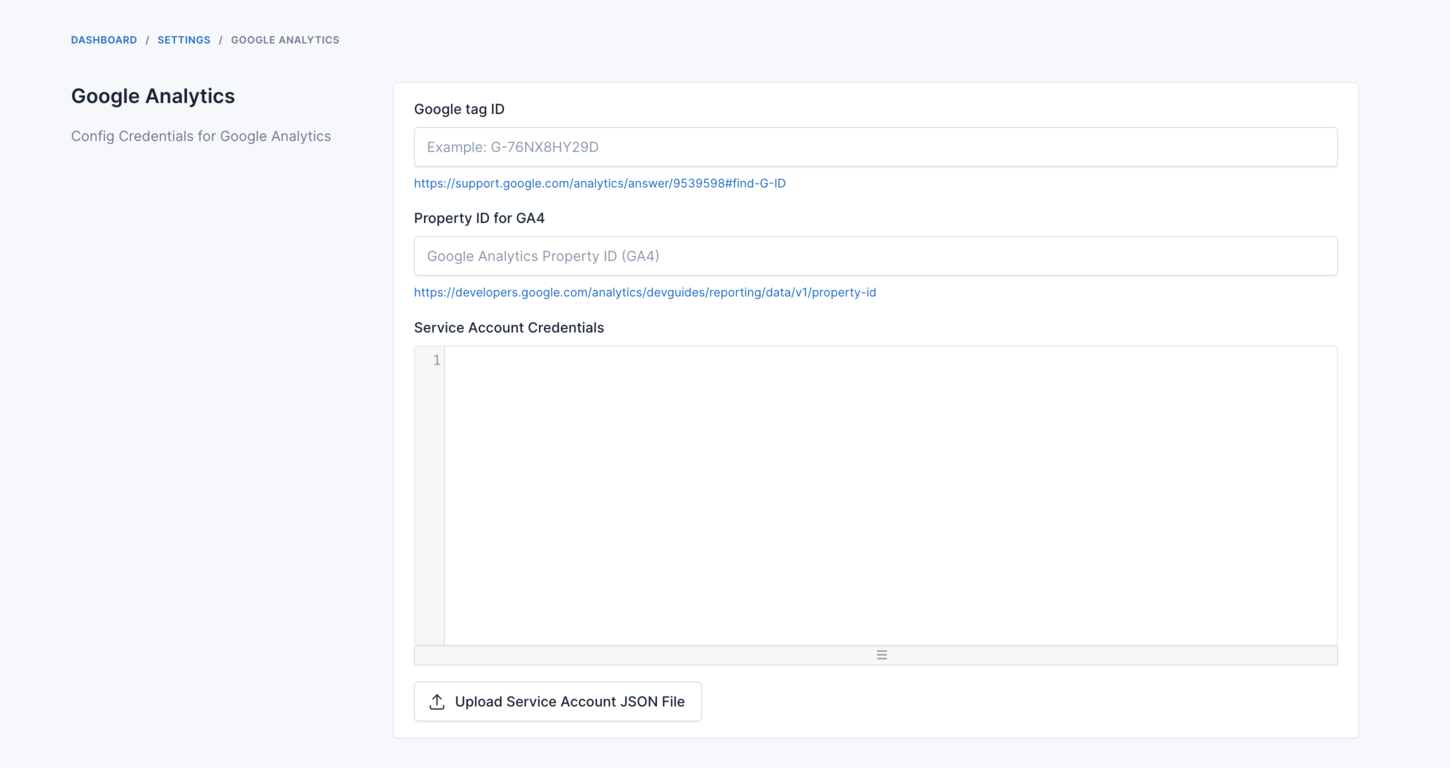
- Google tag ID: Follow this link to find your Google Tag ID.
- Property ID: Visit this link to find your Property ID.
- Service Account Credentials: Follow the instructions here to set up Service Account Credentials.
After obtaining the JSON credential file, open it and copy its content to the "Service Account Credential" field.
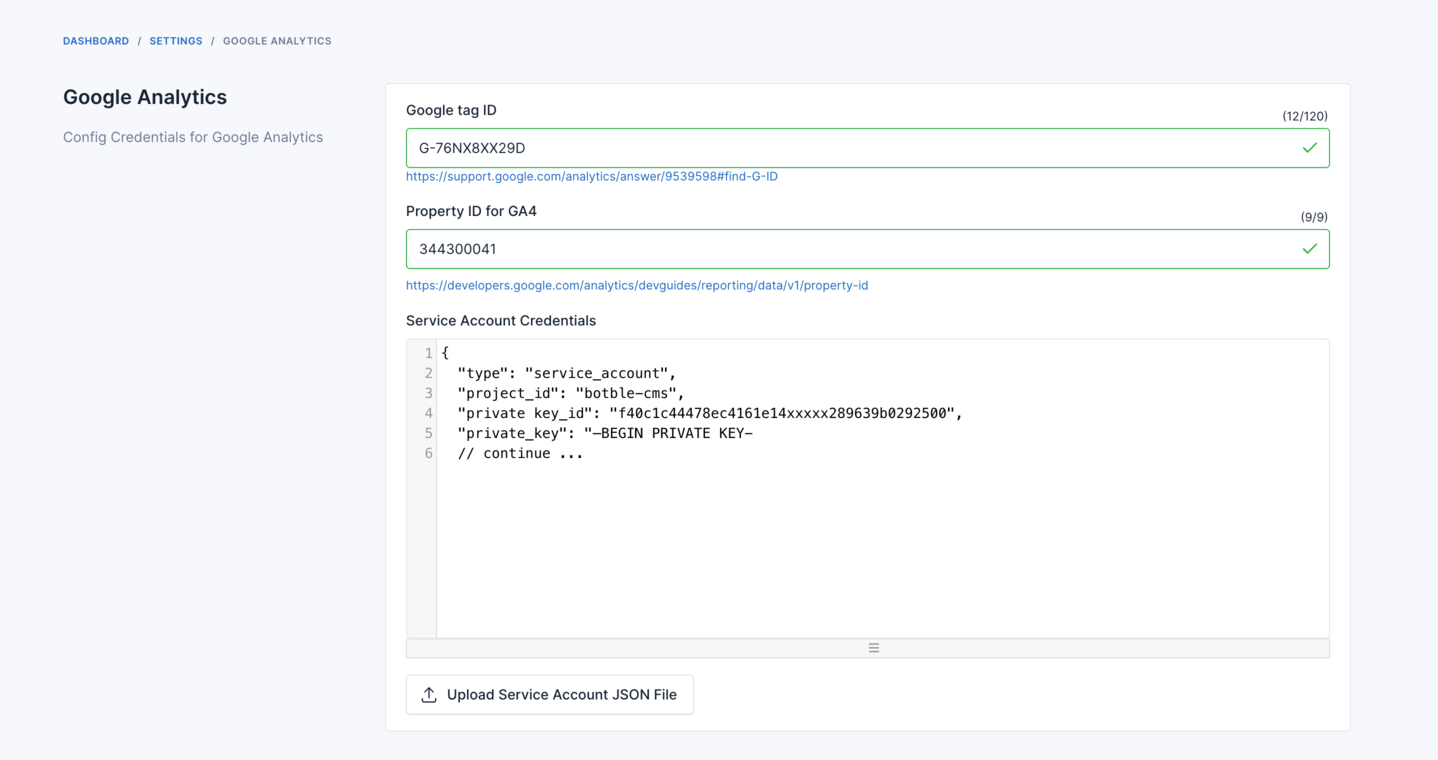
Watch this video for a visual guide.
Troubleshooting
Service Not Enabled Error
If you encounter the "Service is not enabled" error:
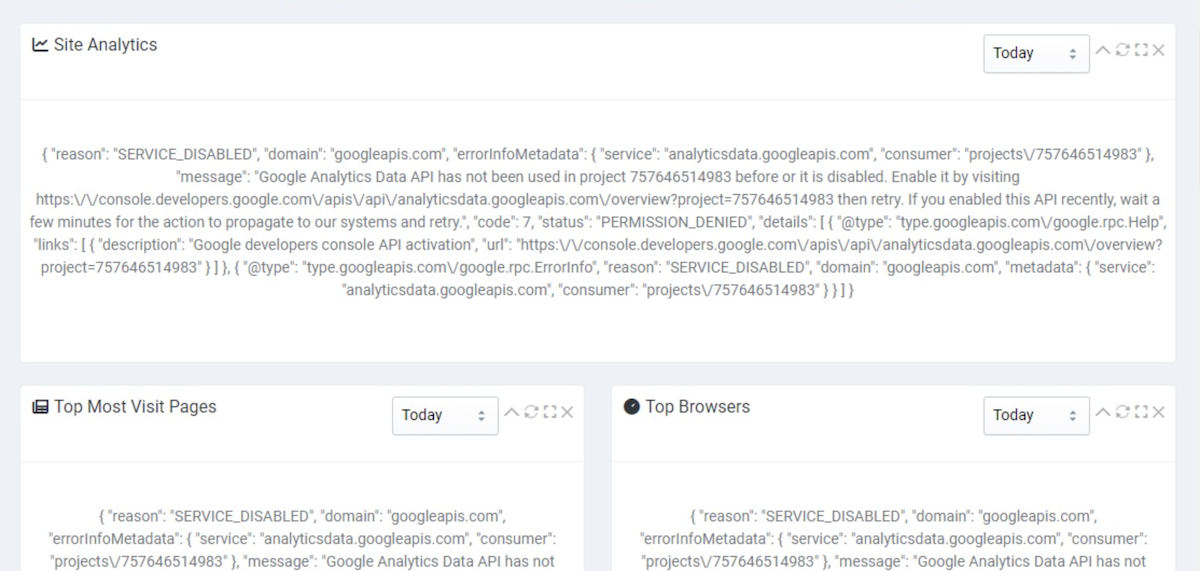
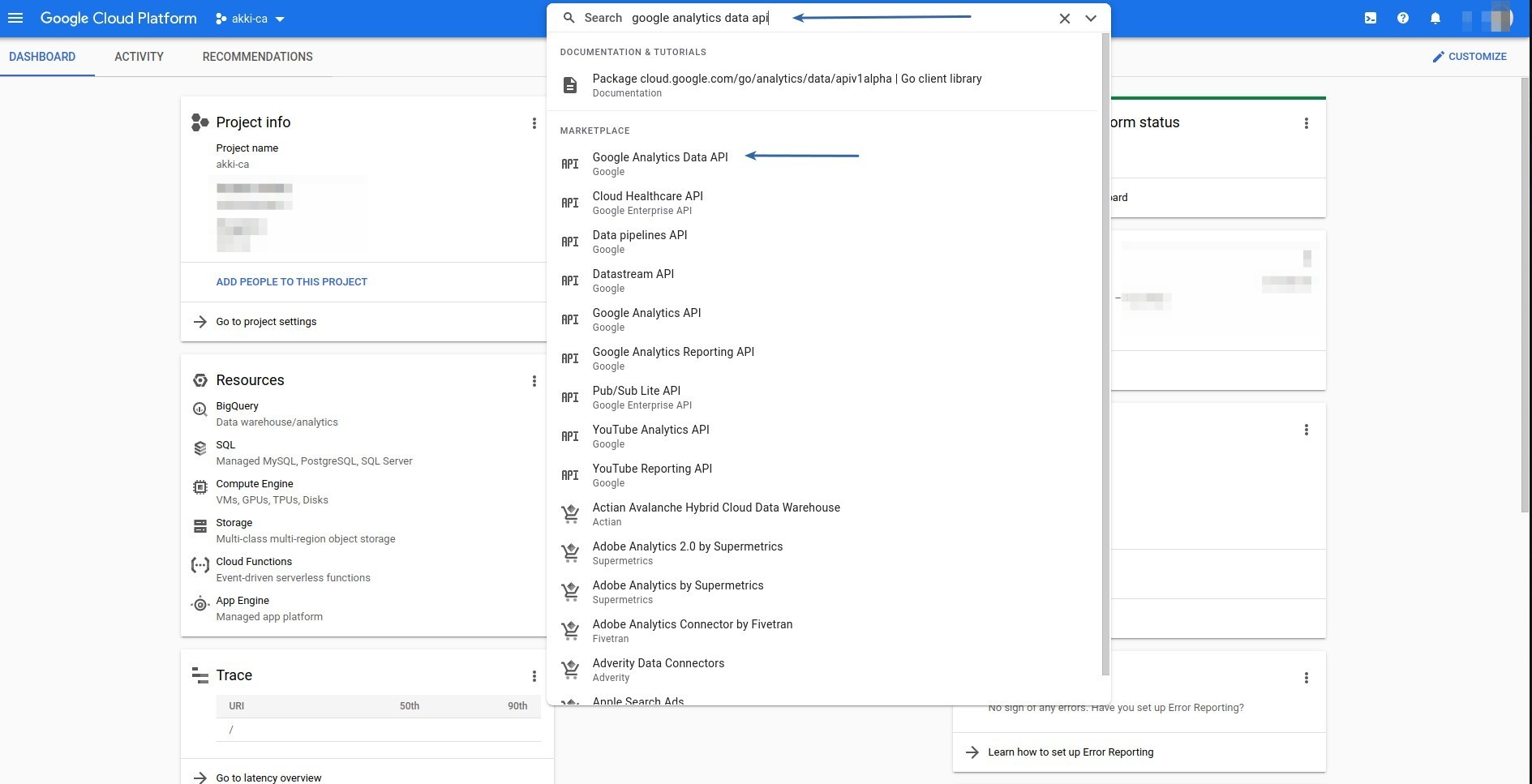
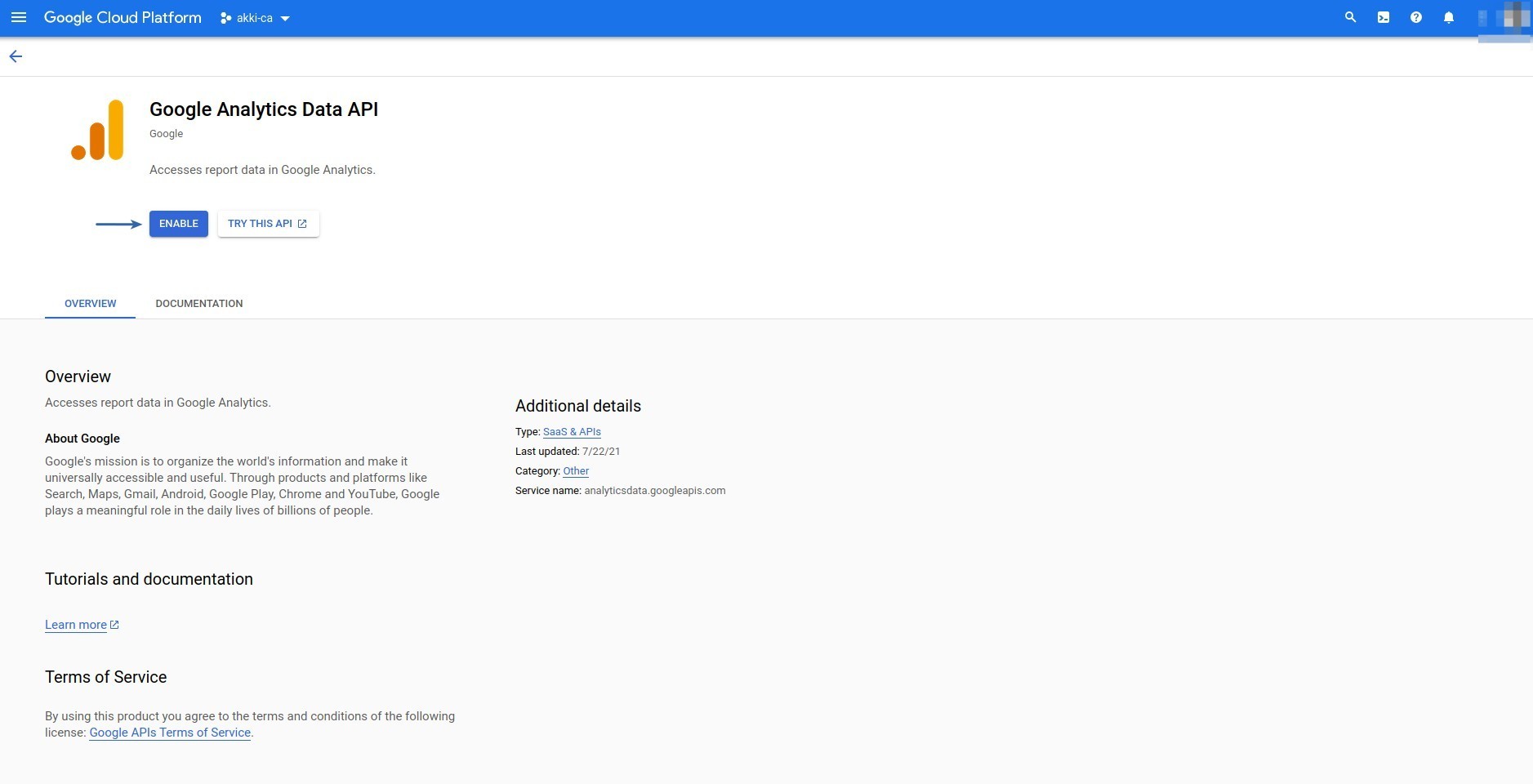
Enable Google Analytics Data API
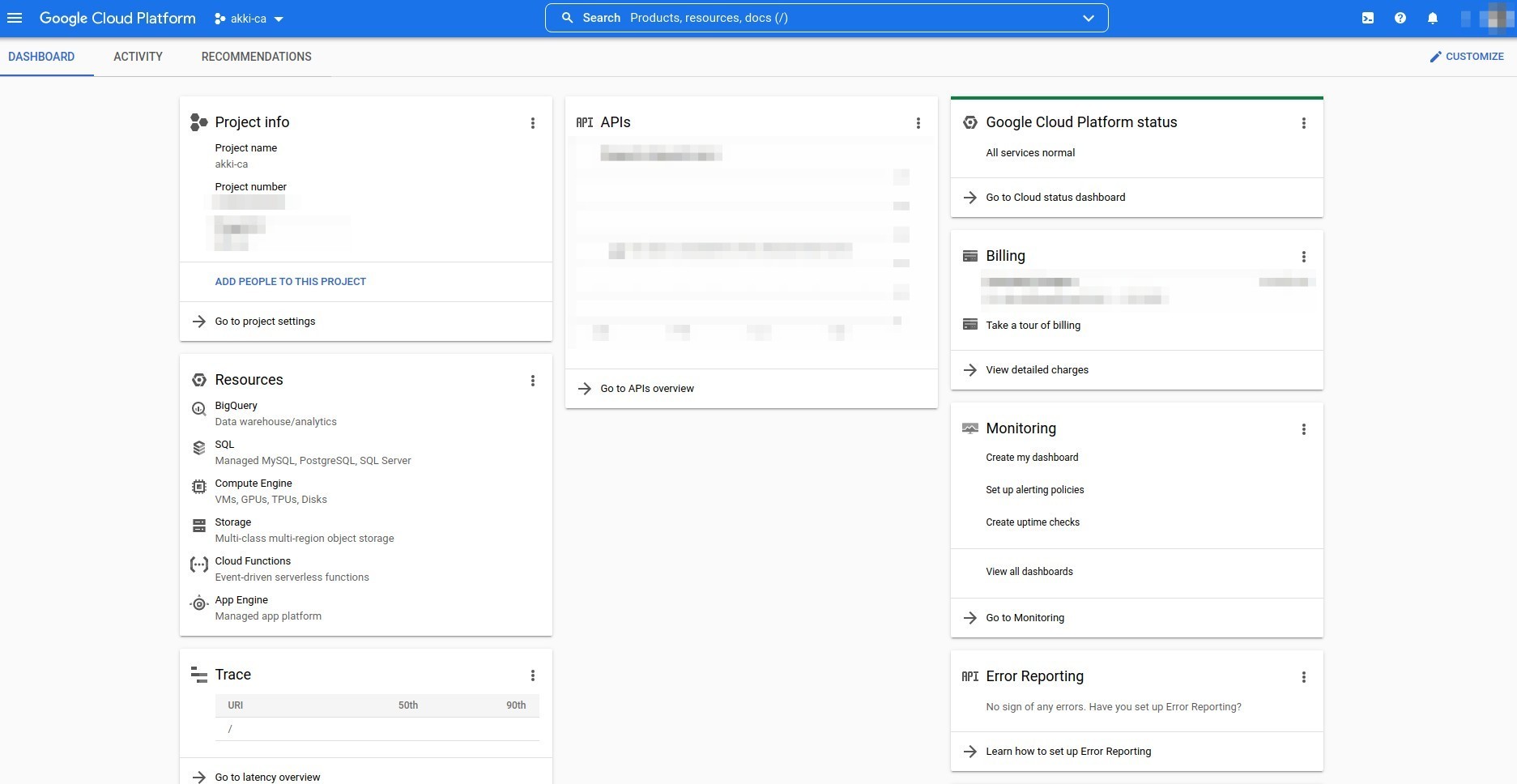
Go to your Google Cloud Console, select your project, search for "APIs & Services", and enable the "Google Analytics Data API".
Setup Timezone and Clear Cache
In admin panel, go to ->
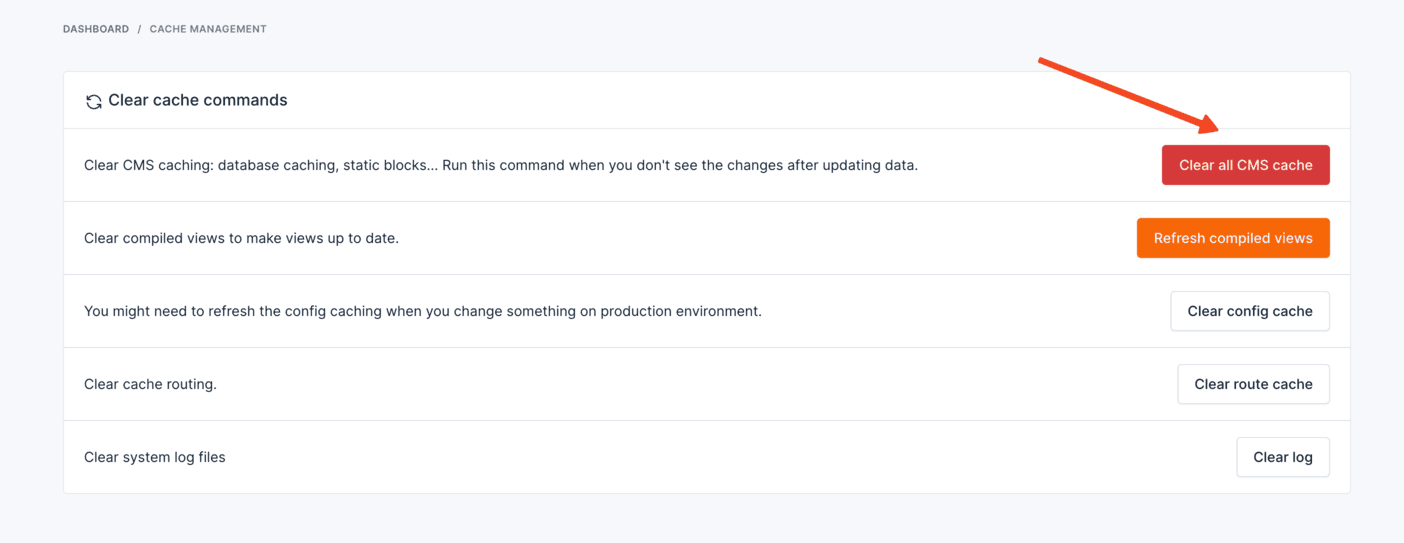
Settings->Generaland set your local timezone. Then, go toPlatform Administration->Cache Managementand clear your site cache.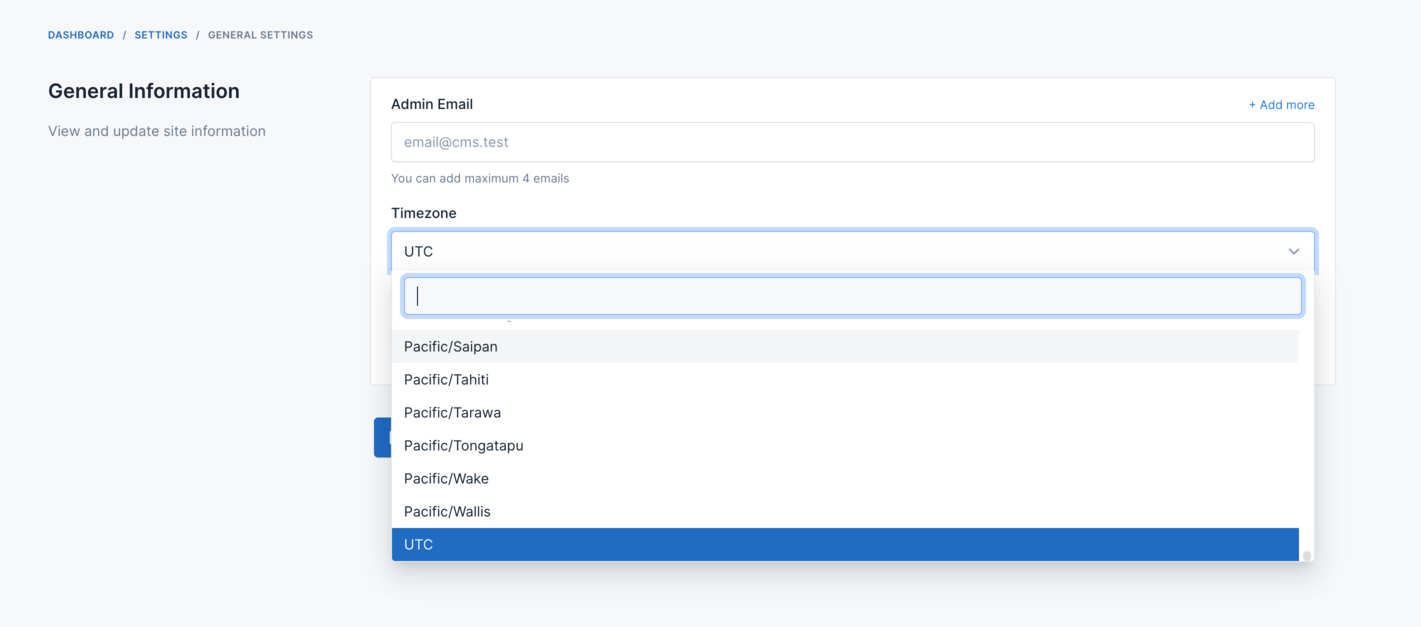
TIP
The analytics data in the Admin dashboard is displayed daily and resets every day. It is not real-time data but data from the API. Please wait until your site has data from the API.