
Changing Theme Colors
Overview
The app supports fully customizable brand colors through the .env configuration file. This allows you to change your app's color scheme without modifying any code.
Brand Colors Configuration
All brand colors can be configured in your .env file using hex color values (without the # symbol).
Primary Colors
Open your .env file and add or modify these settings:
# Primary Color - main brand color used for buttons, highlights, app bar background
# Default: FFB800 (yellow/gold)
PRIMARY_COLOR=FFB800

# Primary Dark Color - darker shade for pressed/active states
# Default: E6A600 (darker yellow/gold)
PRIMARY_DARK_COLOR=E6A600
Examples:
- Red theme:
PRIMARY_COLOR=F44336andPRIMARY_DARK_COLOR=D32F2F - Blue theme:
PRIMARY_COLOR=2196F3andPRIMARY_DARK_COLOR=1976D2 - Green theme:
PRIMARY_COLOR=4CAF50andPRIMARY_DARK_COLOR=388E3C - Purple theme:
PRIMARY_COLOR=9C27B0andPRIMARY_DARK_COLOR=7B1FA2
Text/Icon Colors on Primary Backgrounds
# On Primary Color - text/icons displayed on primary color backgrounds (buttons, etc.)
# Use black (000000) for light primary colors, white (FFFFFF) for dark primary colors
# Default: 000000 (black)
ON_PRIMARY_COLOR=000000

# App Bar Foreground Color - icons, text, back button in app bar
# Default: 000000 (black)
APP_BAR_FOREGROUND_COLOR=000000
Accent Colors
Accent colors are used for special sections like the Free Shipping banner and search button:
# Accent Background Color - background for accent sections (Free Shipping banner, search button)
# Default: 212121 (dark gray)
ACCENT_BACKGROUND_COLOR=212121

# Accent Foreground Color - text/icons on accent backgrounds
# Default: FFFFFF (white)
ACCENT_FOREGROUND_COLOR=FFFFFF
Complete Color Configuration Example
Here's a complete example for a blue-themed app:
# =============================================================================
# Brand Colors (use hex color without #)
# =============================================================================

# Primary Color - main brand color
PRIMARY_COLOR=2196F3

# Primary Dark Color - darker shade for pressed states
PRIMARY_DARK_COLOR=1976D2

# On Primary Color - text/icons on primary backgrounds
# Use FFFFFF (white) for dark primary colors
ON_PRIMARY_COLOR=FFFFFF

# App Bar Foreground Color - icons/text in app bar
APP_BAR_FOREGROUND_COLOR=FFFFFF

# =============================================================================
# Accent Colors
# =============================================================================

# Accent Background Color
ACCENT_BACKGROUND_COLOR=1565C0

# Accent Foreground Color
ACCENT_FOREGROUND_COLOR=FFFFFF
Applying Changes
After modifying the .env file:
- Stop the app completely (Ctrl+C or stop button)
- Run the app again:bash
flutter run
Important: Hot reload (r) and hot restart (R) will NOT apply .env changes. You must fully restart the app.
Theme-Specific Colors
The app also uses theme-specific colors that adapt to light and dark modes. These are defined in lib/src/theme/app_colors.dart:
| Category | Light Mode | Dark Mode |
|---|---|---|
| Background | #FFFFFF | #121212 |
| Surface | #FFFFFF | #1E1E1E |
| Card Background | #FFFFFF | #2C2C2C |
| Primary Text | #212121 | #FFFFFF |
| Secondary Text | #757575 | #B3B3B3 |
| Hint Text | #9E9E9E | #666666 |
| Border | #E0E0E0 | #404040 |
Status Colors (consistent across themes)
These colors are used for status indicators and cannot be changed via .env:
| Color | Hex | Usage |
|---|---|---|
| Success | #4CAF50 | Success messages, confirmations |
| Error | #F44336 | Error messages, alerts |
| Warning | #FF9800 | Warning messages |
| Info | #2196F3 | Information messages |
| Price | #E1332D | Product prices |
Using Theme Colors in Code
The AppColors class provides helper methods to get the appropriate color based on the current theme:
// Get configurable colors
Color primaryColor = AppColors.primary;
Color appBarForeground = AppColors.appBarForeground;
Color accentBg = AppColors.accentBackground;

// Get theme-aware colors
Color bgColor = AppColors.getBackgroundColor(context);
Color textColor = AppColors.getPrimaryTextColor(context);
Color borderColor = AppColors.getBorderColor(context);
Color cardBg = AppColors.getCardBackgroundColor(context);
Color Picker Tools
Need help choosing colors? Try these online tools:
Screenshots
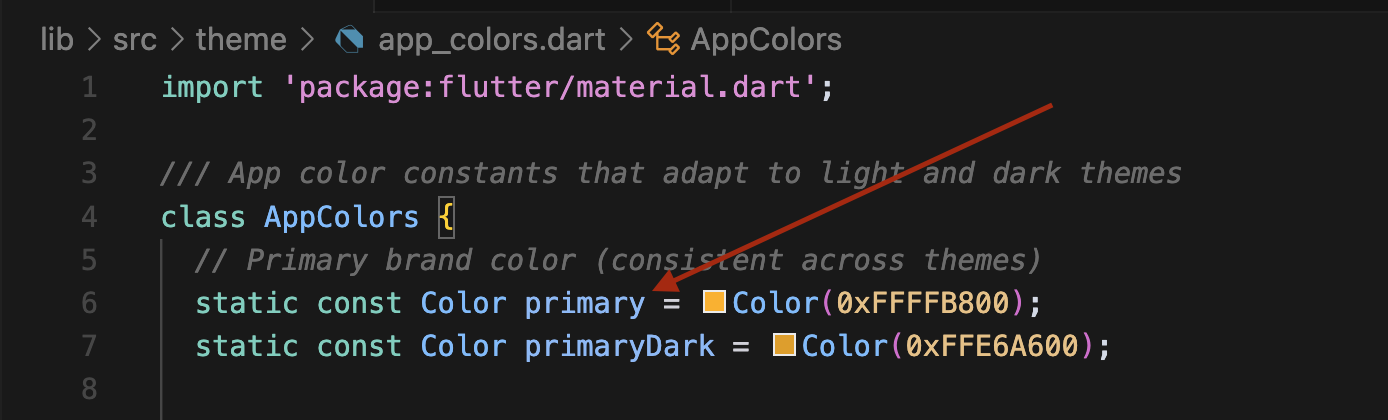 Example of theme color configuration in the app