
Configuring Product Gifts
This guide will walk you through the process of configuring the Product Gifts plugin for your Botble E-commerce store.
Accessing Product Gifts Settings
- Log in to your admin panel
- Navigate to Settings > Ecommerce > Product Gifts
- You will see the Product Gifts configuration page
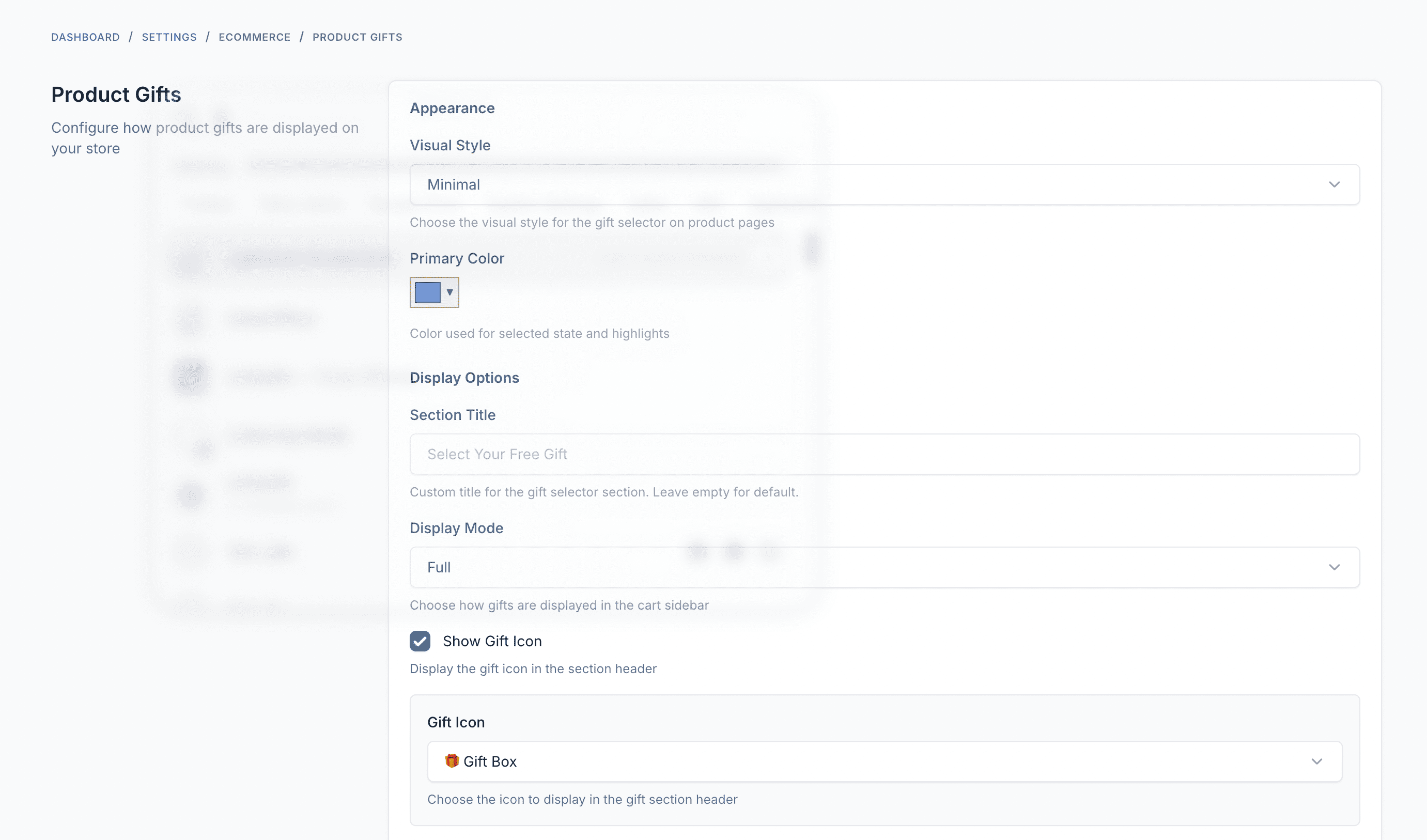
Appearance Settings
Display Style
Choose how gift options are displayed to customers:
| Style | Description |
|---|---|
| Minimal | Clean, simple layout with essential information only |
| Classic | Traditional layout with balanced visual elements |
| Modern | Contemporary design with larger visuals |
| Elegant | Refined presentation with subtle styling |
Primary Color
Customize the accent color used for selected gift options and interactive elements. This color will be applied to:
- Selected gift option borders
- Radio button indicators
- Hover states
Default: #3b82f6 (Blue)
Display Settings
Section Title
Set a custom title for the gift selection section. If left empty, the default translation will be used: "Select Your Free Gift"
Examples:
- "Choose Your Free Gift!"
- "Claim Your Bonus Product"
- "Your Free Gift Awaits"
Display Mode
Choose how much information to display:
| Mode | Description |
|---|---|
| Full | Shows all gift details including images, names, and prices |
| Compact | Condensed view with essential information only |
Show Icon
Toggle to display an emoji icon next to the gift section title.
Icon Selection
When icons are enabled, choose from these options:
| Icon | Name |
|---|---|
| 🎁 | Gift Box (default) |
| 🎀 | Ribbon |
| 🎊 | Confetti |
| 🎉 | Party |
| ⭐ | Star |
| 💝 | Heart Gift |
| 🎄 | Christmas Tree |
| 🎃 | Pumpkin |
| 🌟 | Glowing Star |
| ✨ | Sparkles |
Show Product Image
Toggle to display gift product images in the selection interface.
Recommendation
Keep this enabled for better visual recognition of gift products.
Show Original Price
Toggle to display the original price of gift products (struck through) next to the "FREE" label.
Example with original price shown:
$29.99FREE
Example without original price:
FREE
Creating Gift Rules
Basic Information
When creating a gift rule, configure:
| Field | Description |
|---|---|
| Name | Internal name for the rule (shown in admin) |
| Minimum Order Value | Cart subtotal required to qualify for this gift |
| Status | Published (active) or Draft (inactive) |
| Start Date | When the promotion becomes active (optional) |
| End Date | When the promotion expires (optional) |
Targeting Options
Apply to All Orders
The gift will be available for any order meeting the minimum value requirement.
Apply to Specific Products
The gift only appears when specific products are in the cart:
- Select "Specific Products" from the Apply To dropdown
- Search and select the qualifying products
- Cart must contain at least one of these products AND meet minimum value
Apply to Specific Categories
The gift only appears when products from specific categories are in the cart:
- Select "Specific Categories" from the Apply To dropdown
- Select the qualifying categories
- Cart must contain at least one product from these categories AND meet minimum value
Gift Products
Add products that customers can receive as free gifts:
- Click "Add Product" in the Gift Products section
- Search and select the gift product
- Set the quantity (default: 1)
- Repeat for multiple gift options
Important
- Gift products must be in stock
- Quantity must not exceed available stock
- Out-of-stock gifts are automatically hidden
Multiple Gift Tiers
You can create multiple gift rules with different minimum values to create tiered promotions:
Example Tier Structure:
| Tier | Minimum Order | Gift Options |
|---|---|---|
| Bronze | $50 | Small gift item |
| Silver | $100 | Medium gift item |
| Gold | $200 | Premium gift item |
When a customer qualifies for multiple tiers, they can select one gift from each qualifying tier.
Permissions
Product Gifts includes these permissions that can be assigned to user roles:
| Permission | Description |
|---|---|
product-gifts.index | Access to Product Gifts menu |
product-gifts.create | Create new gift rules |
product-gifts.edit | Edit existing gift rules |
product-gifts.destroy | Delete gift rules |
product-gifts.settings | Access to settings page |
Managing Permissions
- Go to Users > Roles
- Edit a role (e.g., "Staff", "Manager")
- Find the "Product Gifts" section in permissions
- Check/uncheck permissions based on role requirements
- Save changes
Testing Your Configuration
After configuring the plugin, test the following:
1. Gift Rule Test
- Create a test gift rule with a low minimum (e.g., $10)
- Add a product to the rule as a gift
- Set status to Published
2. Cart Test
- Add products to cart totaling above the minimum
- Navigate to cart page
- Verify gift options appear
- Test selecting different gifts
- Remove items to go below minimum
- Verify gifts are hidden
3. Checkout Test
- Proceed to checkout with qualifying cart
- Verify gift selector appears
- Select a gift
- Complete the order
- Verify gift appears in order with $0 price
4. Targeting Test
If using product or category targeting:
- Create a rule targeting specific products/categories
- Add non-targeted products to cart
- Verify gift does NOT appear
- Add a targeted product
- Verify gift NOW appears
Troubleshooting Configuration Issues
Gifts Not Appearing
- Verify rule status is "Published"
- Check minimum order value vs cart subtotal
- Confirm start/end dates are valid
- Verify gift products are in stock
- Clear cache and refresh
Settings Not Saving
- Verify file permissions on
storage/directory - Clear cache:
php artisan cache:clear - Check database connection
- Review error logs
Style Changes Not Showing
- Clear browser cache (Ctrl+Shift+Delete)
- Clear CMS cache from admin panel
- Check for CSS conflicts with theme
Targeting Not Working
- Verify correct products/categories are selected
- Check that cart contains at least one qualifying item
- Confirm minimum value is also met
- Review rule configuration in admin
Configuration Best Practices
1. Set Realistic Minimums
- Analyze your average order value
- Set minimums slightly above average to encourage upselling
- Don't set too high or customers won't qualify
2. Choose Appealing Gifts
- Select products customers actually want
- Consider gift value vs minimum purchase
- Use products with good profit margins
3. Test Thoroughly
- Test all targeting scenarios
- Verify mobile responsiveness
- Check different browsers
- Test with and without stock issues
4. Monitor Performance
- Track gift redemption rates
- Monitor average order value changes
- Adjust rules based on results
Configuration Checklist
Use this checklist when setting up the plugin:
- [ ] Configure display style
- [ ] Set primary color (if custom)
- [ ] Configure display mode (full/compact)
- [ ] Enable/disable icon
- [ ] Select icon (if enabled)
- [ ] Configure image display
- [ ] Configure price display
- [ ] Create at least one gift rule
- [ ] Add gift products to rule
- [ ] Set appropriate minimum values
- [ ] Configure targeting (if needed)
- [ ] Test cart integration
- [ ] Test checkout integration
- [ ] Test order completion
- [ ] Configure admin permissions
If you continue to encounter configuration issues, please refer to the Troubleshooting section or contact our support team.