
Admin Dashboard
The Product Gifts admin interface lets you create and manage gift promotion rules for your store.
How to Access
- Log in to your admin panel
- Click Ecommerce in the left menu
- Click Product Gifts
- You'll see the gift rules list
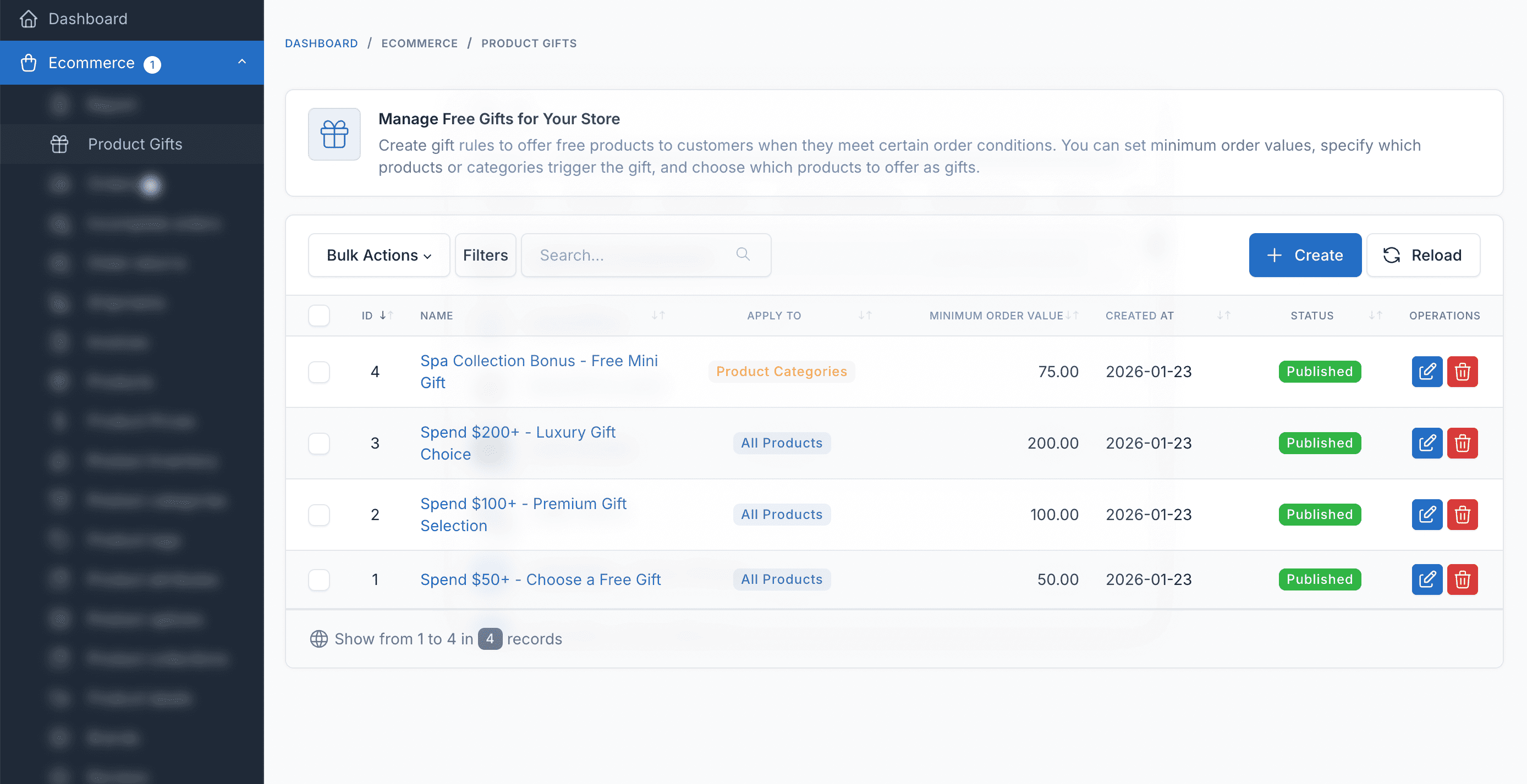
What You'll See
Gift Rules Table
The main view shows all your gift rules in a table:
| Column | What It Shows |
|---|---|
| ID | Unique rule identifier |
| Name | Rule name (your internal reference) |
| Min Order Value | Cart total required to qualify |
| Apply To | Targeting mode (All, Products, Categories) |
| Status | Published (active) or Draft (inactive) |
| Created At | When the rule was created |
Status Badges
| Badge | Meaning |
|---|---|
| 🟢 Published | Rule is active and will appear to customers |
| ⚪ Draft | Rule is inactive and hidden from customers |
Apply To Badges
| Badge | Meaning |
|---|---|
| 🔵 All | Applies to all orders |
| 🔷 Products | Only for specific products |
| 🟡 Categories | Only for specific categories |
Quick Actions
From the gift rules list, you can:
Create New Rule
- Click the Create button in the top right
- Fill in the rule details
- Add gift products
- Save and publish
Edit a Rule
- Click the Edit button (pencil icon) on any rule
- Modify settings as needed
- Save changes
Delete a Rule
- Click the Delete button (trash icon)
- Confirm deletion
- Rule and its gift items are removed
Bulk Actions
- Select multiple rules using checkboxes
- Choose a bulk action (Delete, Change Status)
- Apply to all selected rules
Creating a Gift Rule
Step 1: Basic Information
| Field | Description | Example |
|---|---|---|
| Name | Internal name for the rule | "Summer Sale Gift" |
| Min Order Value | Minimum cart total | 50.00 |
| Status | Active or inactive | Published |
Step 2: Targeting
Choose who qualifies for this gift:
All Orders (Default)
- Any order meeting minimum value qualifies
Specific Products
- Search and select products
- Cart must contain at least one selected product
- AND meet minimum value
Specific Categories
- Select product categories
- Cart must contain a product from selected categories
- AND meet minimum value
Step 3: Date Range (Optional)
| Field | Description |
|---|---|
| Start Date | When promotion becomes active |
| End Date | When promotion expires |
Leave blank for no date restrictions.
Step 4: Add Gift Products
- Click Add Product in the Gift Products section
- Search for a product by name
- Select the product
- Set quantity (usually 1)
- Repeat for multiple gift options
Multiple Gift Options
Adding multiple products lets customers CHOOSE which gift they want!
Managing Existing Rules
Editing a Rule
- Find the rule in the list
- Click the Edit button
- Modify any settings
- Update gift products if needed
- Click Save
Disabling a Rule Temporarily
Instead of deleting:
- Edit the rule
- Change status to Draft
- Save
The rule is preserved but hidden from customers.
Seasonal Rules
For holidays or seasonal promotions:
- Create the rule in advance
- Set Start Date to promotion start
- Set End Date to promotion end
- Status can be Published - dates control visibility
Copying a Rule
Currently, there's no copy button. To duplicate:
- Note all settings from existing rule
- Create new rule
- Enter the same settings
- Modify as needed
Tips for Managing Rules
Naming Convention
Use clear names that indicate:
- Purpose: "Holiday Gift" or "VIP Bonus"
- Tier: "Bronze Tier" or "Gold Tier"
- Dates: "Dec 2025 Promo"
Example names:
- "Bronze Gift - Orders $50+"
- "Holiday 2025 - Premium Gift"
- "Category: Electronics Bonus"
Organizing Multiple Rules
If you have many rules:
- Use consistent naming
- Review and archive old rules
- Set appropriate date ranges
- Group by minimum value tiers
Stock Considerations
- Check gift product stock regularly
- Low-stock gifts are automatically hidden
- Consider restocking popular gift items
- Use high-margin products as gifts
Next Steps
- Creating Gift Rules - Detailed rule creation
- Managing Rules - Advanced management
- Configuration - Settings and customization