
Creating Gift Rules
This guide walks you through creating effective gift promotion rules step by step.
Before You Start
Make sure you have:
- ✅ Products to use as gifts (in stock)
- ✅ A clear promotion strategy
- ✅ Minimum order value decided
Step-by-Step Guide
Step 1: Access Gift Rules
- Log in to admin panel
- Go to Ecommerce > Product Gifts
- Click the Create button
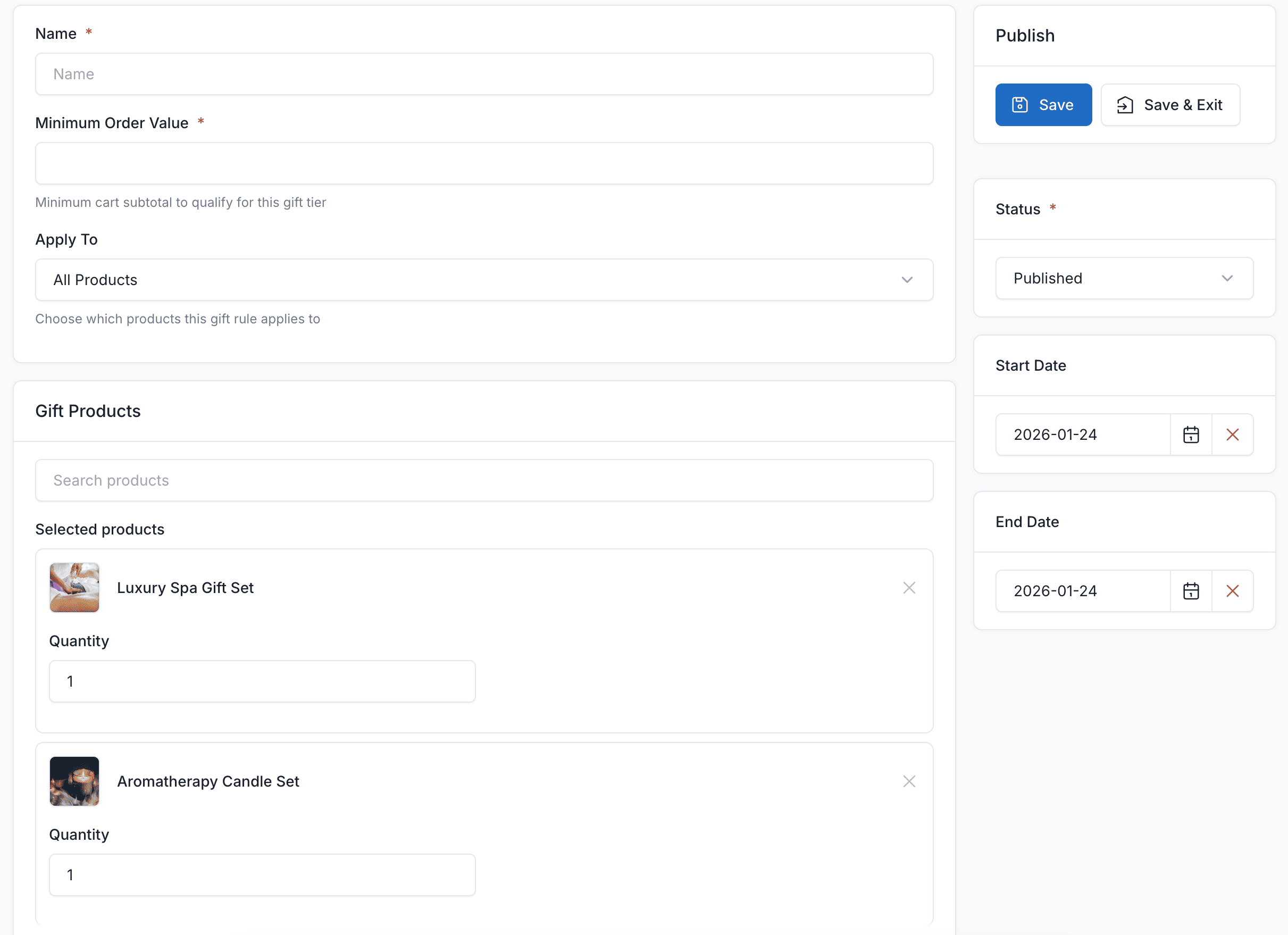
Step 2: Enter Basic Information
Rule Name
Enter a descriptive name for internal use:
Good examples:
- "Summer Sale - Free Tote Bag"
- "Orders $100+ - Bonus Sample Kit"
- "Electronics Category Gift"
Avoid:
- "Rule 1"
- "Gift"
- Unclear names
Minimum Order Value
Set the cart total customers must reach:
| Your Goal | Suggested Minimum |
|---|---|
| Entry-level gift | $25 - $50 |
| Mid-tier gift | $75 - $100 |
| Premium gift | $150+ |
Strategy
Set minimum slightly above your average order value to encourage customers to add more items.
Step 3: Configure Targeting
Choose how the gift rule applies:
Option A: All Orders
Select All to offer gifts on any qualifying order.
Best for:
- Store-wide promotions
- Simple gift programs
- General sales events
Option B: Specific Products
Select Specific Products to target certain items:
- Choose "Specific Products" from dropdown
- Search for products by name
- Select products that trigger this gift
- Customer must have at least one selected product in cart
Best for:
- Product launches
- Bundled promotions
- Cross-selling campaigns
Option C: Specific Categories
Select Specific Categories to target product categories:
- Choose "Specific Categories" from dropdown
- Select categories from the list
- Customer must have a product from selected categories
Best for:
- Category-specific promotions
- Departmental sales
- Seasonal category pushes
Step 4: Set Date Range (Optional)
Start Date
When the promotion activates:
- Leave blank for immediate activation
- Set future date for scheduled launches
End Date
When the promotion expires:
- Leave blank for no expiration
- Set date for limited-time offers
Example: Black Friday Promotion
- Start Date: November 25, 2025
- End Date: November 30, 2025
Step 5: Add Gift Products
This is where you define what customers receive:
- Scroll to Gift Products section
- Click Add Product
- Search for the gift product
- Select it from results
- Set quantity (default: 1)
- Repeat for additional options
Single Gift
Add one product for a straightforward offer:
- Customers automatically receive this gift
- No selection needed
Multiple Gift Options
Add multiple products to let customers choose:
- All options display to customer
- Customer selects their preferred gift
- Creates better engagement
Example: Multiple Options
Gift Rule: "Orders $75+ - Choose Your Gift"
├── Option 1: Travel Mug
├── Option 2: Tote Bag
└── Option 3: Sample Set
Step 6: Set Status
Choose the rule status:
| Status | Effect |
|---|---|
| Published | Rule is active, gifts appear to customers |
| Draft | Rule is saved but inactive |
WARNING
Only Published rules appear to customers!
Step 7: Save the Rule
- Review all settings
- Click Save or Save & Exit
- Rule is now active (if Published)
Testing Your New Rule
After creating a rule:
- Clear cache (Admin > Platform Admin > Cache)
- Open a new browser (or incognito window)
- Add products to cart matching your targeting
- Exceed minimum value
- Check cart page - gift options should appear
- Proceed to checkout - verify gift selector shows
- Complete test order - confirm gift is included
Common Rule Examples
Example 1: Simple Store-Wide Gift
Scenario: Offer a free canvas bag on orders over $50
| Setting | Value |
|---|---|
| Name | "Free Canvas Bag - $50+" |
| Min Order Value | 50 |
| Apply To | All |
| Gift Product | Canvas Shopping Bag |
| Quantity | 1 |
| Status | Published |
Example 2: Tiered Gift Program
Scenario: Multiple gift levels based on order value
Rule 1 - Bronze:
- Min: $50
- Gift: Small sample pack
Rule 2 - Silver:
- Min: $100
- Gift: Medium gift set
Rule 3 - Gold:
- Min: $200
- Gift: Premium bundle
Customers qualifying for multiple tiers get multiple gifts!
Example 3: Category-Specific Gift
Scenario: Free phone case when buying electronics
| Setting | Value |
|---|---|
| Name | "Electronics Purchase Gift" |
| Min Order Value | 75 |
| Apply To | Specific Categories |
| Categories | Electronics, Phones, Accessories |
| Gift Product | Universal Phone Case |
Example 4: Limited-Time Holiday Gift
Scenario: Christmas promotion with choice of gifts
| Setting | Value |
|---|---|
| Name | "Holiday 2025 Gift Selection" |
| Min Order Value | 100 |
| Apply To | All |
| Start Date | December 1, 2025 |
| End Date | December 25, 2025 |
| Gift Options | Holiday Ornament, Gift Card Holder, Festive Mug |
Best Practices
Gift Value Guidelines
| Order Minimum | Suggested Gift Value |
|---|---|
| $50 | $5 - $10 gift |
| $100 | $10 - $20 gift |
| $200 | $20 - $50 gift |
Choosing Gift Products
Good gift products:
- ✅ Relevant to your store/brand
- ✅ Appealing to customers
- ✅ Good profit margin
- ✅ Easy to ship
- ✅ In stock
Avoid as gifts:
- ❌ High-value items (cuts into profits)
- ❌ Large/heavy items (shipping costs)
- ❌ Low-stock items (will disappear)
- ❌ Items requiring special handling
Testing Checklist
- [ ] Rule appears in admin list
- [ ] Status shows as Published
- [ ] Gift shows in cart when qualified
- [ ] Gift hides when not qualified
- [ ] Selection saves properly
- [ ] Gift appears at checkout
- [ ] Order includes gift at $0
Troubleshooting New Rules
Gift Not Appearing
- Is status Published?
- Is cart value ≥ minimum?
- Is targeting satisfied?
- Are dates valid?
- Is gift product in stock?
- Did you clear cache?
Wrong Gift Showing
- Check if multiple rules overlap
- Review targeting settings
- Verify correct products are selected
Next Steps
- Managing Rules - Edit and organize rules
- Customer Guide - How customers see gifts
- Configuration - Customize appearance