Multi-language
Setting Up Languages
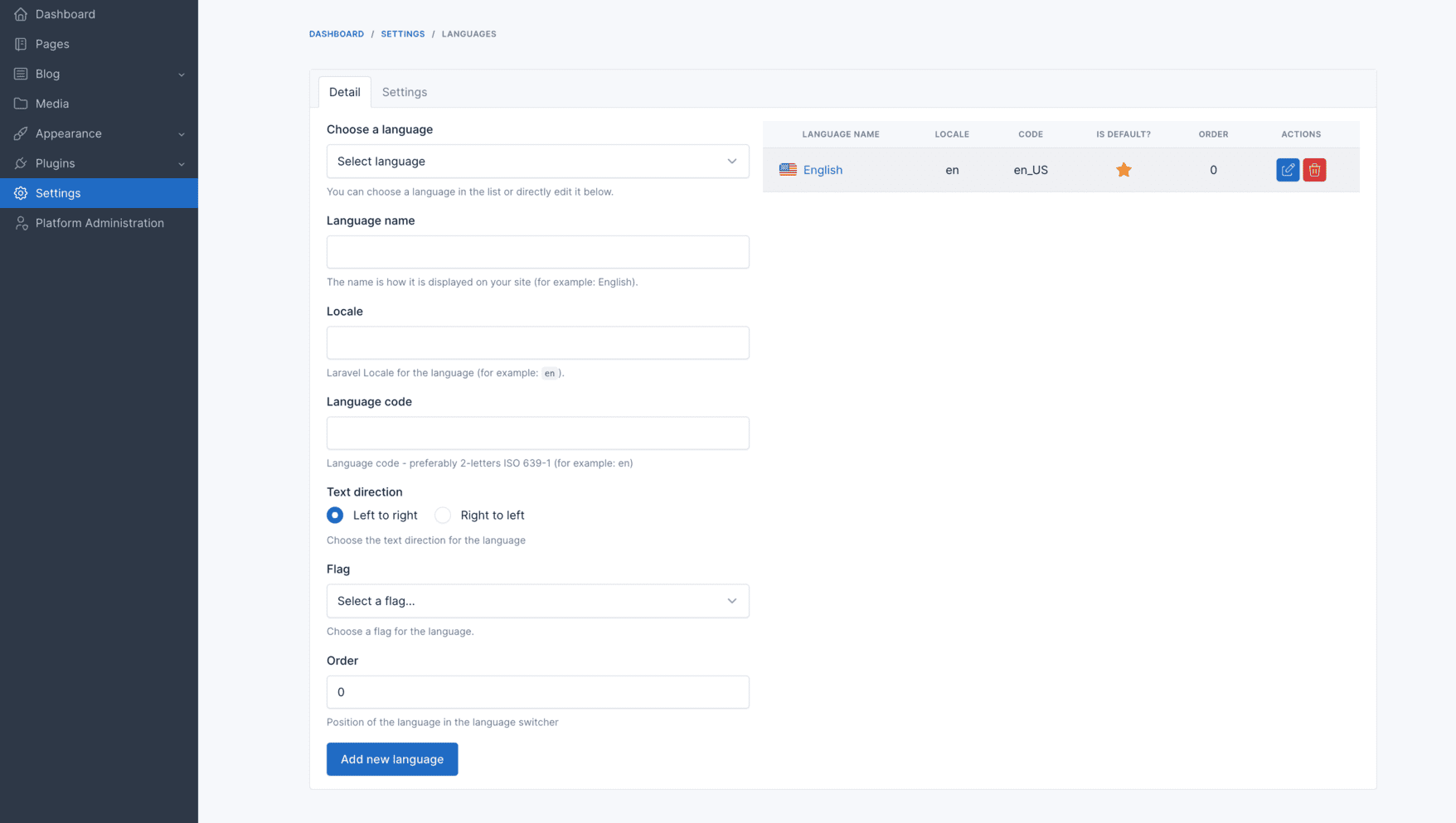
Navigate to admin panel and click to Settings -> Languages.
Changing the Default Language
Adding a New Language
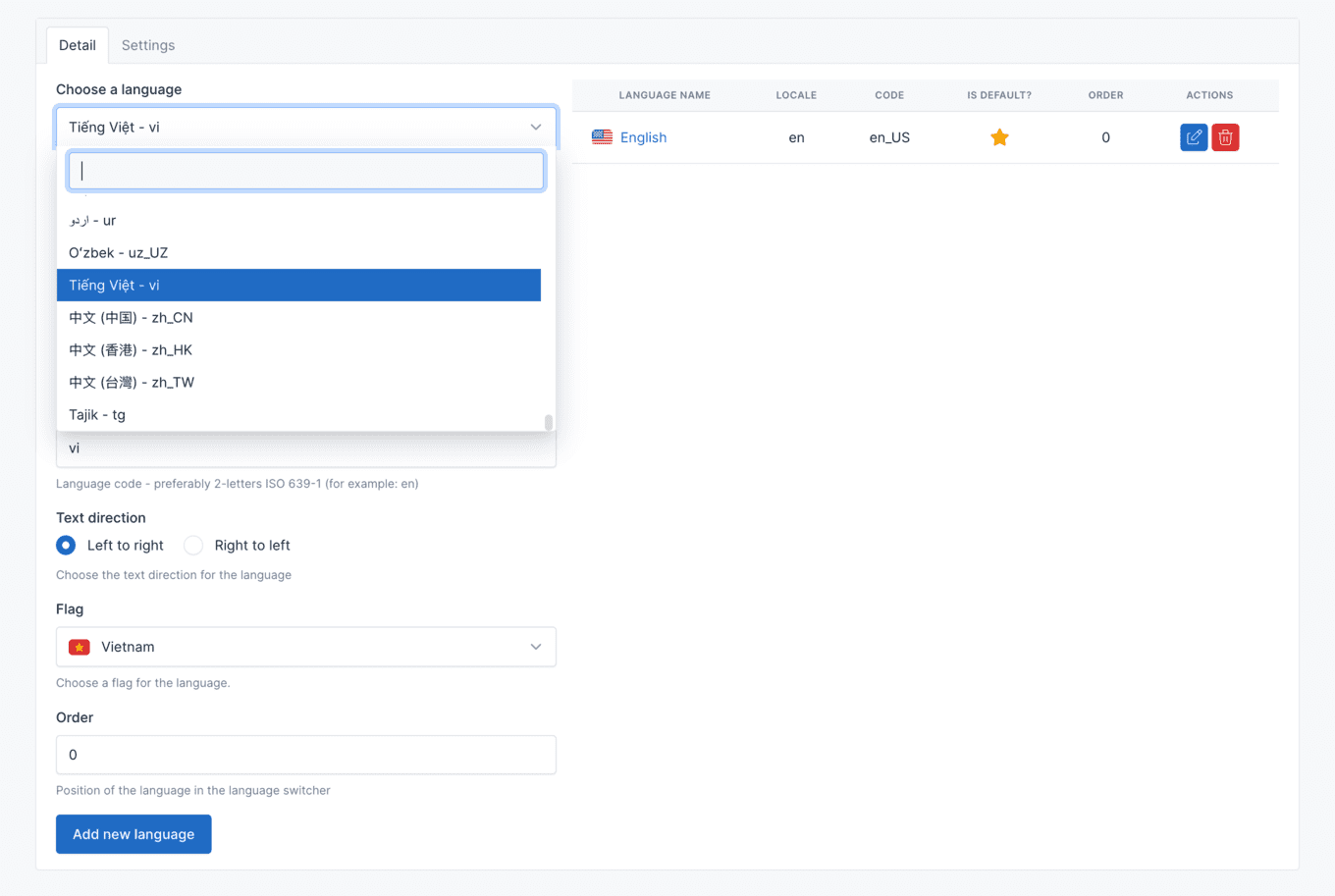
To change the default language, you first need to add the desired language. In this example, we will add **Tiếng Việt ** (Vietnamese) language.
Setting the Default Language
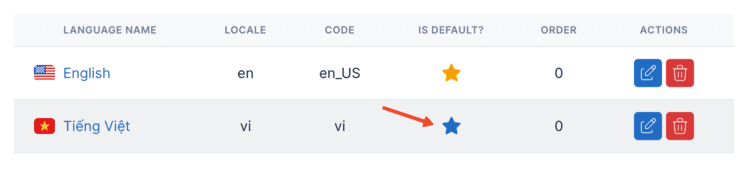
Once the language is added, click on the Is default? button in the Tiếng Việt row to make it the default language.
Shared vs Translatable Fields
When multiple languages are configured, most settings are stored per language. However, visual/design properties (colors, logos, layout styles) typically don't change between languages.
Botble CMS supports marking fields as shared so they are configured once and apply to all languages. Only text content fields need per-language translation.
Theme Options
Theme option fields and sections can be marked as shared using ->shared(). See the Theme Options documentation for details.
Examples of shared fields: primary color, logo image, layout style, social media URLs.
Examples of translatable fields: site title, copyright text, banner heading.
Widgets
Widgets fall back to the default language's configuration when no locale-specific widgets are set. See the Widget documentation for details.
Disabling Multi-language
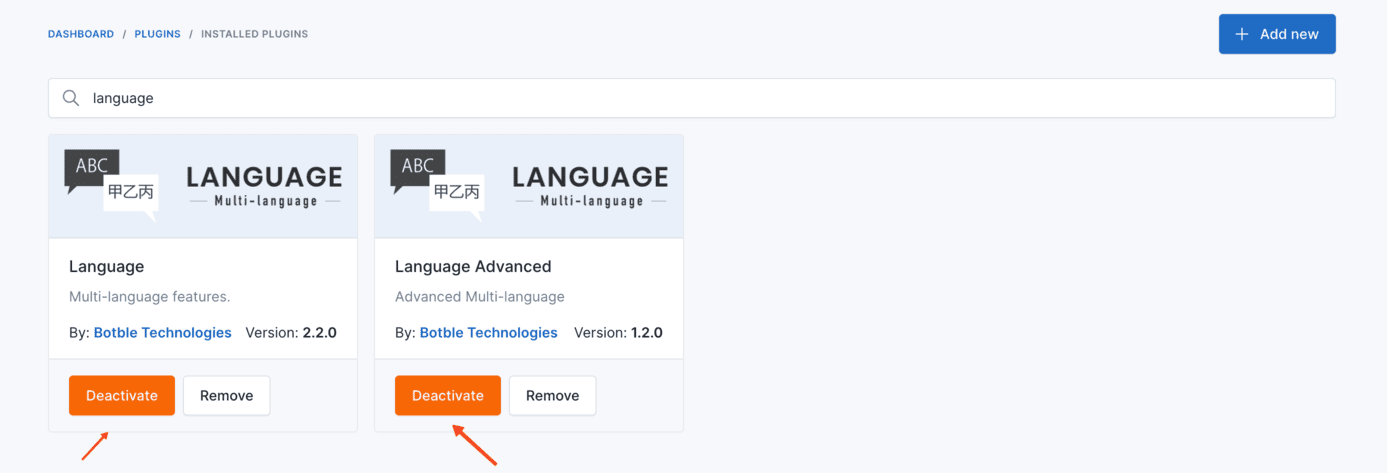
Navigate to Plugins -> Installed Plugins and type language in the search bar. Find the Language and Language Advanced plugins and disable them to disable multi-language functionality.