
Installation Guide
Simple steps to get your Botble Ecommerce Mobile App running on your computer.
Quick Start
What You Need
- A computer (Windows, Mac, or Linux)
- Node.js 18 or higher
- Internet connection
- About 30 minutes of your time
Step 1: Install Node.js
- Go to nodejs.org
- Download the LTS version (18 or higher)
- Run the installer
- Verify installation:bash
node --version
npm --version
Step 2: Install Expo CLI
bash
npm install -g expo-cliStep 3: Get the App Code
- Download your app files from CodeCanyon
- Extract them to a folder on your computer
- Remember where you put this folder!
Step 4: Install Dependencies
- Open Terminal (Mac/Linux) or Command Prompt (Windows)
- Navigate to your app folder:bash
cd path/to/your/ecommerce-mobile-app - Install dependencies:bash
npm install
Step 5: Configure Your App
Open the
.envfile and update your settings:env# Your website URL API_BASE_URL=https://your-website.com API_KEY=your-api-key APP_NAME=Your Store NameSave the file
See Configuration Guide for all customization options.
Step 6: Test the App
Start the development server:
bashnpm startYou'll see a QR code in the terminal
To run on specific platforms:
bash# iOS Simulator (Mac only) npm run ios # Android Emulator npm run android # Web browser npm run webOr scan the QR code with Expo Go app on your phone
Your app should start!
Development Tools
Recommended IDE
- VS Code with extensions:
- ESLint
- Prettier
- React Native Tools
- Tailwind CSS IntelliSense
Mobile Testing
- iOS: Xcode Simulator (Mac only)
- Android: Android Studio Emulator
- Physical Device: Expo Go app
If Something Goes Wrong
"npm not found"
- Make sure you installed Node.js correctly
- Restart your terminal/command prompt
- Try running
node --versionto check
"expo command not found"
- Install Expo CLI globally:bash
npm install -g expo-cli
"Cannot find module"
- Run these commands:bash
rm -rf node_modules
npm install
"Build failed"
- Clear cache and reinstall:bash
npm start -- --clear
"No devices found"
- For iOS: Make sure Xcode is installed (Mac only)
- For Android: Make sure Android Studio and emulator are set up
- For physical device: Install Expo Go app
Project Structure
After installation, you'll have this structure:
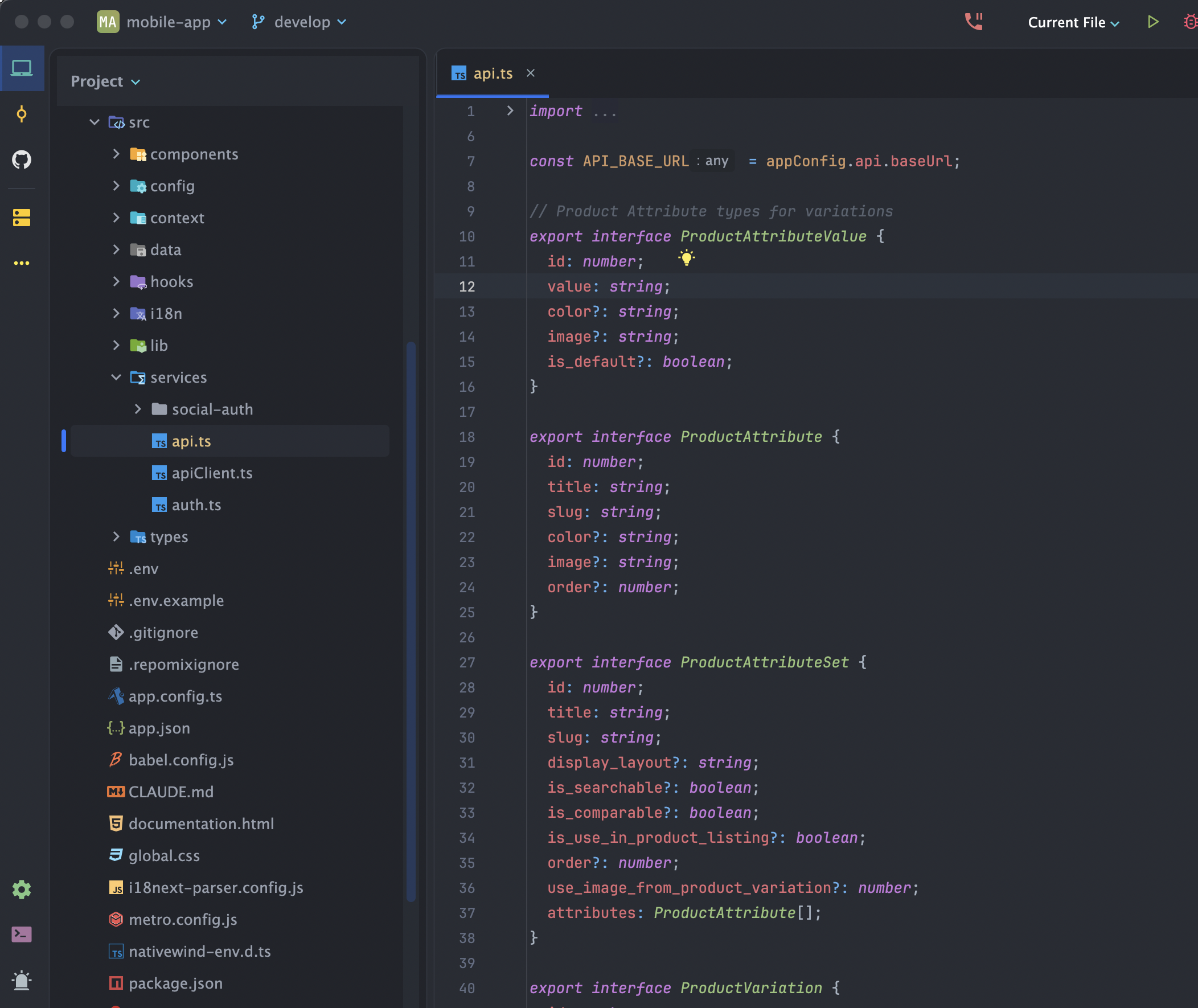
ecommerce-mobile-app/
├── app/                    # Screen components (Expo Router)
│   ├── (auth)/            # Authentication screens
│   ├── (tabs)/            # Tab navigation screens
│   ├── account/           # Account management
│   └── ...
├── src/
│   ├── components/        # Reusable components
│   ├── context/           # State management
│   ├── services/          # API services
│   ├── hooks/             # Custom hooks
│   ├── i18n/              # Translations
│   └── lib/               # Utilities
├── assets/                # Images, fonts
├── .env                   # Environment configuration
├── app.config.js         # Expo configuration
├── package.json          # Dependencies
└── tailwind.config.js    # Styling configuration
Next Steps
Once your app is running:
- Configure it: Follow the Configuration Guide
- Customize it: Follow the Theme Colors Guide
- Deploy it: Follow the Deployment Guide
Need Help?
- Check the FAQ for common questions
- Read the Troubleshooting Guide
- Contact support if you're still stuck
Remember: Don't worry if this seems complicated at first. Most people get it working within an hour, and we're here to help!