
Troubleshooting Guide
"Development Build" Screen on Device
Problem
When opening the app on your phone, you see this screen:
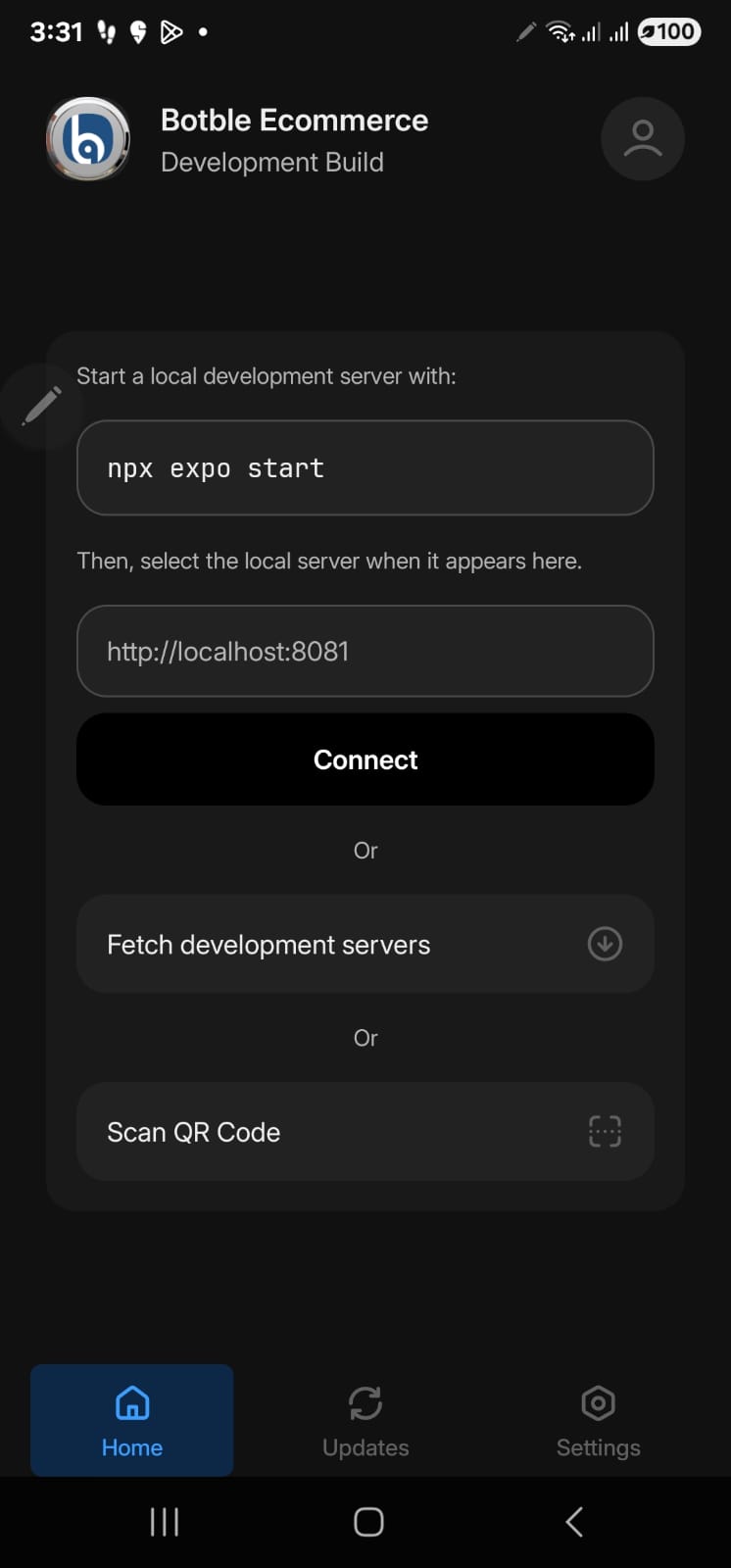
The app shows "Development Build" with options like:
- "Start a local development server with: npx expo start"
- "Fetch development servers"
- "Scan QR Code"
Why this happens: You installed a development build which requires a running development server on your computer. Development builds are meant for developers, not end users.
Solution: Build a Production APK
To use the app standalone (without a dev server), you need to build a production APK:
Quick Steps:
Create Expo Account (free): Go to expo.dev/signup
Install EAS CLI:
bashnpm install -g eas-cliLogin to EAS:
basheas loginEnter your Expo account email and password when prompted.
Configure EAS (first time only):
basheas build:configureBuild APK:
basheas build --platform android --profile previewDownload & Install: Get the APK link from terminal or expo.dev, install on your Android device.
See Deploying App Guide for detailed instructions.
Alternative: Use Development Server
If you want to use the development build (for testing during development):
On your computer, run:
bashnpx expo startMake sure your phone and computer are on the same WiFi network
On your phone, tap "Fetch development servers" or scan the QR code
Black Screen After Installing APK/AAB
Problem
After building and installing the production APK or AAB, the app opens to a black screen or crashes immediately.
Cause
Your .env file is gitignored and not included in EAS builds. EAS Build runs in the cloud and only has access to your Git repository and EAS Secrets. Without environment variables, the app has no API configuration and fails to start.
Solution
You must set environment variables using EAS Secrets before building:
Step 1: Set required variables:
eas secret:create --name API_BASE_URL --value "https://your-website.com"
eas secret:create --name API_KEY --value "your-api-key"
Step 2: (Optional) Set additional variables:
eas secret:create --name APP_NAME --value "Your App Name"Step 3: Verify secrets are set:
eas secret:listStep 4: Rebuild the app:
eas build --platform android --profile productionStep 5: Uninstall old app and install new APK
Bulk Import
If you have many variables, import them all at once:
cat .env | xargs -L 1 eas secret:createWhy This Happens
| Source | Local Dev | EAS Build |
|---|---|---|
.env file | Yes | No |
| EAS Secrets | No | Yes |
The .env file is gitignored for security reasons. EAS cannot read local files - it only sees what's in your Git repository plus EAS Secrets.
See Environment Variables section in the Deploying Guide for complete details.
EAS Login Issues
"Email or username" prompt - What credentials?
Problem: Running eas login asks for "Email or username" but you don't know what to enter.
Solution: These are your Expo account credentials, NOT your CodeCanyon or any other account.
- If you don't have an Expo account, create one at expo.dev/signup (free)
- Use the email and password you created for Expo
Login fails with wrong password
# Try SSO login if you signed up with Google/GitHub
eas login --sso

# Or reset password at expo.dev
Check if already logged in
eas whoamiEAS Configuration Issues
"Cannot read properties of undefined (reading 'projectId')"
Problem: Running eas init fails with error:
Cannot read properties of undefined (reading 'projectId')
Error: project:init command failed.Cause: The projectId is placed at wrong location in app.json. It's under expo.eas instead of expo.extra.eas.
Wrong structure:
{
  "expo": {
    "extra": {
      "appConfig": { ... }
    },
    "eas": {
      "projectId": "6a00fcd0-890a-4c97-b82e-00aed812ec59"
    }
  }
}
Correct structure:
{
  "expo": {
    "extra": {
      "appConfig": { ... },
      "eas": {
        "projectId": "6a00fcd0-890a-4c97-b82e-00aed812ec59"
      }
    }
  }
}Solution:
- Open
app.json - Move
"eas": { "projectId": "..." }block inside the"extra"object - Remove the standalone
"eas"block from directly under"expo" - Save and run
eas initagain
"Existing project found" but link fails
Problem: EAS detects existing project but fails to link:
Existing project found: @username/project-name (ID: xxx). Link this project? ... yes
Cannot read properties of undefined (reading 'projectId')Solution: Same as above - fix the projectId location in app.json, then run:
eas initInstallation Issues
"npm not found" or "node not found"
Problem: Node.js is not installed or not in PATH.
Solution:
- Download Node.js from nodejs.org
- Install the LTS version
- Restart your terminal
- Verify:
node --version
"expo command not found"
Problem: Expo CLI is not installed globally.
Solution:
npm install -g expo-cli"Cannot find module" errors
Problem: Dependencies are not installed or corrupted.
Solution:
rm -rf node_modules
rm package-lock.json
npm install
Metro bundler crashes
Problem: Cache corruption or port conflict.
Solution:
npm start -- --clearOr use a different port:
npm start -- --port 8082Connection Issues
"Network Error" or "Failed to fetch"
Problem: Cannot connect to your API.
Checklist:
- [ ] Is your website online?
- [ ] Is the API URL correct in
.env? - [ ] Does the URL use HTTPS?
- [ ] Is there a trailing slash? (Remove it)
Test:
curl https://your-website.com/api/v1/ecommerce/products"401 Unauthorized"
Problem: Authentication failed.
Solutions:
- Check if your token is expired
- Verify login credentials
- Clear app storage and login again
- Check API authentication settings on backend
"CORS Error"
Problem: Backend doesn't allow requests from the app.
Solution: Contact your backend developer to:
- Add appropriate CORS headers
- Allow requests from mobile apps
- Whitelist the Expo development server
"SSL Certificate Error"
Problem: Invalid or self-signed SSL certificate.
Solutions:
- Use a valid SSL certificate (Let's Encrypt is free)
- Don't use self-signed certificates in production
- For local development, use HTTP (not recommended for production)
Build Issues
iOS build fails
Common causes:
- Invalid bundle identifier
- Missing Apple credentials
- Provisioning profile issues
Solutions:
# Reset credentials
eas credentials --platform ios

# Clean and rebuild
eas build --platform ios --clear-cache
Android build fails
Common causes:
- Invalid package name
- Keystore issues
- SDK version conflicts
Solutions:
# Reset credentials
eas credentials --platform android

# Clean and rebuild
eas build --platform android --clear-cache
"Invariant Violation" errors
Problem: Code error or incompatible library.
Solutions:
- Check the full error message
- Clear Metro cache:
npm start -- --clear - Delete node_modules and reinstall
- Check for library version conflicts
Runtime Issues
App crashes on launch
Debugging steps:
- Run in development mode:
npm start - Check terminal for error messages
- Use React Native Debugger
- Check Expo logs on expo.dev
Products not loading
Checklist:
- [ ] Is the API responding?
- [ ] Are products published on website?
- [ ] Is there a category filter applied?
- [ ] Check network tab in debugger
Solution:
// Add console logging to debug
console.log('API URL:', API_URL);
console.log('Response:', response);
Images not displaying
Common causes:
- Wrong image URL format
- HTTP vs HTTPS mismatch
- CORS blocking images
- Large image files timing out
Solutions:
- Ensure images use HTTPS
- Optimize image sizes on backend
- Check image URLs are accessible
Cart not updating
Problem: Cart state not syncing.
Solutions:
- Clear app cache
- Logout and login again
- Check network requests in debugger
- Verify cart API endpoints
Login not working
Checklist:
- [ ] Can you login on the website?
- [ ] Is email/password correct?
- [ ] Is API responding?
- [ ] Check network requests
Debug:
try {
  const response = await login(email, password);
  console.log('Login response:', response);
} catch (error) {
  console.error('Login error:', error);
}
Social Login not working
General checklist:
- [ ] Are you using a development build (not Expo Go)?
- [ ] Are credentials set in
.env? - [ ] Did you restart the dev server after changing
.env? - [ ] Is the backend configured for social auth?
See Social Login Setup Guide for detailed configuration.
Twitter Login Error 302
Problem: Twitter login shows redirect error or "302".
Cause: Incorrect Twitter Developer Portal settings.
Solution: Go to Twitter Developer Portal → Your App → User authentication settings → Edit:
| Setting | Must Be |
|---|---|
| Type of App | Native App (NOT "Web App") |
| Client type | Public client (NOT "Confidential client") |
| OAuth 2.0 | Enabled |
| Callback URL | botble://twitter-auth |
After fixing, restart your development server and try again.
Google Sign-In Fails
Problem: Google Sign-In shows error or doesn't work.
Common causes:
- Wrong Client ID type (must be Web application, not Android/iOS)
- SHA-1 fingerprint not registered for Android
- Google Play Services not available on device
Solution:
- Use the Web application Client ID from Google Cloud Console
- Add SHA-1 fingerprints for both debug and release builds
- Test on a device with Google Play Services
Apple Sign-In Button Missing
Problem: Apple Sign-In button doesn't appear.
Solution:
- Apple Sign-In only appears on iOS (hidden on Android by design)
- Verify
usesAppleSignIn: trueinapp.config.js - Rebuild development build after enabling:
eas build --profile development --platform ios
Facebook "Invalid Key Hash"
Problem: Facebook login shows key hash error on Android.
Solution:
- Generate key hash:bash
keytool -exportcert -alias androiddebugkey -keystore ~/.android/debug.keystore | openssl sha1 -binary | openssl base64 - Add to Facebook app → Settings → Android → Key Hashes
- Add both debug AND release key hashes
Performance Issues
App is slow
Solutions:
Run in production mode:
bashnpx expo start --no-devOptimize images on backend
Enable Hermes (default in SDK 54+)
Reduce API payload sizes
High memory usage
Solutions:
- Use FlatList for long lists
- Optimize image sizes
- Clear cached data periodically
- Use pagination
Slow initial load
Solutions:
- Optimize splash screen
- Lazy load screens
- Reduce initial API calls
- Use cached data
Platform-Specific Issues
iOS Simulator not opening
Solutions:
# Install Xcode command line tools
xcode-select --install

# Reset simulator
xcrun simctl shutdown all
npm run ios
Android Emulator not starting
Solutions:
- Open Android Studio
- Go to Device Manager
- Start emulator manually
- Then run
npm run android
Physical device not connecting
Solutions:
- Make sure Expo Go is installed
- Use tunnel mode:
npm start -- --tunnel - Check both devices are on same network
- Restart Expo Go app
Environment Issues
.env changes not applying
Problem: Environment variables are cached.
Solution:
- Stop the development server (Ctrl+C)
- Restart with
npm start -- --clear
Hot reload does NOT apply .env changes!
Wrong API URL in production
Problem: Development URL in production build.
Solution: Use EAS secrets or environment-specific builds:
eas secret:create --name API_BASE_URL --value "https://production-url.com"
eas secret:create --name API_KEY --value "your-api-key"
Getting Help
Before contacting support:
- Check this troubleshooting guide
- Check the FAQ
- Search error message online
- Try the solutions above
When contacting support:
Include:
- Error message (full text)
- Steps to reproduce
- Platform (iOS/Android)
- Expo SDK version
- Node.js version
- Screenshots if applicable
Support channels:
- Email: [email protected]
- Support Center: https://botble.ticksy.com
- Documentation: https://docs.botble.com/ecommerce-mobile-app