
Configuration
All wholesale settings are in one place: Wholesale > Settings in your admin panel.
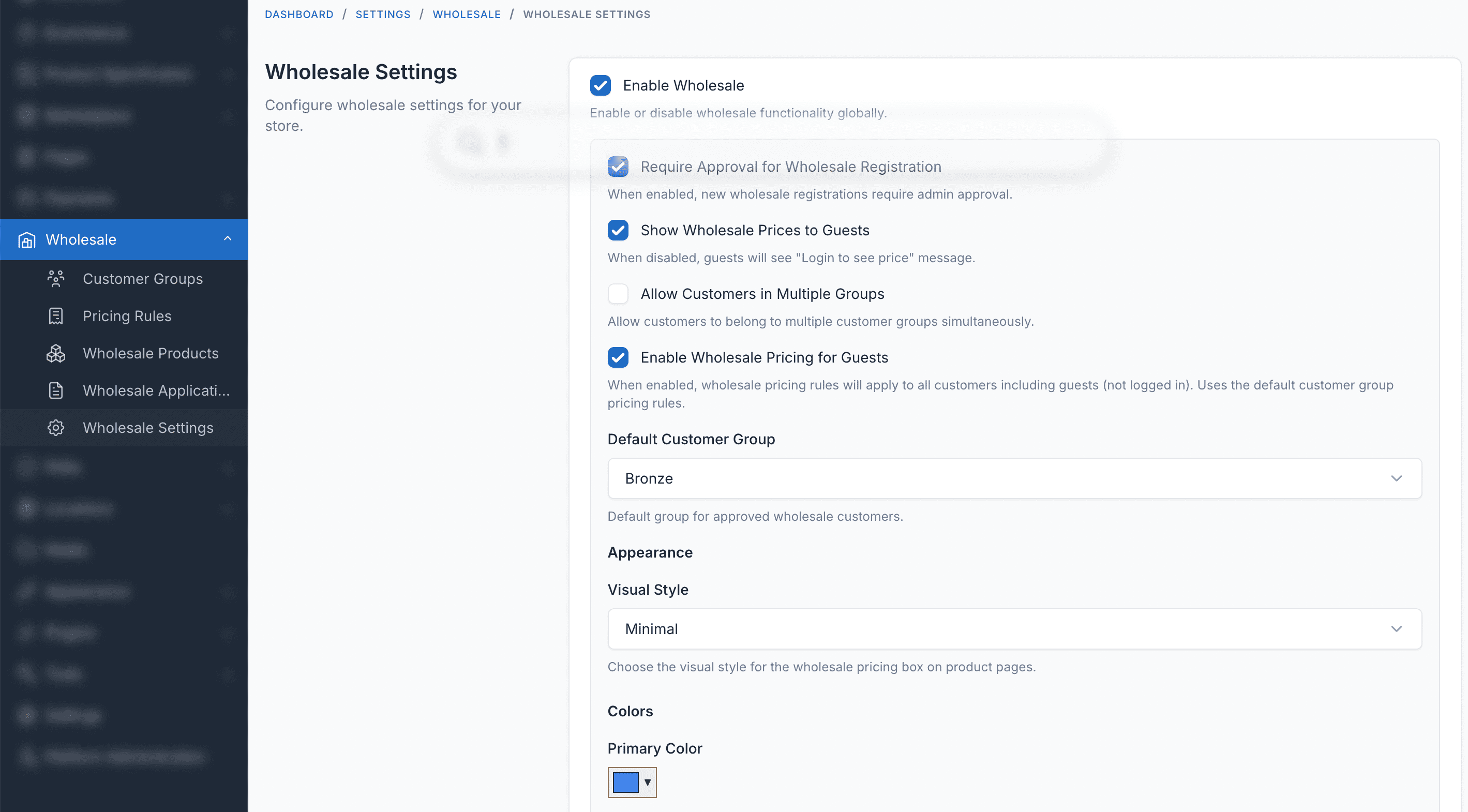
Core Settings
Enable Wholesale
Turns the entire wholesale system on or off without deactivating the plugin. When disabled, all customers see regular retail prices.
Default: Enabled
Require Approval for Wholesale Registration
Controls what happens when someone submits a wholesale application at /wholesale/register:
- Enabled (default) - Applications go to "Pending" status. You must approve them manually at Wholesale > Applications.
- Disabled - Applications are auto-approved. Customers get wholesale access immediately.
Enable Wholesale Registration
Controls whether the "Wholesale Account" menu item appears in the customer dashboard. When disabled, customers cannot apply for wholesale access through the frontend. You can still assign customers to groups manually in admin.
Default: Enabled
Show Wholesale Prices to Guests
Controls what non-logged-in visitors see on product pages:
- Disabled (default) - Guests see a "Login to see price" message instead of wholesale prices.
- Enabled - Guests can see the pricing tier table on product pages.
WARNING
Keep this disabled if your wholesale pricing is confidential.
Allow Customers in Multiple Groups
- Disabled (default) - Each customer can belong to only one group at a time.
- Enabled - A customer can belong to multiple groups. When groups give different discounts, the discount resolution strategy decides which applies.
Enable Wholesale Pricing for Guests
- Disabled (default) - Only logged-in wholesale customers get wholesale prices.
- Enabled - Wholesale pricing rules apply to everyone, including guests. Uses the default customer group for pricing.
Default Customer Group
Select which customer group is used for:
- Auto-approved wholesale registrations (when approval is disabled)
- Guest wholesale pricing (when enabled for guests)
Only published customer groups appear in this dropdown. You need to create at least one group first.
Discount Resolution Strategy
When a customer belongs to multiple groups with different discounts, this setting determines which discount applies:
| Strategy | What happens |
|---|---|
| Highest | Customer gets the largest discount. If they're in Gold (20% off) and Silver (15% off), they get 20%. |
| Lowest | Customer gets the smallest discount. Same example, they get 15%. |
| Priority | The group with the lowest priority number wins. Set priority when creating groups. |
Default: Highest
TIP
This setting only matters when Allow Customers in Multiple Groups is enabled.
Enable Wholesale in Vendor Dashboard
Only appears if the Marketplace plugin is active. When enabled, vendors can manage wholesale pricing from their dashboard.
Default: Disabled
Appearance Settings
These control how the wholesale pricing table looks on product pages.
Visual Style
Choose from four styles for the pricing tier table:
| Style | Description |
|---|---|
| Modern | Contemporary design with gradient accents |
| Minimal | Clean, simple layout |
| Classic | Traditional table styling |
| Elegant | Refined look with subtle borders |
Colors
Customize the pricing table colors to match your theme:
| Setting | What it controls | Default |
|---|---|---|
| Primary Color | Highlights, active tier indicator, accents | #206bc4 |
| Header Text Color | Pricing table header text | #1e293b |
| Price Color | Discounted price per unit | #059669 |
| Discount Badge Color | Discount percentage badges | #dc2626 |
| Border Color | Table borders | #e5e7eb |
Display Options
Show Pricing Table
When enabled, product detail pages show a pricing tier table to wholesale customers. This table lists all quantity tiers and their prices.
Default: Disabled
When you enable this, additional options appear:
Display Mode
- Full - Shows all columns including savings
- Compact - Hides the savings column for a simpler view
Show Icon
Adds an icon to the pricing table header. Choose from: receipt, package, store, tag, discount, cart, delivery, or chart.
Show Original Price
When enabled, shows the original retail price with a strikethrough next to the discounted wholesale price.
Show Savings Column
When enabled, adds a "You Save" column to the pricing table showing how much the customer saves at each tier.
Setting Up Your Site: Recommended Configuration
For a standard B2B store
- Enable Wholesale - On
- Require Approval - On (you want to verify business customers)
- Show Prices to Guests - Off (keep pricing confidential)
- Multiple Groups - Off (start simple with one group per customer)
- Show Pricing Table - On
- Display Mode - Full
- Show Savings - On
For a hybrid B2B/B2C store
- Enable Wholesale - On
- Require Approval - On
- Show Prices to Guests - Off
- Multiple Groups - On (customers can be in a "Seasonal Promo" group AND their base group)
- Resolution Strategy - Highest (let customers get the best deal)
For open wholesale (no approval)
- Enable Wholesale - On
- Require Approval - Off
- Default Customer Group - Select your base wholesale group
- Show Prices to Guests - On (entice visitors to register)
Permissions
Wholesale adds these permissions that you can assign to admin roles at Admin > Users > Roles:
| Permission | What it allows |
|---|---|
wholesale.customer-groups.index | View customer groups list |
wholesale.customer-groups.create | Create new customer groups |
wholesale.customer-groups.edit | Edit existing customer groups |
wholesale.customer-groups.destroy | Delete customer groups |
wholesale.pricing-rules.index | View pricing rules list |
wholesale.pricing-rules.create | Create new pricing rules |
wholesale.pricing-rules.edit | Edit existing pricing rules |
wholesale.pricing-rules.destroy | Delete pricing rules |
wholesale.products.index | View wholesale products list |
wholesale.applications.index | View wholesale applications |
wholesale.applications.approve | Approve or reject applications |
wholesale.settings | Access wholesale settings page |
Suggested role setups
Store Manager - All wholesale permissions
Sales Staff - View groups, view rules, view and approve applications. No settings access.
Customer Service - View groups, view applications. Cannot approve or change settings.