
Admin Tasks
This page covers the admin tasks that aren't covered in the Customer Groups and Pricing Rules guides: reviewing applications, setting product visibility, configuring MOQ, and managing the wholesale products list.
The Wholesale Admin Menu
After activating the plugin, you'll see a Wholesale section in the admin sidebar with these items:
| Menu Item | What it does | Admin URL |
|---|---|---|
| Customer Groups | Create and manage groups with discounts | /admin/wholesale/customer-groups |
| Pricing Rules | Manage quantity-based pricing tiers | /admin/wholesale/pricing-rules |
| Wholesale Products | View products that have wholesale settings | /admin/wholesale/products |
| Applications | Review and approve/reject wholesale applications | /admin/wholesale/applications |
| Settings | Configure wholesale system settings | /admin/wholesale/settings |
TIP
The Applications menu item only appears when Require Approval is enabled in Settings. It also shows a badge with the count of pending applications.
Reviewing Wholesale Applications
When customers submit applications at /wholesale/register on your site, they appear at Wholesale > Applications.
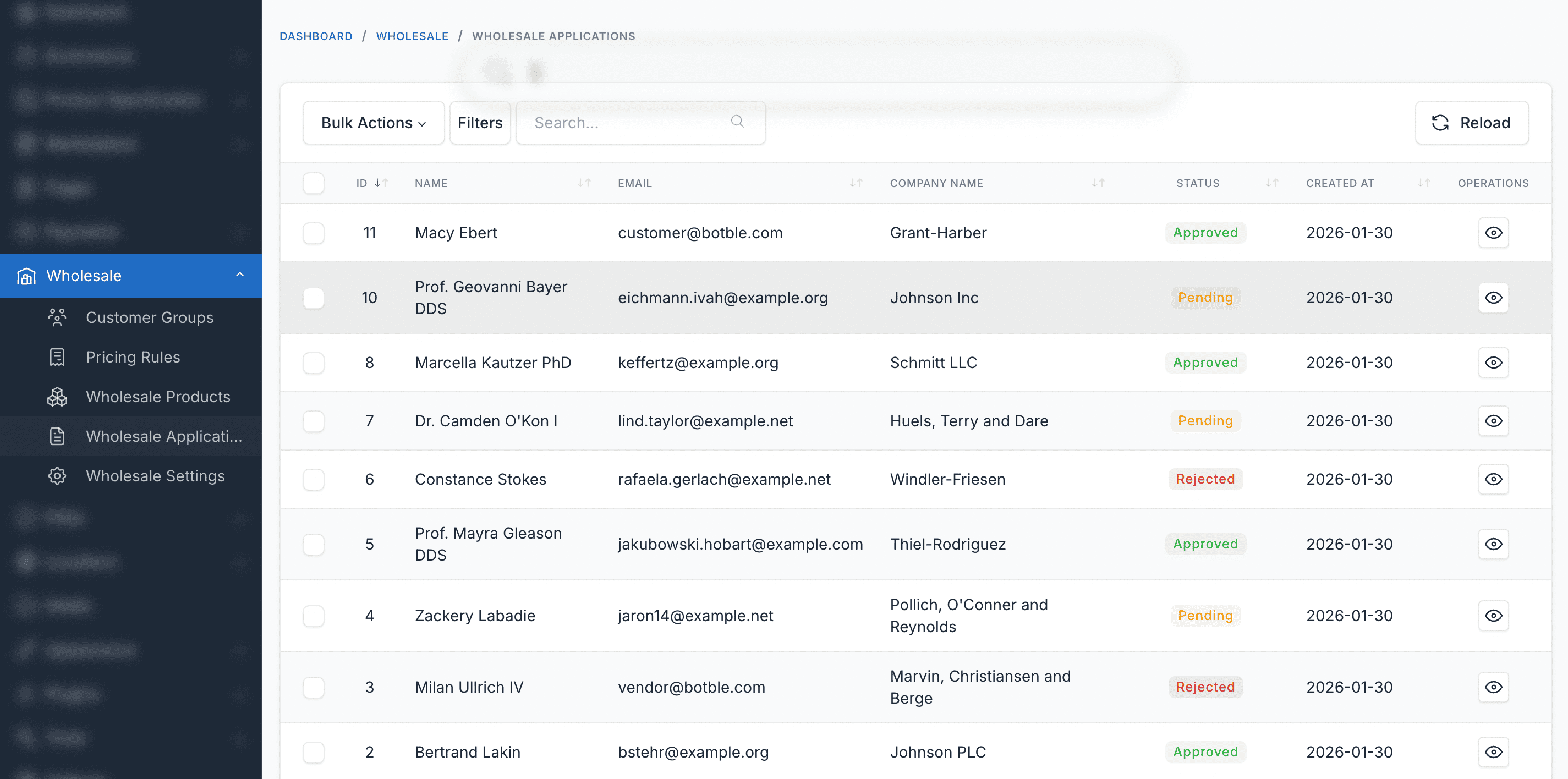
Viewing an application
Click the application to see the full details:
- Name and Email - The applicant's contact info
- Company Name - Their business name
- Tax ID - Business tax identification (if provided)
- Phone - Contact number (if provided)
- Business Type - e.g., "Retailer", "Distributor" (if provided)
- Expected Order Volume - What they estimate they'll order (if provided)
- Notes - Any additional info they provided
- Status - Pending, Approved, or Rejected
Approving an application
- Go to Wholesale > Applications
- Click on a pending application
- In the Approve section, select a Customer Group from the dropdown
- Click Approve
What happens:
- The application status changes to Approved
- The customer account is assigned to the selected group
- The customer can now log in and see wholesale prices
Rejecting an application
- Go to Wholesale > Applications
- Click on a pending application
- In the Reject section, enter a Rejection Reason
- Click Reject
What happens:
- The application status changes to Rejected
- The customer sees the rejection reason on their dashboard
- The customer can reapply later (via
/customer/wholesale/reapply)
Filtering applications
Use the status filter at the top of the applications list to show only Pending, Approved, or Rejected applications.
Product Visibility and MOQ
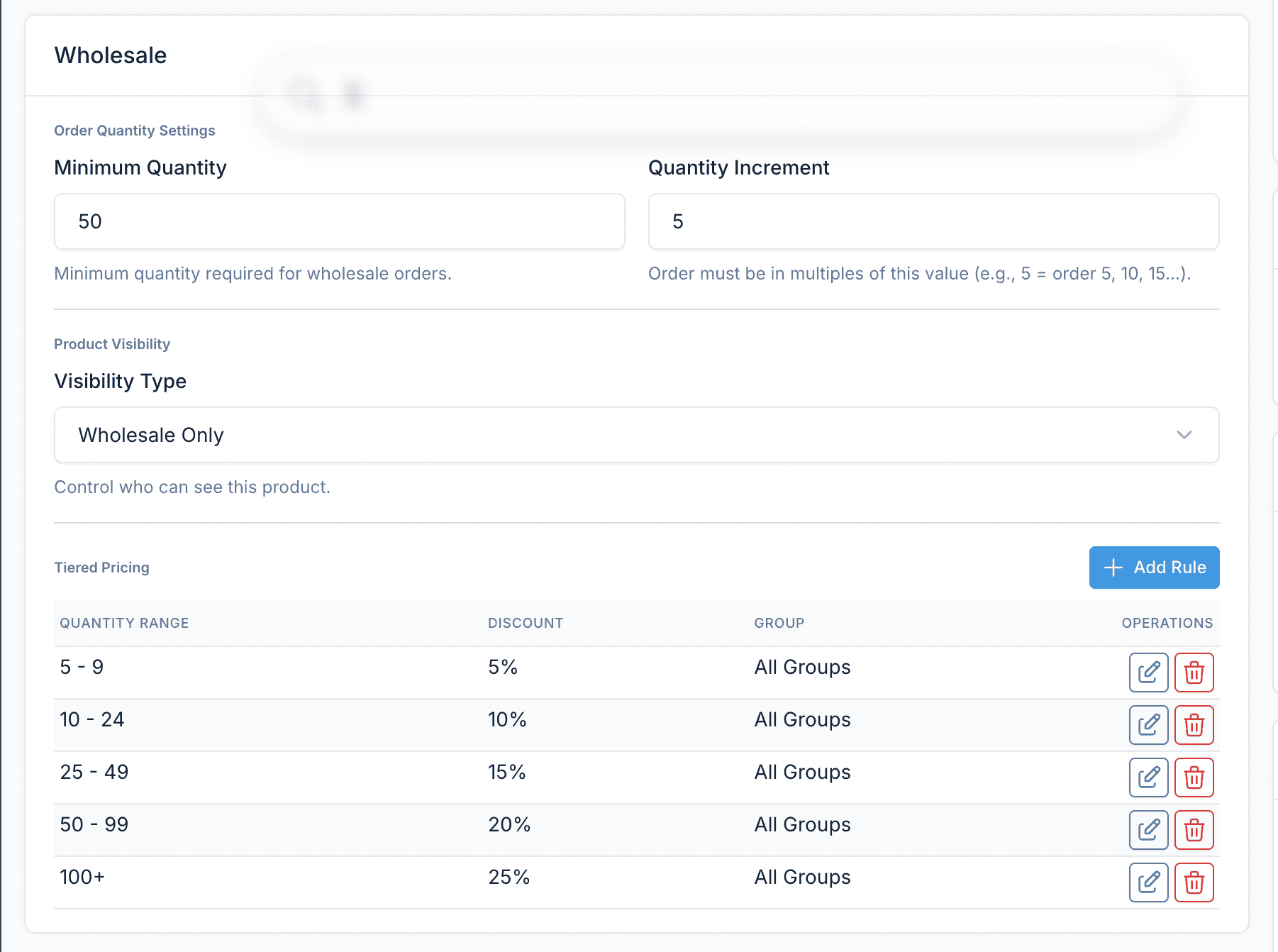
You control wholesale-specific product settings from each product's edit page.
Setting up product visibility
- Go to Ecommerce > Products, edit a product
- Scroll to the Wholesale section
- Find the Visibility Type dropdown:
| Option | Who can see the product |
|---|---|
| Public (Everyone) | All customers, wholesale and retail |
| Wholesale Only | Only customers assigned to a wholesale group |
| Specific Groups | Only customers in the groups you select |
- If you chose Specific Groups, an Allowed Customer Groups multi-select appears. Select which groups can see this product.
- Click Save
Use cases:
- Wholesale Only - For bulk-only products not sold to retail customers
- Specific Groups - For exclusive products available only to your top-tier customers
Setting minimum order quantity (MOQ)
MOQ forces wholesale customers to order at least a certain quantity of a product.
- Go to Ecommerce > Products, edit a product
- Scroll to the Wholesale section
- Configure:
| Field | What it does | Example |
|---|---|---|
| Minimum Quantity | Smallest quantity a customer can order | 12 - customer must order at least 12 |
| Quantity Increment | Orders must be multiples of this number | 6 - valid: 12, 18, 24. Invalid: 13, 15, 20 |
- Click Save
Example: Minimum Quantity = 12, Increment = 6
Valid orders: 12, 18, 24, 30, 36...
Invalid: 5, 10, 13, 15, 20 (system auto-adjusts to the nearest valid quantity)
Wholesale Products List
Go to Wholesale > Wholesale Products to see all products that have wholesale settings (pricing rules, MOQ, or visibility restrictions).
This is a read-only overview. To edit a product's wholesale settings, click through to the product edit page.
If you have the Marketplace plugin active, you can filter by tabs: All, In-house, or Seller products.
Assigning Wholesale Groups to Customers
Besides approving applications, you can manually assign any customer to a wholesale group:
- Go to Ecommerce > Customers
- Edit the customer
- Find the Wholesale Groups field
- Select one or more groups
- Click Save
The customer sees wholesale prices immediately on their next visit.
To remove wholesale access, clear the group selection and save.
Daily Admin Workflow
Here's a typical daily workflow for managing wholesale:
- Check for new applications at Wholesale > Applications (look for the badge count on the menu)
- Review and approve/reject pending applications
- Monitor orders - wholesale orders appear in the regular Ecommerce > Orders list
- Handle support requests - check if customers are in the right group, verify pricing is correct
Troubleshooting
Can't access the Wholesale menu
- Check your admin role has wholesale permissions: Admin > Users > Roles
- Check the plugin is activated: Admin > Plugins
- Clear cache: Admin > Platform Administration > Cache management
Applications menu not showing
The Applications menu only appears when Require Approval is enabled in Wholesale > Settings. If you don't need approval, applications are auto-approved and this menu isn't needed.
Changes to a product's wholesale settings aren't working
- Make sure you clicked Save on the product after making changes
- Clear cache: Admin > Platform Administration > Cache management
- Test in an incognito browser window to rule out browser cache