
Installation
Requirements
- Botble CMS version 7.6.0 or higher
- PHP version 8.2 or higher
- Active E-commerce plugin (required dependency)
- MySQL 5.7+ or MariaDB 10.3+
Installation Steps
Step 1: Download the Plugin
Download the Wholesale plugin from CodeCanyon after purchase.
Step 2: Upload to Server
Extract the downloaded zip file and upload the ecommerce-wholesale folder to:
platform/plugins/ecommerce-wholesaleYour directory structure should look like:
platform/
└── plugins/
    └── ecommerce-wholesale/
        ├── config/
        ├── database/
        ├── resources/
        ├── routes/
        ├── src/
        └── plugin.json
Step 3: Activate the Plugin
- Go to Admin > Plugins
- Find Wholesale in the plugins list
- Click the Activate button
The plugin will run database migrations automatically and create the required tables.
Step 4: Activate Your License
- Go to Wholesale > Settings in the admin sidebar
- Enter your purchase code in the license field at the top of the page
- Click Activate
Step 5: Verify Installation
- Go to Wholesale > Customer Groups - you should see an empty list ready for groups
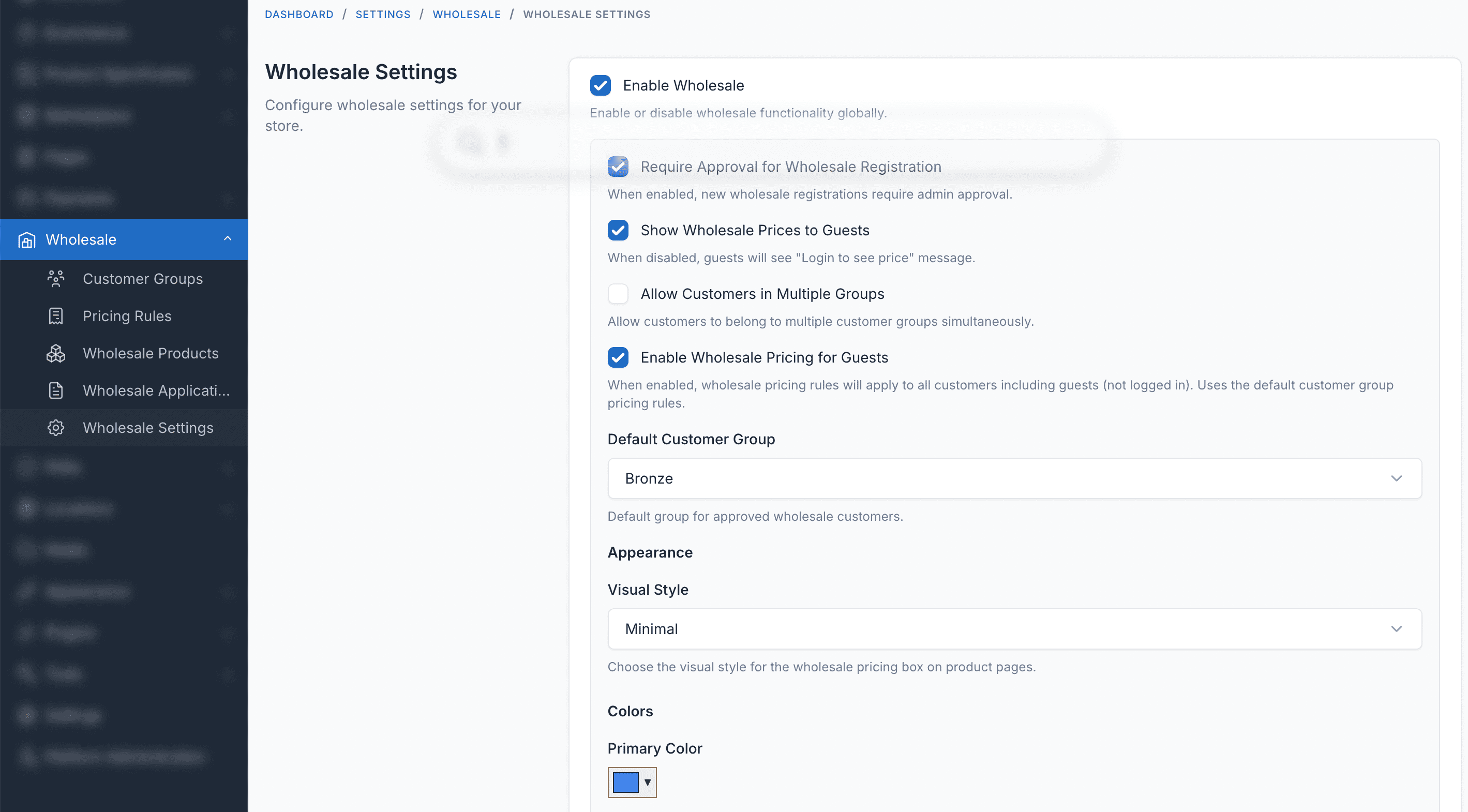
- Go to Wholesale > Settings - you should see the settings form
Troubleshooting
Plugin not appearing in the Plugins list
- Ensure the folder is named exactly
ecommerce-wholesale - Check that all files were uploaded correctly
- Clear the cache: go to Admin > Platform Administration > Cache management and click Clear all CMS cache
Dependency error
The E-commerce plugin must be installed and activated first. Wholesale requires it to function.
Database migration issues
Run migrations manually:
bash
php artisan migrateOr deactivate and reactivate the plugin in Admin > Plugins to re-run migrations.