
Customer Groups
Customer groups are the core of wholesale pricing. Each group defines a discount that applies automatically to every product for customers in that group.
Creating a Customer Group
- Go to Wholesale > Customer Groups in the admin sidebar
- Click the Create button
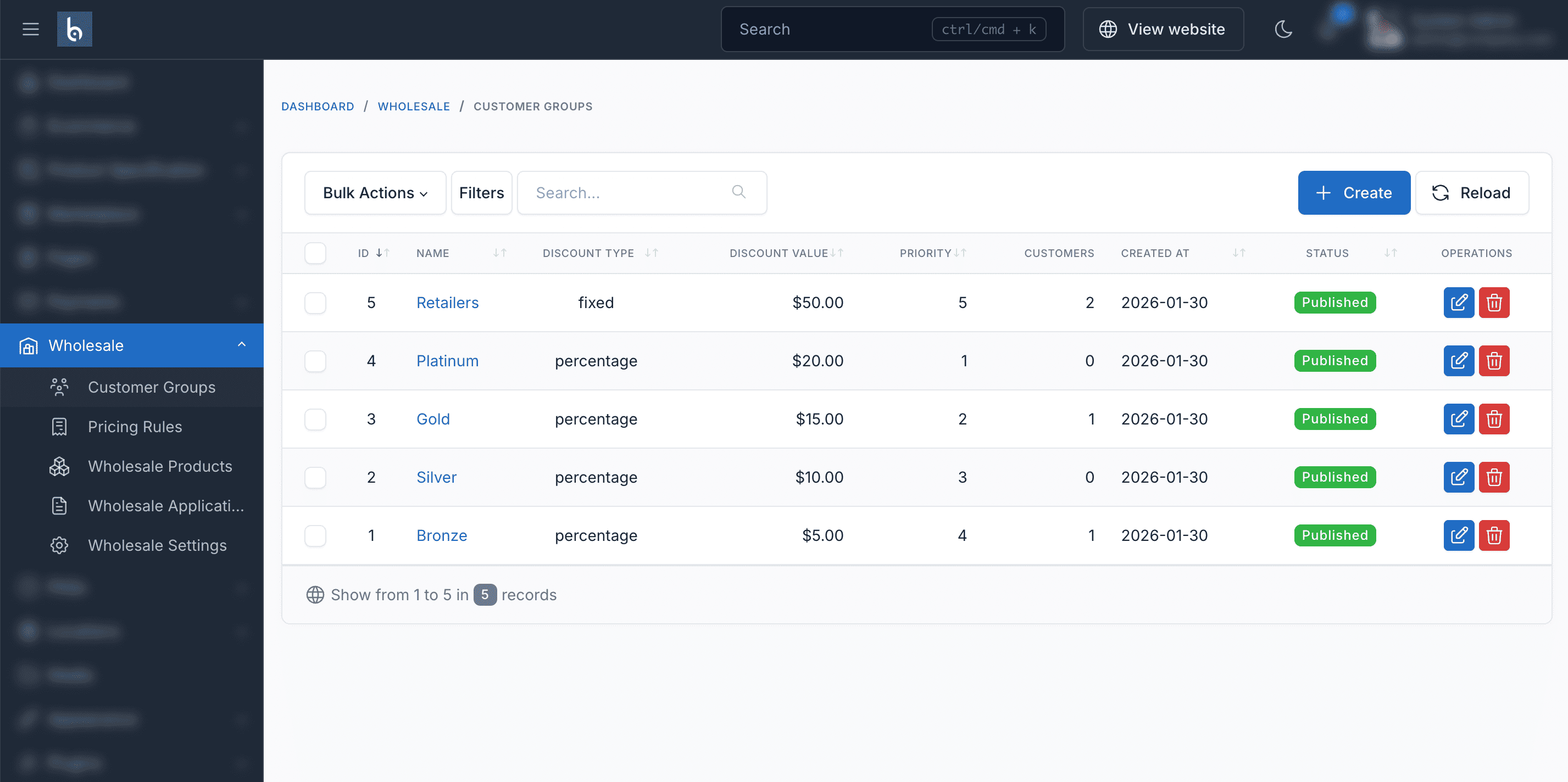
Fill in these fields:
| Field | Required | What to enter |
|---|---|---|
| Name | Yes | A descriptive name, e.g., "Gold Resellers" |
| Description | No | Internal notes, e.g., "Verified resellers with annual volume >$50K" |
| Discount Type | Yes | Percentage - discounts by %, or Fixed Amount - discounts by a dollar amount |
| Discount Value | Yes | The discount number. Enter 20 for 20% off (percentage) or 10 for $10 off (fixed) |
| Priority | No | A number used when a customer is in multiple groups. Lower number = higher priority. Default: 0 |
| Min Order Quantity | No | Minimum total items in cart to check out. Leave at 0 for no minimum |
| Min Order Value | No | Minimum cart subtotal to check out, e.g., 500 for $500 minimum. Leave at 0 for no minimum |
| Status | Yes | Published to activate, Draft to save without activating |
- Click Save
How each discount type works
Percentage discount - Takes a percentage off each product's price:
- 20% off a $100 product = $80
- 20% off a $50 product = $40
Fixed amount discount - Takes a flat dollar amount off each product:
- $10 off a $100 product = $90
- $10 off a $50 product = $40
TIP
Percentage discounts are the most common choice. They scale with product prices and are easy for customers to understand.
Editing a Customer Group
- Go to Wholesale > Customer Groups
- Click the group name or the Edit button
- Change any fields
- Click Save
WARNING
Discount changes take effect immediately. All customers in that group will see updated prices on their next page load.
Deleting a Customer Group
- Go to Wholesale > Customer Groups
- Click the Delete button on the group row
- Confirm deletion
When you delete a group:
- All customer assignments to that group are removed
- Those customers lose wholesale pricing (unless they're in another group)
- Pricing rules targeting that group stop working
Alternative: Deactivate instead of delete. Edit the group and change Status to Draft. The group's pricing stops applying, but you can reactivate it later.
Assigning Customers to a Group
There are two ways to assign a customer to a group:
Method 1: From the customer edit page
- Go to Ecommerce > Customers
- Click to edit a customer
- Find the Wholesale Groups field
- Select one or more groups from the dropdown
- Click Save
The customer will see wholesale prices immediately on their next login.
Method 2: By approving a wholesale application
When a customer applies at /wholesale/register on your site:
- Go to Wholesale > Applications
- Click to review the application
- Click Approve and select which group to assign them to
- The customer is automatically assigned
See Reviewing Wholesale Applications for details.
Checking Which Group a Customer Is In
- Go to Ecommerce > Customers
- Edit the customer
- Look at the Wholesale Groups field - it shows all assigned groups
Removing a Customer from a Group
- Go to Ecommerce > Customers
- Edit the customer
- Clear the selection in the Wholesale Groups field
- Click Save
The customer reverts to retail pricing immediately.
Multiple Groups
If Allow Customers in Multiple Groups is enabled in Settings, a customer can belong to more than one group.
When a customer is in multiple groups with different discounts, the Discount Resolution Strategy determines which applies:
| Strategy | Example: Customer in Gold (20% off) + Silver (15% off) |
|---|---|
| Highest | Gets 20% off (the better discount) |
| Lowest | Gets 15% off |
| Priority | Group with lower priority number wins |
Priority field
The Priority field on each group is only used when the resolution strategy is set to "Priority". Lower numbers mean higher priority:
| Group | Priority | Discount |
|---|---|---|
| Platinum | 1 | 25% |
| Gold | 2 | 20% |
| Silver | 3 | 15% |
If a customer is in both Gold (priority 2) and Silver (priority 3), Gold wins because 2 < 3.
Common Group Structures
Simple tiered structure
| Group | Discount | Min Order Value | Who qualifies |
|---|---|---|---|
| Gold | 20% | $1,000 | High-volume buyers |
| Silver | 15% | $500 | Regular wholesale |
| Bronze | 10% | $250 | Entry-level wholesale |
By business type
| Group | Discount | Min Order Value | Who qualifies |
|---|---|---|---|
| Distributors | 30% | $5,000 | Regional distributors |
| Retailers | 20% | $1,000 | Retail store owners |
| Resellers | 15% | $500 | Online resellers |
Troubleshooting
Customer doesn't see discounted prices
- Check the customer is assigned to a group: Ecommerce > Customers > Edit customer > Wholesale Groups field
- Check the group status is Published: Wholesale > Customer Groups
- Make sure the customer is logged in on the frontend
- Clear cache: Admin > Platform Administration > Cache management > Clear all CMS cache
Wrong discount is applied
- Check if the customer is in multiple groups: Ecommerce > Customers > Edit customer
- Check which resolution strategy is active: Wholesale > Settings > Discount Resolution Strategy
- Check if there are pricing rules on the product that override the group discount
Group discount doesn't apply to a specific product
- Check if the product has a pricing rule that overrides the group discount
- Check the product's visibility settings aren't restricting access