
Settings
Configure the Live Chat plugin at Admin → Live Chat → Settings.
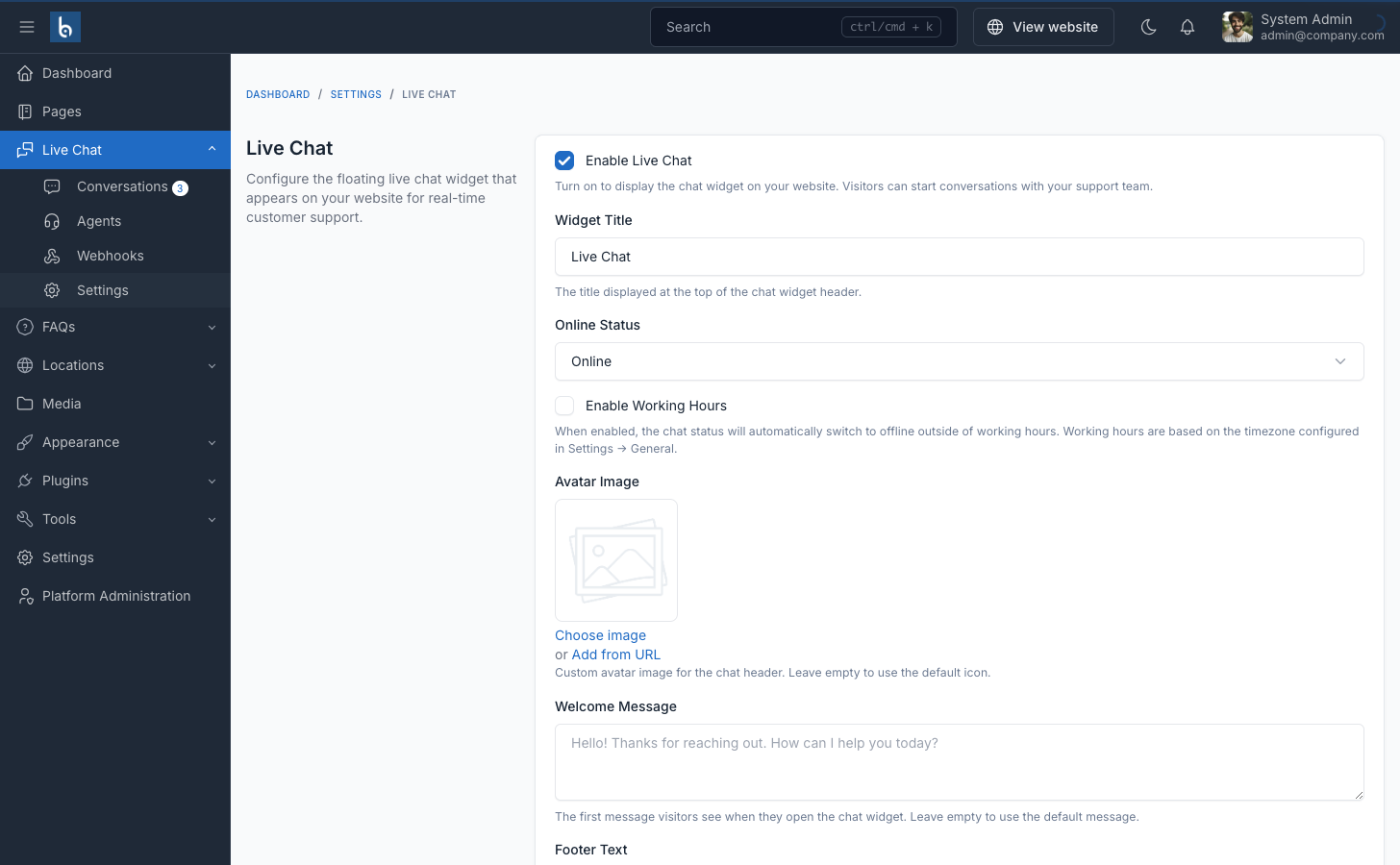
Widget Settings
Enable/Disable
Toggle the chat widget on or off. When disabled, the widget does not render on any frontend page.
Widget Title
The title displayed in the chat window header. Defaults to "Live Chat".
Online Status
Manually set the chat status to Online or Offline. When offline, the widget shows an "Offline" indicator. Visitors can still start conversations.
Welcome Message
The first message automatically shown when a visitor opens a new chat. Leave empty to use the default: "Hello! Thanks for reaching out. How can I help you today?"
Admin Name
The name displayed for admin replies. Defaults to "Support". Can be overridden per-conversation by the random admin names feature.
Visitor Form Fields
Display Fields
Choose which optional fields to show on the chat start form:
- Email — Email address input
- Phone — Phone number input
The Name field is always shown and required.
Mandatory Fields
Choose which of the displayed fields are required before a visitor can start chatting. Only fields that are displayed can be made mandatory.
Appearance
Colors
- Primary Color — Used for the chat button, header, and visitor message bubbles
- Hover Color — Applied when hovering over the chat button
Avatar Image
Upload a custom image for the chat header. When empty, a default user icon is shown.
Position
Place the widget at one of four screen positions:
- Bottom Right (default)
- Bottom Left
- Center Right
- Center Left
Offset
Adjust horizontal (X) and vertical (Y) pixel offset from the screen edge. Default is 20px for both.
Mobile Display
- Always show — Widget appears on all devices
- Hide on mobile — Widget hidden on screens ≤768px wide
Visual Effects
Link Preview
When enabled, URLs shared in messages show a rich preview card with title, description, and image. Enabled by default.
Pulse Animation
Shows a pulsing ring animation around the chat button to attract visitor attention. Enabled by default.
Backdrop Blur
Displays a blurred overlay behind the chat window when it is open. Enabled by default.
Emoji Conversion
Automatically converts text emoticons to Unicode emoji in chat messages. Enabled by default.
Supported emoticons:
| Text | Emoji | Text | Emoji |
|---|---|---|---|
:) | 🙂 | :( | 🙁 |
:D | 😄 | ;) | 😉 |
:P | 😛 | :/ | 😕 |
B) | 😎 | <3 | ❤️ |
XD | 😆 | :'( | 😢 |
Named emoji codes are also supported: :fire: :heart: :thumbsup: :rocket: :star: :wave: :100: :eyes: :pray: :clap: :check: :thumbsdown:
TIP
Emoticons are only converted when surrounded by spaces (or at the start/end of a message), so URLs and code won't be affected.
Polling Interval
Controls how frequently the frontend checks for new messages, in milliseconds.
| Value | Use Case |
|---|---|
| 2000–3000ms | Small sites, fast response needed |
| 3000–5000ms | Balanced (default: 3000) |
| 5000–10000ms | High-traffic sites |
WARNING
Values below 2000ms are not recommended as they significantly increase server load.