
Customer Management
The customer management system allows you to manage customer accounts, view order history, handle customer data, and configure registration settings.
Overview
Customer management features include:
- Customer listing & search - Browse and search all customer accounts
- Customer profiles - View detailed customer information, orders, and activity
- Manual customer creation - Add customers from the admin panel
- Import/Export - Bulk import/export customer data
- Account deletion requests - Handle GDPR-compliant customer data deletion
- Registration settings - Configure customer registration requirements
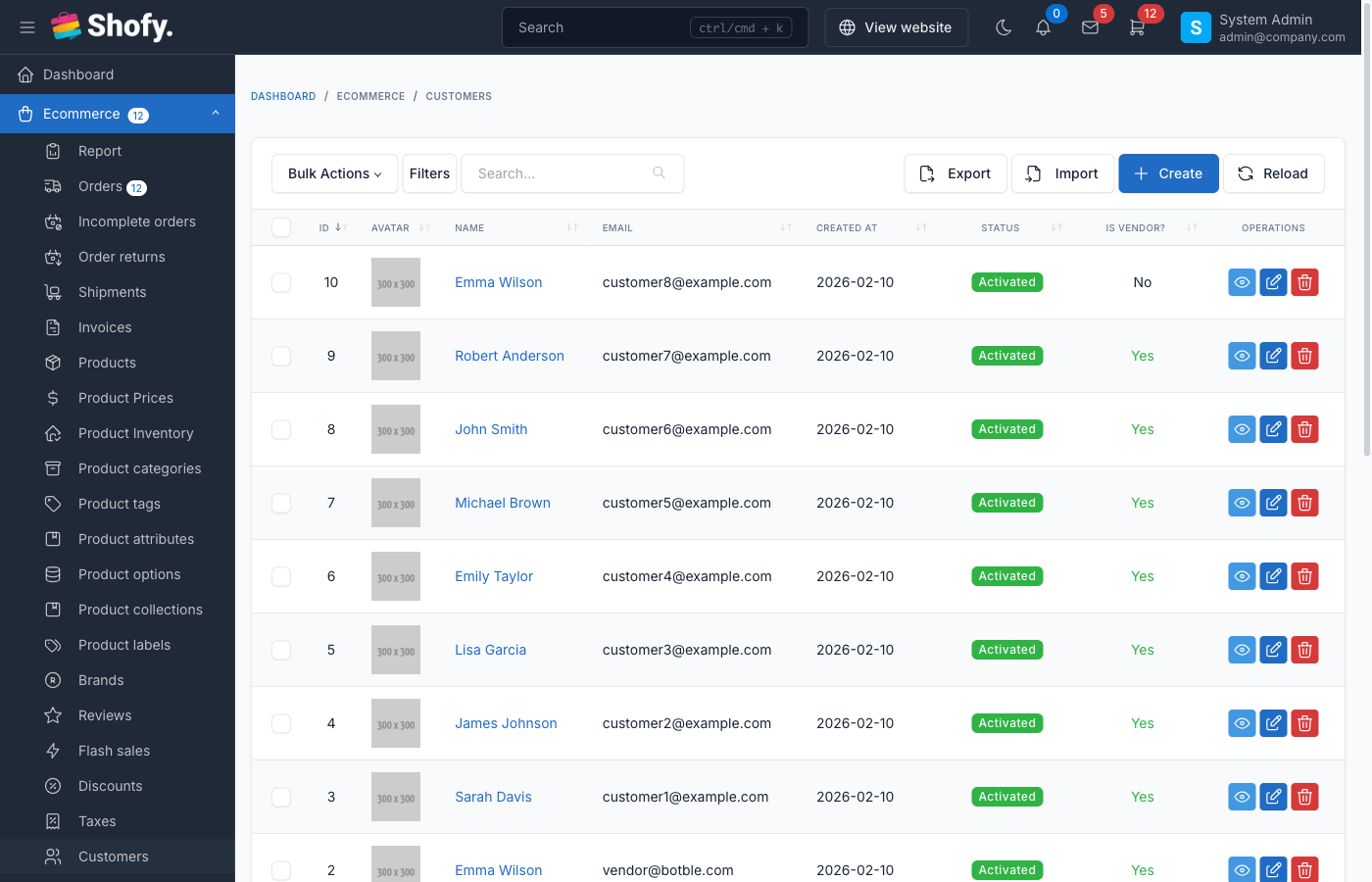
Customer Listing
Navigate to Ecommerce -> Customers to view all customer accounts.
Customer Table Columns
| Column | Description |
|---|---|
| Name | Customer full name |
| Customer email address | |
| Phone | Customer phone number (if provided) |
| Status | Activated or Locked |
| Created At | Account registration date |
Search & Filter
Search customers by:
- Name
- Email address
- Phone number
Filter options:
- Status (Activated/Locked)
- Date range (registration date)
TIP
Use quick search in the table header to find customers by name or email instantly.
Viewing Customer Details
Click on a customer name to view their full profile.
Customer Profile Overview
Basic Information:
- Full name
- Email address
- Phone number
- Date of birth (if provided)
- Status (Activated/Locked)
- Email verification status
- Registration date
Account Statistics:
- Total spent (sum of completed orders)
- Total orders (finished orders count)
- Completed orders (orders marked as completed)
- Total products purchased
Customer Orders
The customer profile shows all orders:
- Order number
- Order date
- Total amount
- Payment status
- Shipping status
- Order status
Click on an order to view full order details.
Customer Addresses
View all saved addresses for the customer:
- Shipping addresses
- Billing addresses
- Default address indicator
Address management:
- View all addresses
- Edit existing addresses (via customer account)
- Delete addresses
Customer Reviews
If reviews are enabled, see all product reviews submitted by the customer:
- Product reviewed
- Star rating
- Review date
- Review status (Published/Pending)
Customer Wishlist
View products saved to the customer's wishlist:
- Product name
- Current price
- Date added
Creating Customers Manually
Admins can create customer accounts on behalf of users.
Create New Customer
- Navigate to
Ecommerce->Customers - Click Create button
- Fill in the customer form:
| Field | Required | Description |
|---|---|---|
| Name | Yes | Customer full name |
| Yes | Unique email address | |
| Phone | No | Phone number |
| Date of Birth | No | Customer date of birth |
| Password | Yes | Account password (min 6 characters) |
| Status | Yes | Activated or Locked |
| Avatar | No | Profile picture |
- Click Save
After creation:
- Account is immediately activated
- Email verification is marked as confirmed
- Customer can log in immediately
- No confirmation email is sent
WARNING
When creating customers manually, you set their password. Consider using a secure temporary password and instructing the customer to change it on first login.
Editing Customer Information
- Navigate to
Ecommerce->Customers - Click on a customer name
- Click Edit tab or button
- Modify customer information
- Click Save
Editable fields:
- Name
- Email (with confirmation)
- Phone
- Date of birth
- Status
- Avatar
- Password (optional - check "Change password" to update)
- Private notes (admin-only notes about customer)
Email change:
- Changing email requires special confirmation
- Customer receives notification of email change
- Old email is overwritten (not kept in history)
Locking Customer Accounts
Set Status to Locked to prevent customer login:
- Customer cannot log in
- Existing sessions are not terminated immediately
- Customer receives "account locked" message on login attempt
Use cases for locking:
- Fraudulent activity
- Terms of service violations
- Customer request
- Account security concerns
Email Verification
Verify Customer Email Manually
If a customer hasn't received or clicked their verification email:
- Go to customer profile
- Look for "Email not verified" warning
- Click Verify Email button
This immediately marks the email as verified without sending an email.
Resend Verification Email
If customer needs a new verification link:
- Go to customer profile
- Click Resend Verification Email
- Customer receives a fresh verification link
TIP
Verification links expire after the configured time (default: 60 minutes). Customers must use the link before expiration.
Customer Import/Export
Bulk manage customers using CSV import/export.
Export Customers
- Navigate to
Tools->Data Synchronize(orImport/Export) - Select Export
- Choose Customers from the list
- Click Export
- Download the CSV file
Exported fields:
- ID
- Name
- Phone
- Date of birth
- Status
- Confirmed at (email verification date)
- Created at
Import Customers
- Navigate to
Tools->Data Synchronize - Select Import
- Choose Customers
- Download the example CSV to see required format
- Prepare your CSV file
CSV columns:
id- Optional (for updates)name- Requiredemail- Required (unique)phone- Optionaldob- Optional (format: YYYY-MM-DD)status- Optional (activated/locked)confirmed_at- Optional (YYYY-MM-DD HH:MM:SS)created_at- Optional (YYYY-MM-DD HH:MM:SS)password- Optional (plain text, will be hashed)
- Upload your CSV file
- Map columns if needed
- Choose import mode:
- Create new customers only - Skip existing emails
- Update existing customers - Update matching emails
- Click Import
Import behavior:
- Existing customers - Matched by email address
- If update mode: Updates customer data
- If create mode: Skips the row
- New customers - Creates new accounts
- Passwords - Random password generated if not provided
- Email verification - Set
confirmed_atto mark as verified, otherwise unverified
WARNING
Import validates each row. Errors are shown before import. Fix errors in your CSV and retry.
Import Tips
- Use the downloaded example CSV as a template
- Ensure email addresses are unique
- Use ISO date format:
YYYY-MM-DDfor dates - Phone numbers can include country codes
- Status must be exactly
activatedorlocked - Leave password blank to auto-generate random passwords
Account Deletion Requests (GDPR)
Customers can request account deletion for privacy compliance (GDPR, CCPA).
How Account Deletion Works
Customer initiates request
- Customer submits deletion request from account settings
- Provides optional reason for deletion
Verification email sent
- System sends confirmation email with verification code
- Customer must confirm within configured time window
Customer confirms deletion
- Customer clicks link in email
- Enters verification code if required
- Confirms deletion request
Account deletion process
- Customer is immediately logged out
- Deletion job queued for processing
- Customer data is anonymized/deleted
Viewing Deletion Requests
Navigate to Ecommerce -> Customers -> Deletion Requests tab.
Request statuses:
- Waiting for Confirmation - Email sent, awaiting customer confirmation
- Confirmed - Customer confirmed, deletion in progress
- Completed - Account deleted successfully
Deletion request data:
- Customer name
- Customer email
- Customer phone
- Reason for deletion
- Request date
- Confirmation date
- Deletion date
- Status
What Gets Deleted
When a customer account is deleted:
Deleted data:
- Customer profile (anonymized)
- Addresses
- Wishlist items
- Stored cart data
- Reviews (deleted completely)
- Customer-specific files/uploads
Retained data:
- Orders (customer_id set to 0, order data kept for records)
- Order products
- Payments
- Used coupons/discounts (unlinked from customer)
WARNING
Account deletion is irreversible. Ensure customers understand their order history will be anonymized but retained for business records.
Enable/Disable Account Deletion
Navigate to Ecommerce -> Settings -> Customers.
Toggle Enable customer account deletion to allow or prevent deletion requests.
When disabled:
- Deletion request form is hidden from customers
- Existing requests can still be processed
- Customers must contact support for manual deletion
Customer Registration Settings
Configure how customers register for accounts.
Navigate to Ecommerce -> Settings -> Customers.
Registration Options
| Setting | Description |
|---|---|
| Enable customer registration | Allow new customer signups |
| Verify customer email | Require email verification before full access |
| Verification expire minutes | Minutes before verification link expires (default: 60) |
| Enabled phone field in registration form | Show phone number field on registration |
| Make customer phone number required | Require phone number during registration |
| Login option | Email, phone, or either for login |
| Keep email field in registration form | Show email field when phone login is primary |
| Enabled customer DOB field | Show date of birth field in registration/profile |
| Customer default avatar | Default profile picture for customers without avatars |
Email Verification Settings
When Verify customer email is enabled:
Customer experience:
- Customer registers account
- Receives verification email immediately
- Must click link in email to verify
- Account is fully activated after verification
Before verification:
- Customer can log in (depending on configuration)
- Some features may be restricted
- Admin can see "Unverified" status
Link expiration:
- Default: 60 minutes
- Configurable: 1 minute to 7 days (10,080 minutes)
- Expired links require resending
TIP
Enable email verification to prevent fake accounts and ensure valid customer email addresses for order notifications.
Login Options
Three login methods supported:
| Option | Login Field | Registration Requires |
|---|---|---|
| Email only | Email address | Email (required) |
| Phone only | Phone number | Phone (required), Email (optional) |
| Email or Phone | Either field | Email and Phone (both required) |
Phone login considerations:
- Phone numbers must be unique
- Include country codes for international customers
- Some features (password reset) may still use email
Phone Field Settings
Phone field options:
- Disabled - Phone field not shown at all
- Optional - Phone field shown but not required
- Required - Phone field shown and must be filled
WARNING
Changing login options affects existing customers. If you switch to phone-only login, customers without phone numbers cannot log in until they add one.
Private Notes
Admins can add private notes to customer accounts:
- Go to customer edit page
- Scroll to Private Notes field
- Enter internal notes (customer cannot see these)
- Click Save
Use cases:
- Track customer service interactions
- Flag special accounts (VIP, problematic, etc.)
- Record account history or context
- Internal reminders about customer preferences
Notes are encrypted and only visible to admins with customer edit permissions.
Customer Permissions
Admin users need appropriate permissions to manage customers:
| Permission | Allows |
|---|---|
customers.index | View customer list |
customers.create | Create new customers |
customers.edit | Edit customer details |
customers.destroy | Delete customers |
customers.view | View customer profile details |
Configure permissions in Users -> Roles.
Frequently Asked Questions
Can customers have multiple email addresses?
No. Each customer account has one primary email address. Change it via the edit customer page.
What happens to orders when a customer is deleted?
Orders are retained but anonymized (customer_id set to 0). Order data is preserved for accounting and legal requirements.
Can I merge duplicate customer accounts?
Not automatically. You must manually migrate data (orders, addresses) and delete the duplicate account.
How do I reset a customer password?
Customers use the "Forgot Password" link on the login page. Admins can set a new password via the edit customer page (check "Change password").
Can I bulk update customer statuses?
Use bulk actions in the customer table to lock/unlock multiple accounts at once (if theme supports it), or export, modify, and re-import customer data.
Do customer accounts expire?
No. Accounts remain active indefinitely unless locked or deleted.
Can customers change their own email address?
Yes, if theme allows it. Customers can update their email from account settings. Some systems require email re-verification after changes.
How do I find customers who haven't placed orders?
Filter customers by total orders = 0, or export customer data and filter by order count in Excel.
Can I see customer login history?
Not by default. This requires custom development or activity logging plugin.
Best Practices
Regular data audits - Review customer accounts quarterly to identify inactive or duplicate accounts
Email verification - Always enable email verification to ensure valid contact information
Privacy compliance - Honor deletion requests promptly and maintain compliant data retention policies
Secure passwords - Use strong temporary passwords when creating accounts manually
Customer notes - Use private notes to track VIP customers, special requirements, or service issues
Export backups - Regularly export customer data for backup and analysis purposes
Phone validation - If using phone login, implement phone number verification to prevent fraud
Welcome emails - Configure automated welcome emails for new customer registrations (requires email template setup)