
Order Management
The order management system provides complete control over order processing, tracking, and fulfillment from initial placement through completion.
Overview
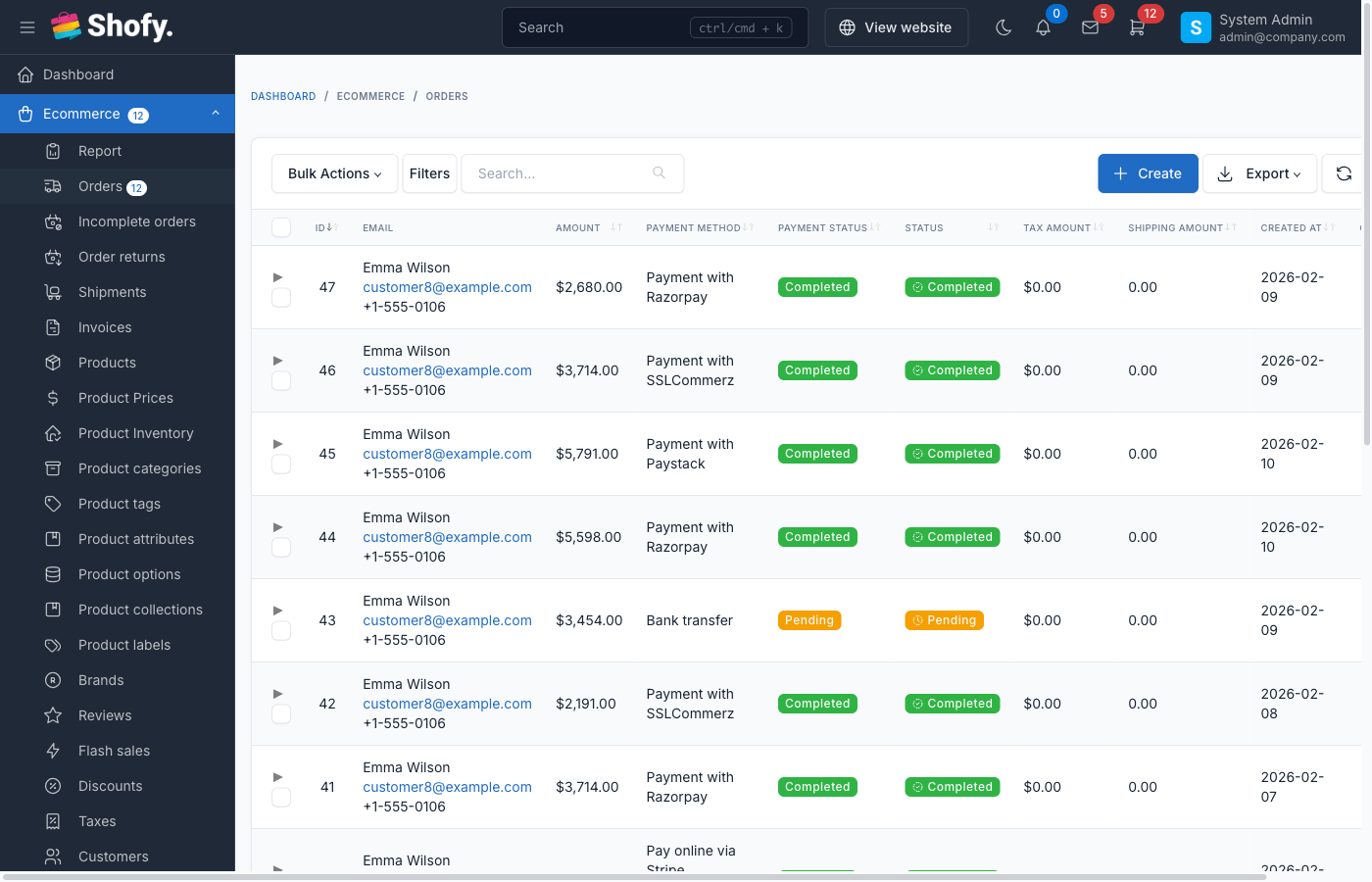
Shofy's order management includes:
- Order listing & search - View all orders with filtering and search capabilities
- Order details - Complete order information with products, customer data, shipping, and payment
- Status management - Track order progression through lifecycle stages
- Order history - Detailed timeline of all order activities
- Communication - Email notifications and order notes
- Financial actions - Refunds, payment confirmation, and adjustments
Accessing Orders
Navigate to Ecommerce -> Orders in the admin panel.
The orders table displays:
- Order code
- Customer name
- Products count
- Order amount
- Payment method & status
- Order status
- Creation date
- Actions (View/Edit/Delete)
Search & Filter
Search orders by:
- Order code
- Customer name
- Customer email
- Customer phone
- Product SKU
Filter by:
- Order status
- Payment status
- Shipping status
- Date range
Order Statuses
Order Status Lifecycle
| Status | Description | Badge Color |
|---|---|---|
| Pending | Order placed, awaiting confirmation | Yellow (warning) |
| Processing | Order confirmed, being prepared | Blue (info) |
| Completed | Order fulfilled and delivered | Green (success) |
| Canceled | Order canceled by admin or customer | Red (danger) |
| Partial Returned | Some items returned | Red (danger) |
| Returned | All items returned | Red (danger) |
Shipping Status
| Status | Description |
|---|---|
| Not Approved | Shipment pending approval |
| Approved | Shipment approved, not yet prepared |
| Pending | Awaiting shipment preparation |
| Arrange Shipment | Preparing shipment |
| Ready to be Shipped Out | Ready for pickup/dispatch |
| Picking | Items being picked from warehouse |
| Delay Picking | Picking delayed |
| Picked | Items picked, ready to ship |
| Not Picked | Items could not be picked |
| Delivering | In transit to customer |
| Delivered | Successfully delivered |
| Not Delivered | Delivery failed |
| Audited | Delivery audited/verified |
| Canceled | Shipment canceled |
Payment Status
| Status | Description |
|---|---|
| Pending | Payment not yet received |
| Completed | Payment received successfully |
| Refunding | Refund in progress |
| Refunded | Refund completed |
| Failed | Payment failed |
| Fraud | Fraudulent payment detected |
| Canceled | Payment canceled |
Order Details View
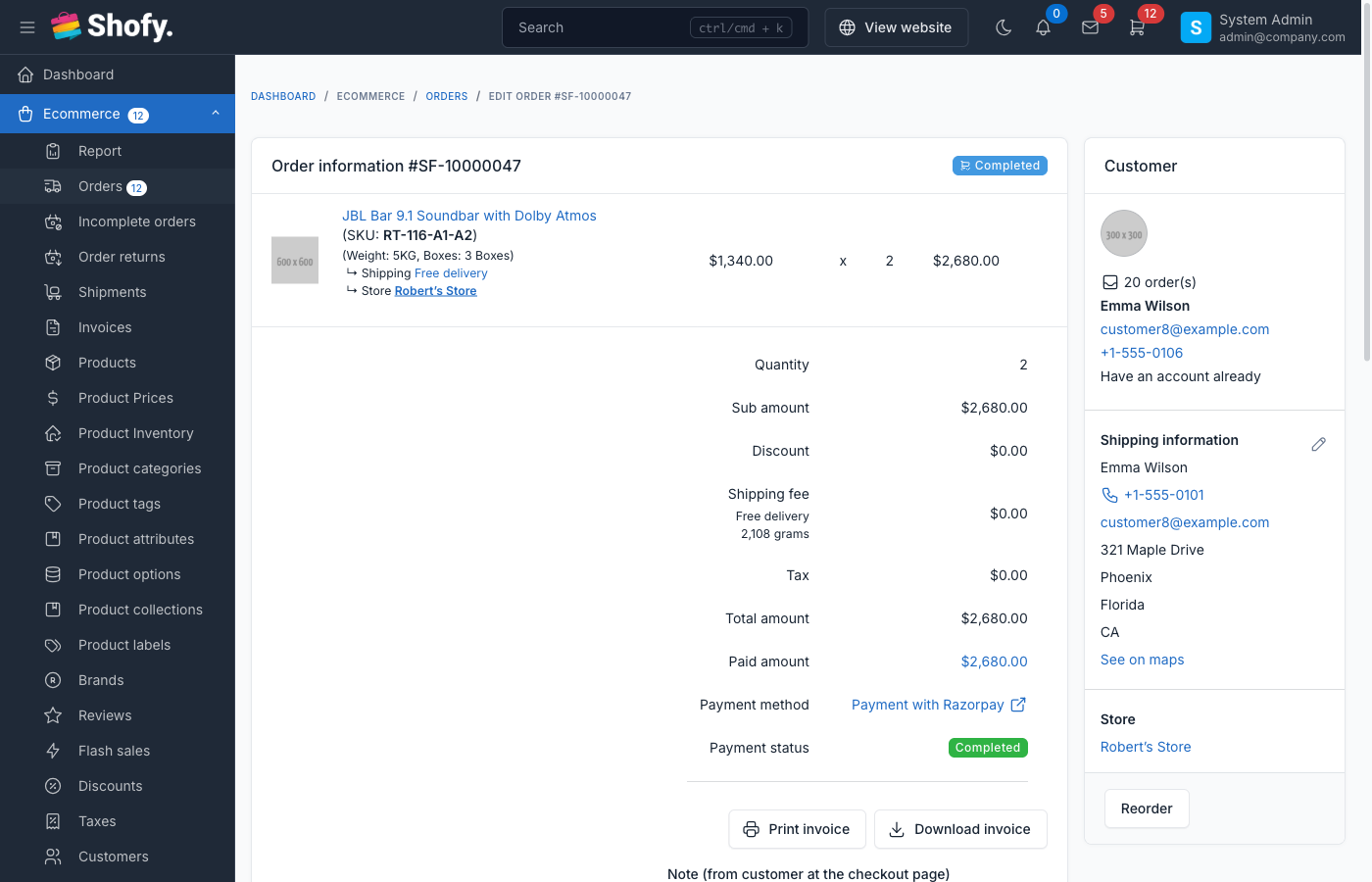
Information Sections
Order Information
- Order code
- Order date
- Order status
- Payment method
- Payment status
- Shipping method
- Amount breakdown (subtotal, tax, shipping, discount, total)
Customer Information
- Name, email, phone
- Shipping address
- Billing address (if different)
- Customer order history
Products
- Product name with SKU
- Product options/variations
- Quantity ordered
- Price per item
- Subtotal
Shipping Information
- Shipping address (editable)
- Shipping method
- Tracking number (if available)
- Shipment status
Payment Information
- Payment method
- Transaction ID
- Payment amount
- Refund details (if any)
Tax Information (if provided)
- Company tax code
- Company name
- Company address
- Company email
Managing Orders
Confirming Orders
For pending orders:
- Review order details
- Click Confirm button
- System updates status to "Processing"
- Confirmation email sent to customer
TIP
Orders created from admin panel are automatically confirmed.
Updating Order Status
To change order status:
- Open order details
- Select new status from dropdown
- Click Save
- Status change logged in order history
WARNING
Some status changes have restrictions. For example, you cannot change a completed order back to pending.
Confirming Payment
For orders with pending payment:
- Click Confirm Payment button
- Payment status changes to "Completed"
- If order status is pending, it changes to "Processing"
- Payment confirmation logged in history
Creating Shipments
To send order to shipping:
- Open order details
- Click Create Shipment button
- Fill shipment form:
- Select shipping method
- Choose store location (pickup point)
- Enter shipping notes
- Set COD amount (if applicable)
- Click Create Shipment
- Order status updates to "Processing"
- Shipment status set to "Delivering"
TIP
An order can only have one shipment. Once created, you can cancel it or update its status.
Canceling Shipments
To cancel a shipment:
- Open order with active shipment
- Click Cancel Shipment
- Confirm cancellation
- Shipment status changes to "Canceled"
Canceling Orders
Orders can be canceled if:
- Order status is "Pending" or "Processing"
- Shipment is not yet dispatched (status allows cancellation)
To cancel an order:
- Open order details
- Click Cancel Order button
- Select cancellation reason:
- Customer request
- Out of stock
- Fraudulent order
- Duplicate order
- Payment issues
- Other (requires description)
- Enter additional notes (optional)
- Click Confirm
- Order status changes to "Canceled"
- Product quantities restored to inventory
- Cancellation email sent to customer
Cancellation Restrictions
You cannot cancel orders that are:
- Already completed
- Already canceled
- In advanced shipping stages (delivered, not delivered)
Processing Refunds
To refund an order:
- Open order details
- Scroll to Refund section
- Select products to refund with quantities
- Enter refund amount (cannot exceed paid amount minus previous refunds)
- Add refund note explaining reason
- Click Refund
- System processes refund:
- Payment status updates (to "Refunded" if full refund)
- Product quantities restored to inventory
- Refund recorded in payment metadata
- Refund history entry created
Online Refunds
For payment methods that support online refunds (Stripe, PayPal, etc.), refunds are processed automatically through the payment gateway.
Partial vs Full Refunds
- Partial refund: Some items or amount refunded, payment status remains "Completed"
- Full refund: Entire order refunded, payment status changes to "Refunded"
Editing Shipping Address
To update shipping address:
- Open order details
- Click Edit icon next to shipping address
- Update address fields
- Click Save
- Address updated, change logged in history
WARNING
Cannot edit addresses for canceled orders.
Editing Tax Information
For orders with tax information:
- Click Edit icon next to tax information
- Update:
- Company tax code
- Company name
- Company address
- Company email
- Click Save
Adding Order Notes
To add private notes to an order:
- Scroll to Notes section
- Enter note text
- Click Save
TIP
Order notes are private and only visible to admin users. They are not sent to customers.
Order History Timeline
Every order maintains a complete history of activities:
- Order creation
- Status changes
- Payment confirmations
- Shipment creation
- Cancellations
- Refunds
- Address updates
- Email notifications sent
Each history entry shows:
- Action performed
- Description
- User who performed the action (if applicable)
- Timestamp
Email Notifications
The system automatically sends emails for:
- Order confirmation - Sent when order is created or confirmed
- Order status updates - Sent when order status changes
- Shipment notifications - Sent when shipment is created
- Cancellation notice - Sent when order is canceled
- Refund confirmation - Sent when refund is processed
Resending Confirmation Email
To resend order confirmation:
- Open order details
- Click Resend confirmation email button
- Email sent to customer's email address
Creating Orders from Admin
To create new orders manually:
- Click Create button in orders list
- Search and add products
- Enter customer information or select existing customer
- Apply discount/coupon (optional)
- Select shipping method
- Choose payment method and status
- Enter order notes (optional)
- Click Create Order
TIP
Orders created from admin are marked as confirmed automatically.
Reordering
To create a new order based on an existing one:
- Open order details
- Click Reorder button
- System pre-fills form with:
- Same products
- Same customer
- Same quantities
- Modify as needed
- Create the new order
Incomplete Orders
Incomplete orders are orders that:
- Were created but not finished (payment pending)
- User abandoned checkout before completing payment
Navigate to Ecommerce -> Incomplete Orders to view these.
Marking as Completed
To complete an incomplete order:
- Open incomplete order
- Click Mark as Completed
- Select payment method
- Set payment status
- Enter transaction ID (optional)
- Click Confirm
- Order moves to regular orders list
Sending Recovery Email
To remind customer to complete their order:
- Open incomplete order
- Click Send Recovery Email
- Email sent with cart contents and checkout link
Invoice Management
Generating Invoices
Invoices can be generated:
- Automatically - When order is completed (configurable)
- Manually - By clicking "Generate Invoice" on order details
To manually generate invoice:
- Open order details
- Click Generate Invoice button
- Invoice created and linked to order
Viewing & Downloading Invoices
Once generated, invoice actions appear:
- View - Opens invoice in browser
- Download - Downloads PDF file
- Print - Opens print dialog
TIP
Configure invoice settings at Ecommerce -> Settings -> Invoice.
Payment Proof
For payment methods that support payment proof (bank transfer, cash on delivery):
Customers can upload proof of payment (receipt, transaction screenshot).
To download proof:
- Open order with uploaded proof
- Click Download Proof button
- File downloaded to your computer
Advanced Features
Bulk Actions
Select multiple orders and:
- Delete orders (if deletion is enabled)
- Export selected orders
Export Orders
Export order data to CSV/Excel:
- Click Export button
- Choose date range and filters
- Select export format
- Download file
TIP
Export includes all order details, products, customer info, and amounts.
Webhooks
Configure webhooks to send order data to external systems:
Navigate to Ecommerce -> Settings -> Webhooks
Configuration
Order Settings
Configure order behavior at Ecommerce -> Settings -> Orders:
| Setting | Description |
|---|---|
| Order code prefix | Prefix for order codes (e.g., "ORD-") |
| Order code suffix | Suffix for order codes |
| Minimum order amount | Minimum cart total to place order |
| Enable order deletion | Allow admins to delete orders |
| Invoice generation | Auto-generate invoices when order is completed |
| Disable invoice until confirmed | Hide invoice until order is confirmed |
| Order tracking via phone/email | Choose identifier for order tracking |
Troubleshooting
Order Not Found
If customer cannot find their order:
- Search by email or phone
- Check incomplete orders
- Verify order was actually created (check payment logs)
Payment Not Reflecting
If payment is made but status shows pending:
- Check payment gateway logs
- Verify transaction in payment gateway dashboard
- Manually confirm payment if verified
Stock Not Restored After Cancellation
If inventory is not updated after canceling an order:
- Check if product has "Manage stock" enabled
- Verify cancellation was successful in order history
- Manually adjust stock if needed
Cannot Cancel Order
If cancel button is disabled:
- Order may be completed already
- Shipment may be delivered
- Order may already be canceled
- Check order and shipment status
Best Practices
Process orders promptly - Confirm and ship orders quickly to improve customer satisfaction
Keep customers informed - Update order status regularly, send tracking information
Double-check before canceling - Cancellation restocks inventory and may trigger automated refunds
Document refunds clearly - Always add detailed refund notes for future reference
Monitor incomplete orders - Follow up with customers who abandoned checkout
Use order notes - Document any special handling or issues for team reference
Verify addresses - Review shipping addresses before creating shipments to avoid delivery issues
Track metrics - Monitor order volume, cancellation rates, and refund patterns