
Product Options
Product options allow customers to customize products beyond variations. While variations change the product itself (size, color), options are add-ons and customizations that affect the final price but don't create separate inventory items.
Overview
Product Options vs Variations:
| Feature | Variations | Options |
|---|---|---|
| Inventory | Separate stock per variation | No separate inventory |
| Purpose | Different versions of product | Customizations/add-ons |
| Price Impact | Base price changes | Adds/subtracts from base |
| Examples | Size, Color, Material | Engraving, Gift wrap, Warranties |
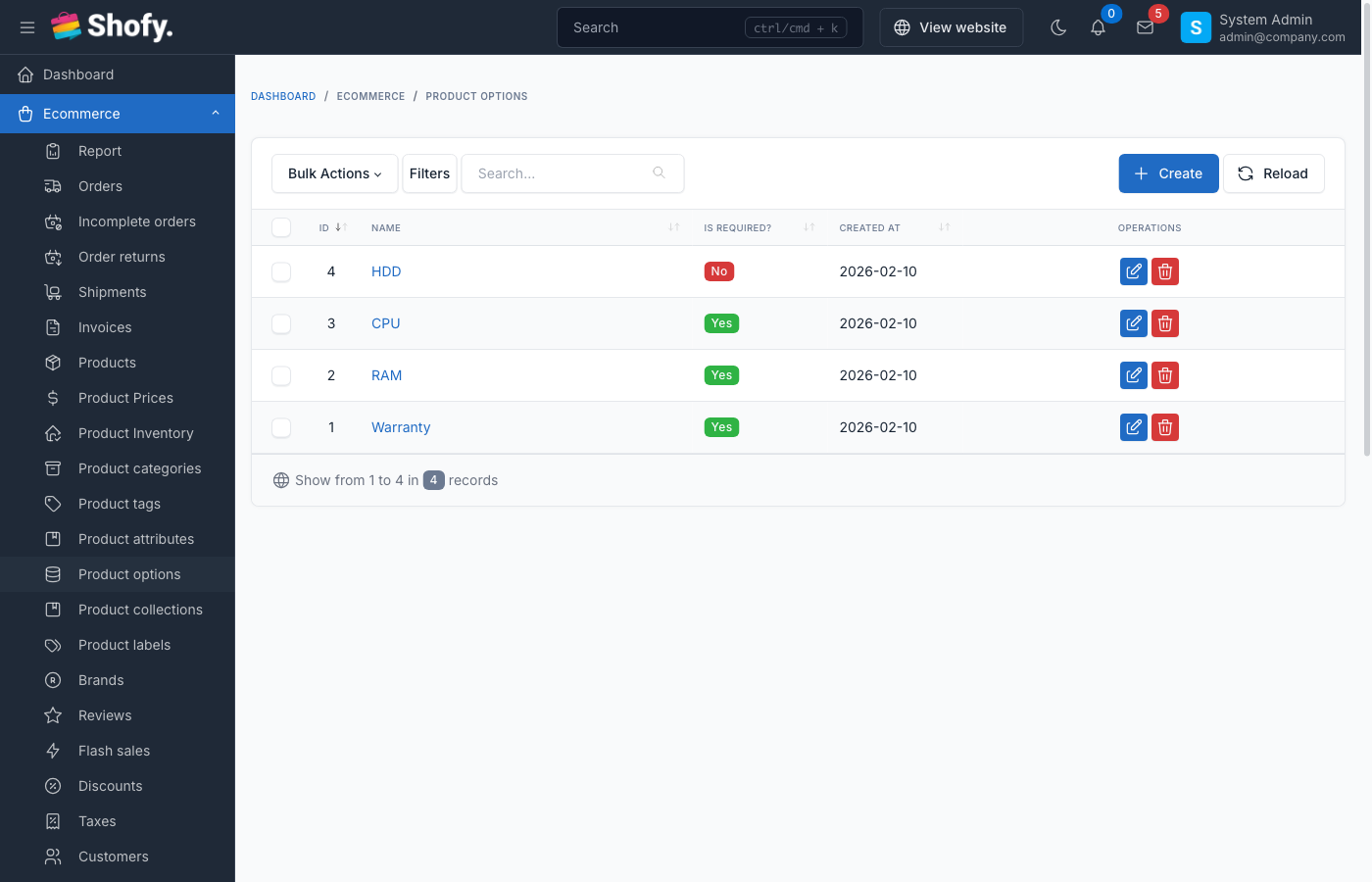
Option Types
| Type | Description | Use Case |
|---|---|---|
| Text | Single-line text input | Custom text (engraving, name) |
| Textarea | Multi-line text input | Long messages, instructions |
| Dropdown | Select one option | Single choice (warranty plans) |
| Checkbox | Select multiple | Multiple add-ons (gift wrap, card) |
| Radio | Select one option | Exclusive choices (size upgrades) |
| File Upload | Customer uploads file | Custom designs, logos |
Creating Global Options
Global options are reusable across multiple products.
Navigate to Ecommerce -> Product Options -> Global Options.
- Click Create
- Fill in option details:
- Name - Option label (e.g., "Gift Wrapping")
- Option Type - Select field type
- Required - Check if customer must select
- Click Save
Adding Option Values (Dropdown/Checkbox/Radio)
For dropdown, checkbox, and radio types:
- Open the global option
- Scroll to Option Values section
- Click Add new value
- Fill in:
- Option Value - Display text (e.g., "Premium Gift Wrap")
- Affect Price - Amount to add/subtract
- Affect Type - Fixed amount or percentage
- Order - Display order
- Repeat for all values
- Click Save
Price Adjustments
Fixed Amount:
- Set Affect Type = "Fixed"
- Affect Price =
5.00(adds $5.00) - Affect Price =
-2.00(subtracts $2.00)
Percentage:
- Set Affect Type = "Percentage"
- Affect Price =
10(adds 10% of product price) - Affect Price =
-5(subtracts 5% of product price)
TIP
Use percentage pricing for options that should scale with product value, like warranties or insurance.
Adding Options to Individual Products
Navigate to Ecommerce -> Products and open a product.
Method 1: Assign Global Options
- Scroll to Product Options section
- Click Assign Global Option
- Select global option(s)
- Click Save
Global option values and pricing apply automatically.
Method 2: Create Product-Specific Options
- In Product Options section, click Add new option
- Fill in option details:
- Name - Option label
- Option Type - Field type
- Required - Make mandatory
- Order - Display sequence
- For dropdown/checkbox/radio, add values:
- Click Add value
- Enter value text and pricing
- Click Save
WARNING
Product-specific options only apply to that product. Changes don't affect other products.
Option Configuration Examples
Example 1: Text Engraving
Option Type: Text
Name: Personalized Engraving
Type: Text
Required: No
Affect Price: $5.00 (Fixed)
Customer enters custom text, adds $5 to price.
Example 2: Gift Wrapping
Option Type: Checkbox
Name: Add-ons
Type: Checkbox
Required: No

Values:
- Gift Wrapping ($3.00, Fixed)
- Gift Card ($2.00, Fixed)
- Express Shipping ($10.00, Fixed)
Customer selects multiple add-ons, each adds its price.
Example 3: Warranty Plans
Option Type: Radio
Name: Warranty Plan
Type: Radio
Required: No

Values:
- No Warranty ($0.00)
- 1-Year Warranty (10%, Percentage)
- 2-Year Warranty (15%, Percentage)
Customer selects one plan, percentage based on product price.
Example 4: Custom Design Upload
Option Type: File
Name: Upload Your Design
Type: File
Required: Yes
Affect Price: $0.00
Customer uploads file, required for order processing.
Example 5: Gift Message
Option Type: Textarea
Name: Gift Message
Type: Textarea
Required: No
Affect Price: $0.00
Customer enters message, no price impact.
Required vs Optional Options
Required Options:
- Customer must select before adding to cart
- "Add to Cart" button disabled until selected
- Use for essential customizations
Optional Options:
- Customer can skip
- Use for add-ons and extras
Option Display Order
Control option sequence on product pages:
- Edit product
- In Product Options, each option has Order field
- Lower numbers display first
- Update and save
File Upload Options
For file type options:
Settings:
- Accepts common file formats (images, PDFs, etc.)
- Maximum file size controlled by server settings
- Files stored in
storage/app/uploads
Use Cases:
- Custom logo design
- Artwork for printing
- Measurement photos
- Assembly instructions
WARNING
Configure server upload_max_filesize and post_max_size in php.ini for large file uploads.
Managing Global Options
Editing Global Options
- Navigate to
Ecommerce->Product Options->Global Options - Click option name
- Modify settings
- Changes apply to all products using this option
- Click Save
Deleting Global Options
- Open global option
- Click Delete
- Confirm deletion
WARNING
Deleting a global option removes it from all products. Consider deactivating instead.
Options in Cart & Checkout
When customer adds product with options:
Cart Display:
Product Name
- Option 1: Selected Value (+$5.00)
- Option 2: Selected Value (+$10.00)
Base Price: $100.00
Options Total: $15.00
Line Total: $115.00
Order Details: Options appear in order items with selected values and price adjustments.
Options vs Variations: When to Use Each
Use Variations When:
- Different SKUs needed
- Separate inventory tracking required
- Core product attributes (size, color, model)
- Significant price differences
- Different product images
Use Options When:
- No inventory tracking needed
- Add-ons and customizations
- Price adjustments
- Text input from customers
- File uploads
- Same base product with extras
Can Combine Both: Example: T-shirt with variations (size/color) and options (gift wrap, custom name).
Import/Export Options
TIP
Global options are managed separately and don't export/import with products. Export products include only assigned global option references.
Multi-language Support
If language plugin is active:
Translating Global Options
- Navigate to
Product Options->Global Options - Open option
- Switch language
- Translate option Name
- Translate Option Values text
- Save
Translating Product Options
- Edit product
- Switch language
- Translate option names and values
- Save for each language
Troubleshooting
Option prices not calculating correctly
- Check Affect Type - Verify "Fixed" vs "Percentage"
- Verify base price - Percentage applies to product price
- Check for negative values - Use minus sign for discounts
- Clear cache - Run
php artisan cache:clear
Required option not enforced
- Check "Required" checkbox - Must be enabled
- Clear browser cache - Frontend may cache old form
- Check JavaScript - Ensure no JS errors in browser console
File upload not working
- Check file size - Verify server upload limits
- Check permissions - Ensure
storage/appis writable - Review allowed types - System may block certain file types
- Check error logs - Review Laravel logs for upload errors
Global option changes not reflecting on products
- Clear cache - Run
php artisan cache:clear - Refresh product page - Hard refresh browser (Ctrl+F5)
- Re-save products - May need to trigger cache rebuild
Best Practices
- Use global options for common add-ons - Create once, use everywhere
- Keep options simple - Too many options overwhelm customers
- Set logical defaults - Pre-select most common choices
- Use clear labels - Describe what customer gets
- Show price impact - Display price changes clearly
- Group related options - Use similar order numbers
- Test checkout flow - Verify options work in cart and checkout
- Consider mobile users - Keep file upload sizes reasonable
- Validate required fields - Ensure critical options are required
- Document for staff - Create guides for custom options handling
Example: Complete Product Setup
Product: Custom T-Shirt
Variations:
- Size: S, M, L, XL ($20 base price)
- Color: Red, Blue, Black
Options:
Text Engraving (Required):
- Type: Text
- Price: +$5.00
Gift Options (Optional):
- Type: Checkbox
- Gift Wrap: +$3.00
- Gift Message: +$2.00
Rush Processing (Optional):
- Type: Radio
- Standard (Free)
- Rush 2-Day: +$10.00
- Rush Overnight: +$25.00
Customer Experience:
- Select variation (size/color)
- Enter custom text (required)
- Optionally add gift options
- Choose shipping speed
- See total: Base + Engraving + Gift Options + Rush