
Payment Gateways
Payment gateways enable customers to complete purchases using various payment methods. Shofy supports multiple payment providers and offline payment options.
Overview
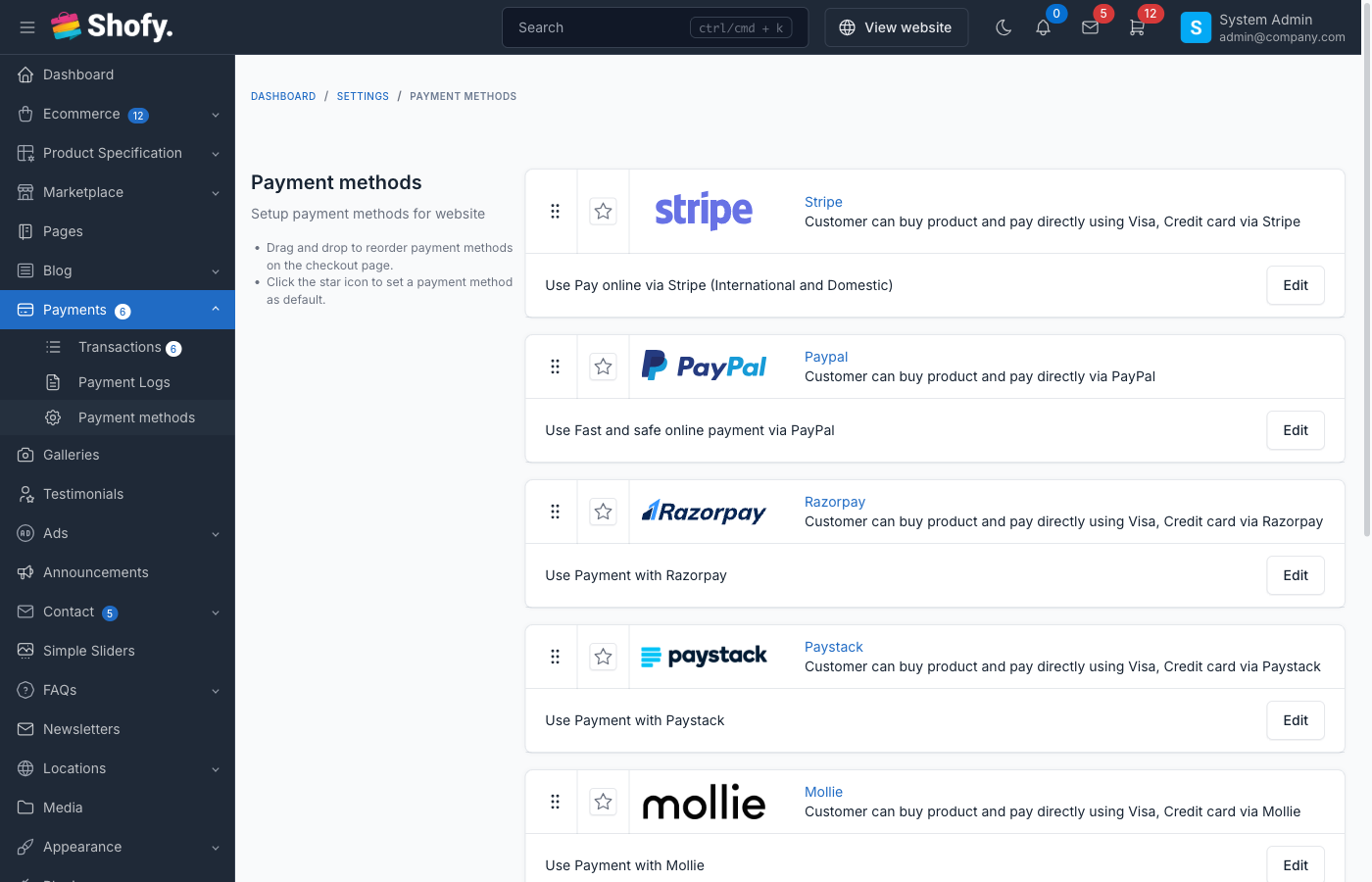
Available Payment Gateways
Online Payment Processors:
- Stripe - Credit/debit cards, Apple Pay, Google Pay
- PayPal - PayPal accounts and credit cards
- Razorpay - India-focused payment gateway
- Mollie - European payment methods
- Paystack - African payment gateway
- SSLCommerz - Bangladesh payment gateway
Offline Payment Methods:
- Cash on Delivery (COD) - Pay when receiving order
- Bank Transfer - Direct bank deposit
Accessing Payment Settings
Navigate to Settings -> Payment -> Payment methods.
This page shows all available payment methods with:
- Status (Enabled/Disabled)
- Configuration fields for each gateway
- Test/Live mode indicators
- Payment fee settings
Enabling Payment Gateways
Plugin Activation
Before configuring, ensure the payment plugin is activated:
- Navigate to
Pluginsin admin panel - Find the payment plugin (e.g., "Stripe Payment Gateway")
- Click Activate if not already active
TIP
The base "Payment" plugin must be activated first. Other payment gateways depend on it.
Gateway Activation
After plugin activation:
- Go to
Settings->Payment->Payment methods - Find the payment gateway
- Toggle Enable to ON
- Configure required settings (see gateway-specific sections below)
- Click Save settings
Common Payment Settings
All payment gateways share these configuration options:
Method Name
Customize the display name shown to customers at checkout.
- Default: Gateway name (e.g., "Stripe", "PayPal")
- Example: "Credit Card", "Pay with PayPal", "Secure Payment"
Description
Optional text displayed below the payment option at checkout.
- Use to explain payment method (e.g., "We accept Visa, MasterCard, American Express")
- Supports HTML for formatting
- Keep concise (1-2 sentences)
Payment Fee
Add a fee for using this payment method:
- Type: Percentage or Fixed Amount
- Value: Fee amount (e.g.,
3for 3% or2.50for $2.50 fee) - Automatically added to order total at checkout
- Shows as separate line item
Example:
Subtotal: $100
Payment fee (3%): $3
Total: $103
WARNING
Payment fees may be restricted or prohibited in some regions. Check local laws.
Payment Logo
Upload a custom logo to display at checkout.
- Recommended size: 60x40 pixels
- Formats: PNG, SVG (transparent backgrounds work best)
- Shown next to payment method name
Available Countries
Restrict payment method to specific countries:
- All countries (default) - Available worldwide
- Specific countries - Select from list
Use case: Restrict "Cash on Delivery" to domestic orders only.
Stripe Configuration
Stripe processes credit cards, Apple Pay, Google Pay, and more.
Requirements
- Stripe account (signup at stripe.com)
- Verified business information
- Bank account for payouts
Configuration Fields
Navigate to Settings -> Payment -> Payment methods -> Stripe.
| Field | Description | Where to Find |
|---|---|---|
| Publishable key | Public API key (starts with pk_) | Stripe Dashboard -> Developers -> API keys |
| Secret key | Private API key (starts with sk_) | Stripe Dashboard -> Developers -> API keys |
| Payment type | Stripe API Charge or Stripe Checkout | Choose integration method |
| Webhook secret | Webhook signing secret (starts with whsec_) | Stripe Dashboard -> Developers -> Webhooks |
Payment Type Options
Stripe API Charge (Recommended):
- Checkout stays on your site
- Supports saved cards
- More customization options
Stripe Checkout:
- Redirects to Stripe-hosted page
- PCI compliance handled by Stripe
- Supports more payment methods (Alipay, etc.)
Test vs Live Mode
Stripe provides separate keys for testing:
Test Mode Keys:
- Publishable:
pk_test_... - Secret:
sk_test_... - Use test card:
4242 4242 4242 4242
Live Mode Keys:
- Publishable:
pk_live_... - Secret:
sk_live_... - Processes real payments
WARNING
Never use live keys in test/development environments. Use test keys until you're ready to accept real payments.
Setting Up Webhooks
Webhooks notify your store of payment events (success, failure, refunds).
- Go to Stripe Dashboard -> Developers -> Webhooks
- Click Add endpoint
- Endpoint URL:
https://yourstore.com/stripe/webhook - Select events:
payment_intent.succeededpayment_intent.payment_failedcharge.refunded
- Copy the Signing secret (starts with
whsec_) - Paste into Webhook secret field in settings
Testing Stripe
Use these test cards:
| Card Number | Scenario |
|---|---|
| 4242 4242 4242 4242 | Successful payment |
| 4000 0000 0000 9995 | Declined card |
| 4000 0000 0000 3220 | 3D Secure authentication required |
Use any future expiry date and any 3-digit CVC.
PayPal Configuration
PayPal allows customers to pay with PayPal accounts or credit cards.
Requirements
- PayPal Business account (signup at paypal.com)
- Verified email and bank account
- API credentials from PayPal Developer
Configuration Fields
| Field | Description | Where to Find |
|---|---|---|
| Client ID | PayPal REST API client ID | PayPal Developer -> My Apps & Credentials |
| Client Secret | PayPal REST API secret | PayPal Developer -> My Apps & Credentials |
| Mode | Live Mode (ON) or Sandbox (OFF) | Toggle for testing vs production |
Getting PayPal API Credentials
- Go to PayPal Developer Dashboard
- Navigate to My Apps & Credentials
- Choose Sandbox (testing) or Live (production)
- Click Create App
- Copy Client ID and Secret
Sandbox vs Live Mode
Sandbox Mode (Mode = OFF):
- Use sandbox credentials
- Test with fake PayPal accounts
- No real money processed
Live Mode (Mode = ON):
- Use live credentials
- Processes real payments
- Requires verified business account
Testing PayPal
- Create sandbox account at PayPal Developer
- Create test buyer and seller accounts
- Use sandbox credentials in payment settings
- Test checkout with sandbox buyer account
Razorpay Configuration
Razorpay is popular in India for UPI, cards, net banking, and wallets.
Requirements
- Razorpay account (signup at razorpay.com)
- KYC verification
- Bank account details
Configuration Fields
| Field | Description | Where to Find |
|---|---|---|
| Key ID | Razorpay API key | Razorpay Dashboard -> Settings -> API Keys |
| Key Secret | Razorpay API secret | Razorpay Dashboard -> Settings -> API Keys |
Getting Razorpay Credentials
- Log into Razorpay Dashboard
- Go to Settings -> API Keys
- Generate keys (if not already generated)
- Copy Key ID and Key Secret
Test Mode
Razorpay automatically provides test keys:
- Test Key ID: Starts with
rzp_test_ - Live Key ID: Starts with
rzp_live_
Use test keys during development.
Mollie Configuration
Mollie supports European payment methods including iDEAL, Bancontact, and more.
Requirements
- Mollie account (signup at mollie.com)
- Verified business (for live mode)
Configuration Fields
| Field | Description | Where to Find |
|---|---|---|
| API Key | Mollie API key | Mollie Dashboard -> Developers -> API keys |
| Mode | Test or Live | Toggle based on API key type |
Getting Mollie API Key
- Log into Mollie Dashboard
- Go to Developers -> API keys
- Copy Test API key or Live API key
Test keys start with test_, live keys start with live_.
Paystack Configuration
Paystack is widely used in Nigeria and other African countries.
Requirements
- Paystack account (signup at paystack.com)
- Business verification
- Bank account for settlements
Configuration Fields
| Field | Description | Where to Find |
|---|---|---|
| Public Key | Paystack public key | Paystack Dashboard -> Settings -> API Keys & Webhooks |
| Secret Key | Paystack secret key | Paystack Dashboard -> Settings -> API Keys & Webhooks |
Getting Paystack Credentials
- Log into Paystack Dashboard
- Go to Settings -> API Keys & Webhooks
- Copy Public Key and Secret Key
Test keys available in test mode (toggle at top of dashboard).
SSLCommerz Configuration
SSLCommerz is the leading payment gateway in Bangladesh.
Requirements
- SSLCommerz merchant account (signup at sslcommerz.com)
- Business documents
- Bank account
Configuration Fields
| Field | Description | Where to Find |
|---|---|---|
| Store ID | Merchant store ID | SSLCommerz merchant panel |
| Store Password | API store password | SSLCommerz merchant panel |
| Mode | Sandbox or Live | Toggle for testing |
Sandbox Testing
SSLCommerz provides sandbox credentials for testing. Use test cards provided in their documentation.
Cash on Delivery (COD)
COD allows customers to pay when they receive the order.
Configuration
Navigate to Settings -> Payment -> Payment methods -> Cash on Delivery.
- Method name - Display name (e.g., "Pay on Delivery")
- Description - Instructions (e.g., "Pay cash to courier when you receive your order")
- Payment fee - Optional handling fee
- Logo - Custom icon
- Available countries - Restrict to specific countries
Best Practices for COD
- Limit to verified customers - Reduce fake orders
- Add COD fee - Cover handling costs (2-5%)
- Restrict by location - Only offer in serviceable areas
- Set minimum order - Avoid small COD orders
- Verify phone number - Call customers before shipping
WARNING
COD has higher return rates. Consider adding verification steps or minimum order amounts.
Bank Transfer
Bank transfer allows customers to manually transfer payment to your bank account.
Configuration
Navigate to Settings -> Payment -> Payment methods -> Bank Transfer.
- Method name - Display name (e.g., "Direct Bank Transfer")
- Description - Bank details and instructions
- Payment fee - Usually none
- Logo - Bank logo or custom icon
Setting Up Bank Transfer Instructions
In the Description field, include:
Please transfer to:
Bank: ABC Bank
Account Name: Your Store Name
Account Number: 1234567890
IBAN: GB00ABCD12345678901234 (if applicable)
Swift Code: ABCDGB2L (for international)

Reference: Use your order number as reference
Processing: Orders ship after payment confirmation (1-3 business days)
Bank Transfer Workflow
- Customer selects "Bank Transfer" at checkout
- Order created with "Pending" status
- Customer sees bank details on confirmation page
- Customer emails payment receipt
- Admin verifies payment manually
- Admin changes order status to "Processing"
- Order ships
TIP
Use order notes to track when payment is received. Consider automated email reminders if payment not received within 48 hours.
Payment Method Priority
Control the order payment methods appear at checkout:
- Methods are sorted by activation order
- Use drag-and-drop to reorder (if theme supports)
- Most common method should appear first
Recommended order:
- Credit Card (Stripe)
- PayPal
- Other online gateways
- Bank Transfer
- Cash on Delivery
Managing Payments
Viewing Payment Logs
Navigate to Payments -> Transactions to view:
- Transaction ID
- Amount
- Status (success, pending, failed)
- Customer information
- Gateway used
- Date/time
Refunding Payments
To refund a payment:
- Navigate to
Ecommerce->Orders - Click on the order
- Click Refund button
- Select refund amount (full or partial)
- Confirm refund
TIP
Refunds process through the original payment gateway. Ensure API credentials are configured for refunds to work.
Failed Payments
When a payment fails:
- Order created with "Pending" status
- Customer sees error message
- Admin receives notification (if enabled)
- Customer can retry payment from order page
Default Payment Method
To set a default payment method:
- Go to
Settings->Payment->Payment methods - Enable your preferred method
- It automatically becomes available at checkout
- Customers choose their preferred method
TIP
You cannot force a specific default. Customers always choose at checkout. Consider using payment fees to encourage preferred methods.
Testing Payment Integration
Pre-Launch Checklist
Before going live:
- Enable test mode - Use sandbox/test credentials for all gateways
- Test checkout flow - Complete test orders with each payment method
- Verify webhooks - Ensure order status updates automatically
- Test refunds - Process test refund through each gateway
- Check emails - Verify payment confirmation emails send correctly
- Test failures - Use invalid cards to ensure error handling works
- Mobile testing - Test checkout on mobile devices
Common Test Scenarios
- Successful payment
- Declined card
- Insufficient funds
- Network timeout
- 3D Secure authentication
- Partial refund
- Full refund
- Multiple items in cart
- Discount codes with payment
- International cards
Switching to Live Mode
When ready to accept real payments:
- Update credentials - Replace test keys with live keys
- Test once more - Make one real test purchase (then refund)
- Monitor closely - Watch first few live transactions
- Verify payouts - Ensure funds reach your bank account
WARNING
Never test with live credentials. Always use test mode for development and staging.
Troubleshooting
Payment method not showing at checkout
- Gateway enabled? - Check toggle is ON in settings
- Plugin activated? - Verify plugin is active
- Credentials configured? - Ensure API keys entered
- Country restrictions? - Check available countries setting
- Cart total? - Some methods have minimum amounts
- Cache cleared? - Clear site and browser cache
Payment failing at checkout
- Test mode? - Verify using correct credentials (test vs live)
- API keys valid? - Check keys haven't expired or been regenerated
- Webhook configured? - Verify webhook URL and secret
- SSL certificate? - Payment gateways require HTTPS
- Gateway status? - Check if payment provider has downtime
- Error logs? - Check
storage/logsfor detailed errors
Webhook not working
- URL accessible? - Webhook URL must be publicly accessible
- Correct URL? - Verify exact webhook URL in gateway dashboard
- Secret configured? - Webhook secret must match
- Firewall/IP? - Whitelist gateway's webhook IP addresses
- SSL issues? - Ensure valid SSL certificate
Refund not processing
- Credentials correct? - Refund API requires same credentials
- Time limit? - Some gateways limit refund window (e.g., 180 days)
- Sufficient balance? - Account must have funds for refund
- Gateway support? - Verify gateway supports API refunds
Security Best Practices
- Never share API keys - Keep credentials secret
- Use environment variables - Store keys in
.envfile - HTTPS required - All payment pages must use SSL
- PCI compliance - Never store credit card numbers
- Regular updates - Keep payment plugins updated
- Audit logs - Review payment logs regularly
- Test mode separation - Never mix test and live credentials
- Access control - Limit who can view/edit payment settings
Frequently Asked Questions
Can customers use multiple payment methods for one order?
No, customers must choose one payment method per order. For split payments, customers would need to place multiple orders.
How do I offer payment plans or installments?
Use payment gateways that support installments natively (e.g., Affirm, Klarna). These require separate integration or plugins.
Can I disable credit card payments but keep PayPal?
Yes, just disable Stripe (or other card gateway) and leave PayPal enabled. Customers see only PayPal option.
What fees do payment gateways charge?
Varies by gateway:
- Stripe: ~2.9% + $0.30 per transaction
- PayPal: ~2.9% + $0.30 per transaction
- Razorpay: ~2% per transaction
- Mollie: Varies by payment method
- Paystack: ~1.5% + fees
Check each provider's pricing page for exact rates in your country.
How long until I receive payment?
Online gateways: 2-7 days (varies by provider and country) Bank transfer: 1-3 days after customer pays COD: When courier remits collected cash (5-15 days)
Can I set different payment methods for different countries?
Yes, use the Available countries setting for each payment method to restrict by location.
Do payment gateways work with subscriptions?
Depends on the gateway. Stripe and PayPal support recurring payments. Check gateway documentation for subscription support.
What if customer's country isn't supported by any gateway?
Consider:
- Adding more payment gateways (Mollie for Europe, Paystack for Africa)
- Enabling Bank Transfer (works internationally)
- Using multi-currency processors
- Manually processing via email/phone
Can I change payment gateway after getting orders?
Yes, but:
- Existing orders still reference old gateway
- Refunds must go through original gateway
- Customers with saved cards must re-enter
- Update checkout instructions if changing
How do I handle chargebacks?
Chargebacks are handled by the payment gateway. You'll receive notification from the gateway (not your store). Respond with order documentation to dispute fraudulent chargebacks.
Can I use multiple Stripe accounts?
No, only one Stripe account per store. For multiple brands, use Stripe Connect or separate store installations.