
Marketplace Withdrawals
The withdrawal system allows vendors to request payouts of their earned revenue. Admins review and process withdrawal requests through configurable payout methods.
Overview
Withdrawal workflow:
- Vendor earns revenue from completed orders
- Vendor requests withdrawal when balance meets minimum
- Withdrawal fee is calculated and deducted
- Admin receives notification of withdrawal request
- Admin reviews and approves withdrawal
- Payout is processed via selected payment method
- Admin marks withdrawal as completed
Withdrawal Settings
Navigate to Marketplace -> Settings
Withdrawal Fees
| Setting | Description |
|---|---|
| Fee withdrawal amount | Fee charged per withdrawal (amount or percentage) |
| Withdrawal fee type | Fixed amount or Percentage of withdrawal |
Fixed Fee Example:
- Fee: $5
- Vendor requests: $100
- Vendor pays fee: $5
- Total deducted from balance: $105
- Vendor receives: $100
Percentage Fee Example:
- Fee: 2%
- Vendor requests: $100
- Vendor pays fee: $2 (2% of $100)
- Total deducted from balance: $102
- Vendor receives: $100
TIP
Withdrawal fees cover transaction costs and processing overhead. Typical marketplace fees range from 1-3% or $2-$10 flat fee.
Minimum Withdrawal Amount
| Setting | Description |
|---|---|
| Minimum withdrawal amount | Minimum balance required to request withdrawal |
Example:
- Minimum: $50
- Vendor balance: $45 → Cannot withdraw yet
- Vendor balance: $50 → Can request withdrawal
WARNING
Set minimum withdrawal amount high enough to cover transaction costs but low enough to keep vendors satisfied. Common range: $25-$100.
Payout Methods
Configure available payout methods for vendors:
| Method | Description | Enabled by Default |
|---|---|---|
| Bank Transfer | Direct bank deposit | Yes |
| PayPal | PayPal payout | Yes |
| Cash | Cash pickup | No |
Bank Transfer Fields:
- Bank name
- Bank code/IFSC
- Account holder name
- Account number
- UPI ID (optional, for Indian banks)
- Description
PayPal Fields:
- PayPal ID (email)
Cash Pickup Fields:
- Pickup location
- Contact name
- Contact phone
TIP
Enable only the payout methods your business can actually process. Disable unused methods to avoid confusion.
Vendor Payout Information Setup
Before vendors can request withdrawals, they must configure their payout information.
Vendor Side
Vendors set up payout info at: Vendor Dashboard -> Settings -> Payout Information
- Select payout method (bank transfer, PayPal, or cash)
- Fill required fields based on selected method
- Save payout information
WARNING
Vendors cannot request withdrawals without completing payout information setup.
Admin Side
Admins can view/edit vendor payout info:
- Navigate to
Marketplace->Stores - Click "Edit" on a store
- Open the "Payout Information" tab
- View or update vendor's bank details
Vendor Withdrawal Process
Requesting a Withdrawal
Vendor steps:
- Go to
Vendor Dashboard->Withdrawals - Click "Create" or "New Withdrawal"
- Review available balance and withdrawal fee
- Enter withdrawal amount (must be ≥ minimum)
- Add optional description/notes
- Submit request
System validations:
- Balance must be sufficient (amount + fee)
- Amount must meet minimum withdrawal requirement
- Payout information must be configured
- Vendor status must be active/verified
Withdrawal statuses:
| Status | Description | Color |
|---|---|---|
| Pending | Awaiting admin review | Warning (Yellow) |
| Processing | Admin is processing payment | Info (Blue) |
| Completed | Payout sent to vendor | Success (Green) |
| Canceled | Vendor canceled request | Danger (Red) |
| Refused | Admin rejected request | Secondary (Gray) |
Editing Withdrawal Requests
Vendors can edit pending withdrawals only:
- Go to
Vendor Dashboard->Withdrawals - Click "Edit" on pending withdrawal
- Update amount or description
- Click "Save" or "Cancel Request"
TIP
Once admin changes status to "Processing", vendors can no longer edit the withdrawal.
Canceling Withdrawals
Vendors can cancel pending withdrawals:
- Edit the pending withdrawal
- Click "Cancel Request"
- Status changes to "Canceled"
- Balance is refunded to vendor (amount + fee)
Admin Withdrawal Management
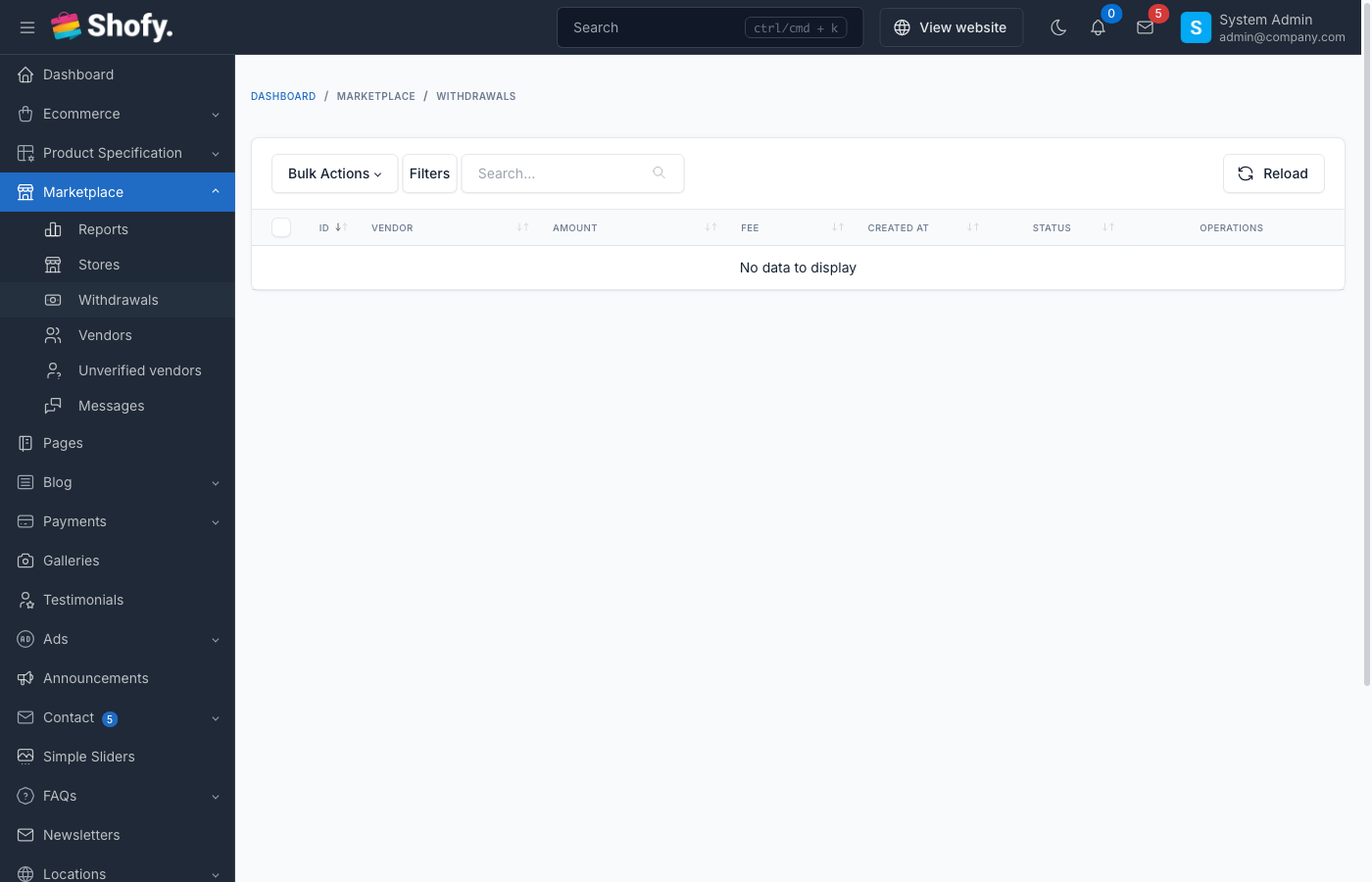
Navigate to Marketplace -> Withdrawals
Reviewing Withdrawal Requests
Withdrawal table shows:
- Vendor name
- Withdrawal amount
- Fee charged
- Current balance (at time of request)
- Payment method
- Status
- Created date
Filters:
- By status (pending, processing, completed, etc.)
- By vendor
- By date range
Approving Withdrawals
- Click "Edit" on a pending withdrawal
- Review vendor information and payout details
- Change status to "Processing"
- Add transaction ID (optional but recommended)
- Upload proof of payment images (optional)
- Add description/notes
- Click "Save"
TIP
Always add transaction ID and upload payment proof for record-keeping and dispute resolution.
Status progression:
- Pending → Processing → Completed
Processing Payouts
For Bank Transfer:
- Review bank account details
- Initiate bank transfer through your banking system
- Enter transaction ID/reference number
- Update withdrawal status to "Processing"
- Once confirmed, change status to "Completed"
For PayPal:
- Review PayPal ID
- Send payout via PayPal
- Enter PayPal transaction ID
- Update status to "Processing" then "Completed"
For Cash:
- Review pickup location and contact
- Coordinate cash pickup
- Update status when payment is handed over
Completing Withdrawals
When payout is successfully processed:
- Edit the withdrawal
- Change status to "Completed"
- Ensure transaction ID is recorded
- Save changes
Vendor receives email notification confirming withdrawal approval with:
- Store name
- Withdrawal amount
- Completion confirmation
TIP
The email template can be customized at Settings -> Email -> "Withdrawal Approved" template.
Refusing Withdrawals
To reject a withdrawal request:
- Edit the withdrawal
- Change status to "Refused"
- Add description explaining reason
- Save changes
When refused:
- Vendor balance is refunded (amount + fee)
- Vendor is notified
- Status cannot be changed back to pending
Common refusal reasons:
- Suspicious activity
- Incomplete payout information
- Pending disputes or chargebacks
- Account under review
Withdrawal Statuses Explained
Pending
- Initial status when vendor submits request
- Vendor can edit or cancel
- Balance is already deducted (amount + fee)
- Awaiting admin review
Admin actions available:
- Change to Processing
- Change to Refused
- Change to Canceled
- Delete withdrawal (refunds balance)
Processing
- Admin is processing payout
- Vendor cannot edit or cancel
- Balance remains deducted
- Payout is in progress
Admin actions available:
- Change to Completed
- Change to Refused
- Change to Canceled
WARNING
Avoid leaving withdrawals in "Processing" status for extended periods. Complete or refuse them promptly.
Completed
- Payout successfully sent to vendor
- Final status, cannot be changed
- Balance is not refunded
- Vendor has received funds
Admin actions available:
- View only (no status changes)
- Delete (does NOT refund balance)
Canceled
- Vendor canceled their own request
- Balance refunded to vendor
- Final status, cannot be changed
Admin actions available:
- View only
- Delete
Refused
- Admin rejected withdrawal request
- Balance refunded to vendor (amount + fee)
- Final status, cannot be changed
- Vendor can submit a new request
Admin actions available:
- View only
- Delete
Withdrawal History & Tracking
Vendor Withdrawal History
Vendors view their withdrawal history at: Vendor Dashboard -> Withdrawals
Table shows:
- Withdrawal ID
- Amount requested
- Fee paid
- Status
- Date requested
- Date completed (if applicable)
Admin Withdrawal Reports
Navigate to Marketplace -> Withdrawals
Export data:
- Apply filters (date range, status, vendor)
- Export to CSV/Excel
- Use for accounting and reconciliation
Key metrics to track:
- Total withdrawals processed per month
- Average withdrawal amount
- Total fees collected
- Pending withdrawal queue
- Top withdrawing vendors
Troubleshooting
Vendor Cannot Request Withdrawal
Error: "Insufficient balance or no bank info"
Causes:
- Vendor balance is below minimum withdrawal amount
- Payout information not configured
- Balance is insufficient to cover amount + fee
Solution:
- Ask vendor to check balance (must be ≥ withdrawal amount + fee)
- Verify payout information is completed in settings
- Check minimum withdrawal amount in marketplace settings
Withdrawal Fee Calculation Wrong
Check:
- Withdrawal fee amount in settings
- Withdrawal fee type (fixed vs percentage)
- For percentage: Fee = Amount × Percentage ÷ 100
- For fixed: Fee = Fixed Amount
Balance Not Refunded After Cancel/Refuse
Check:
- Review revenue records for the vendor
- Look for corresponding refund entry
- Check vendor's current balance in
Stores->Edit-> Vendor balance
If balance is still incorrect:
- Check system logs for errors
- Verify signature validation is enabled
- Contact technical support
Cannot Change Withdrawal Status
Error: Status dropdown is disabled
Cause: Withdrawal is in a final status (Completed, Canceled, Refused)
Solution: Final statuses cannot be changed. If correction is needed, create a manual revenue adjustment.
Best Practices
- Process withdrawals promptly - Aim for 1-3 business days to maintain vendor trust
- Always add transaction IDs - Essential for dispute resolution
- Upload payment proof - Screenshots of bank transfers, PayPal confirmations
- Set reasonable fees - Balance processing costs with vendor satisfaction
- Communicate delays - Notify vendors if processing will take longer than usual
- Regular reconciliation - Match withdrawal records with actual bank transactions
- Secure payout info - Vendor bank details are sensitive, restrict admin access
- Document refusals - Clear notes on why withdrawals were rejected
- Monitor withdrawal patterns - Flag unusual activity (frequent withdrawals, odd amounts)
- Automate notifications - Ensure vendors receive status update emails
Frequently Asked Questions
How long do withdrawals take to process?
Depends on your business workflow. Typical marketplaces process withdrawals within 1-7 business days.
Can vendors withdraw partial amounts?
Yes, vendors can request any amount ≥ minimum withdrawal, as long as their balance covers the amount plus fees.
What happens if a vendor has pending orders when they withdraw?
Vendors can only withdraw their current available balance. Funds from pending/processing orders are not yet in their balance.
Can I batch process withdrawals?
Not through the UI. Each withdrawal must be processed individually. Consider exporting withdrawal data and processing bank transfers in batches through your bank.
What if a withdrawal is sent to the wrong account?
- Mark the withdrawal as "Refused" with notes
- Contact the vendor to update payout information
- Create a manual revenue adjustment to refund the amount
- Process a new withdrawal request
Can fees be waived for specific vendors?
Not through the UI. All vendors pay the same withdrawal fee. To waive fees, set the fee amount to 0 in marketplace settings (affects all vendors).
How do I handle disputed withdrawals?
- Do NOT mark as completed until dispute is resolved
- Keep status as "Processing" while investigating
- Add detailed notes in the description field
- Upload relevant evidence/communication as images
- Refuse or complete based on investigation outcome