
Import & Export Data
Bulk import and export data to efficiently manage large catalogs, update inventory, sync with external systems, or migrate from other platforms.
Navigate to Tools -> Import/Export Data to access all import and export operations.
Overview
Available import/export operations:
| Operation | Import | Export | Purpose |
|---|---|---|---|
| Products | ✅ | ✅ | Full product data including variations |
| Prices | ✅ | ✅ | Bulk price updates |
| Inventory | ✅ | ✅ | Stock levels and quantities |
| Categories | ✅ | ✅ | Product category assignments |
| Specifications | ✅ | ✅ | Product specifications |
| Customers | ✅ | ✅ | Customer accounts and data |
| Orders | ❌ | ✅ | Export order data with filters |
| License Codes | ✅ | ❌ | Digital product license codes |
Exporting Products
Navigate to Tools -> Import/Export Data -> Export Products.
Export Options
Export Type:
- All products
- Selected products only
- Filter by category, brand, status
Export Format:
- CSV (Recommended for Excel)
- XLSX (Excel format)
Include Variations:
- Check to export product variations
- Uncheck for parent products only
Click Export
Export File Structure
Product Row (import_type = product):
id,name,description,slug,sku,categories,status,is_featured,brand,price,...
123,Product Name,Description,product-slug,SKU123,Category1,publish,1,BrandName,99.99,...
Variation Row (import_type = variation):
id,name,description,slug,sku,product_attributes,import_type,price,quantity,...
,Product Name,,,VAR-SKU,Size:Large|Color:Red,variation,109.99,50,...
TIP
Variations reference parent product by name or slug. Leave parent product fields empty for variations except name.
Importing Products
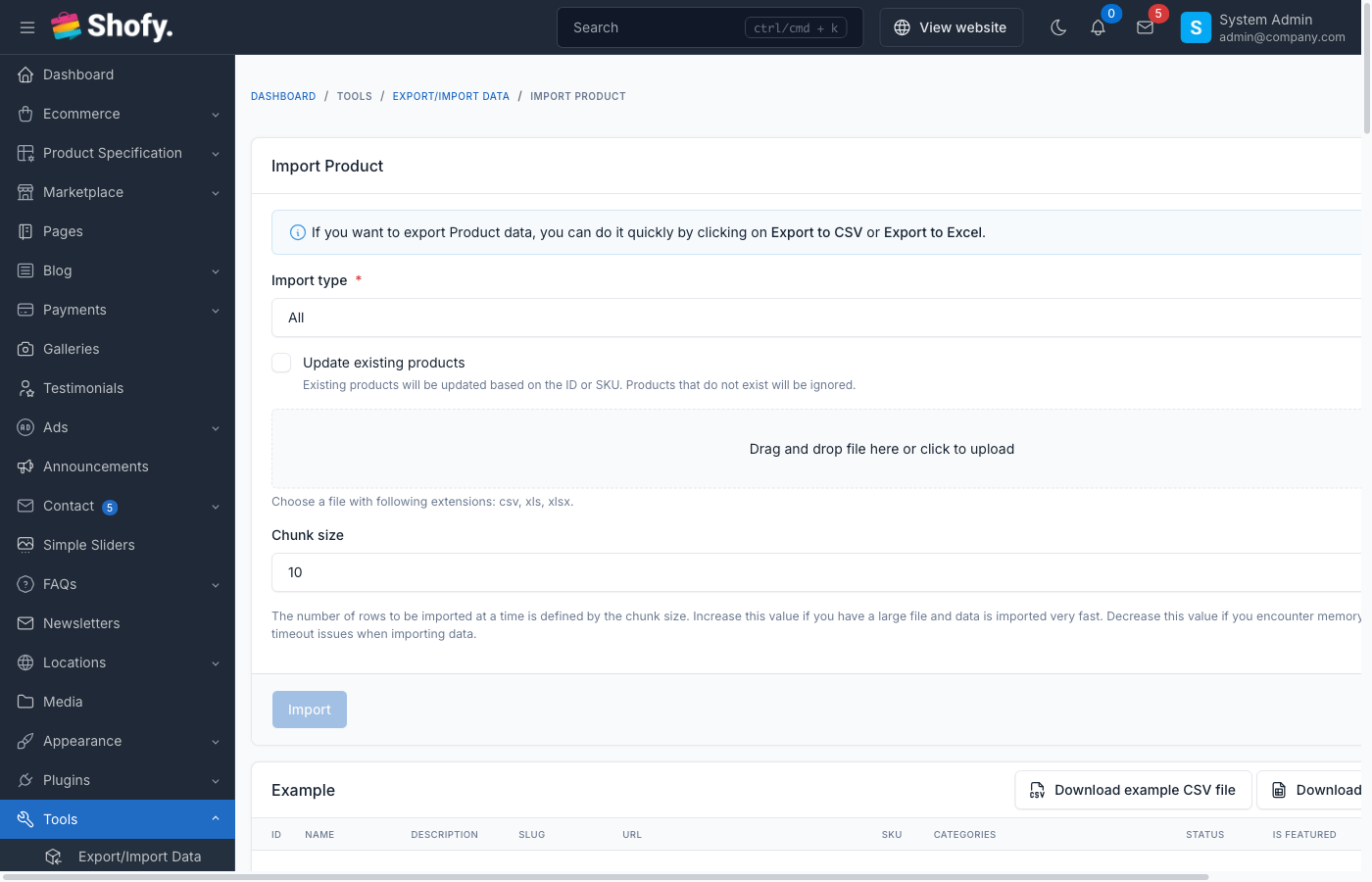
Navigate to Tools -> Import/Export Data -> Import Products.
Import Process
Download Template:
- Click Download Template
- Review example data
Prepare Data:
- Fill in your product data
- Follow format requirements
Upload File:
- Select CSV or Excel file
- Configure import options
Validation:
- System validates data
- Shows errors if any
Import:
- Click Import
- Monitor progress
Import Options
| Option | Description |
|---|---|
| Update existing products | Update products with matching SKU or ID |
| Skip existing products | Only import new products (default) |
| Generate SKU automatically | Auto-create SKUs if missing |
Required Columns
For Products:
name- Product name (required)status-publish,draft,pendingstock_status-in_stock,out_of_stock
For Variations:
nameorslug- Parent product identifierproduct_attributes- Attribute combinationsimport_type- Must bevariationsku- Variation SKU
Optional Columns
| Column | Format | Example |
|---|---|---|
id | Integer or UUID | 123 |
description | Text | Product description |
slug | URL-friendly | product-slug |
url | Custom URL | /custom-url |
sku | Alphanumeric | PROD-123 |
categories | Comma-separated | Electronics,Phones |
brand | Brand name | Apple |
product_collections | Comma-separated | New Arrivals,Featured |
labels | Comma-separated | Hot,Sale |
taxes | Comma-separated tax titles | VAT,GST |
image | Image URL or path | products/image.jpg |
images | Comma-separated URLs | image1.jpg,image2.jpg |
price | Decimal | 99.99 |
sale_price | Decimal | 79.99 |
start_date | Date | 2024-01-01 |
end_date | Date | 2024-12-31 |
quantity | Integer | 100 |
weight | Decimal | 0.5 |
length | Decimal | 10 |
wide | Decimal | 5 |
height | Decimal | 2 |
cost_per_item | Decimal | 50.00 |
barcode | Alphanumeric | 123456789012 |
content | HTML or text | Product details |
tags | Comma-separated | electronics,smartphone |
product_type | physical or digital | physical |
with_storehouse_management | 0 or 1 | 1 |
is_featured | 0 or 1 | 1 |
auto_generate_sku | 0 or 1 | 1 |
generate_license_code | 0 or 1 | 0 |
minimum_order_quantity | Integer | 1 |
maximum_order_quantity | Integer | 10 |
order | Integer | 0 |
SEO Columns
| Column | Example |
|---|---|
seo_title | Product SEO Title |
seo_description | Meta description for search engines |
seo_index | index or noindex |
Multi-language Columns
If multi-language is enabled:
| Column | Example |
|---|---|
name_(fr) | French product name |
description_(fr) | French description |
content_(fr) | French content |
Replace (fr) with your language code.
Product Attributes in Import
For Parent Products
product_attributes column lists attribute set names:
product_attributes
Size,Color,Material
Creates attribute sets for the product.
For Variations
product_attributes column specifies attribute combination:
product_attributes
Size:Large|Color:Red|Material:Cotton
Format: AttributeSet:Value|AttributeSet:Value
WARNING
Attribute sets and values must exist before import. Create them in Ecommerce -> Attributes.
Handling Images
Image Formats
Option 1: Relative Paths
image
products/phone.jpg
File must exist in storage/app/public/products/
Option 2: Full URLs
image
https://example.com/images/phone.jpg
System downloads and stores image.
Multiple Images
Comma-separated in images column:
images
products/image1.jpg,products/image2.jpg,https://example.com/image3.jpg
TIP
For large imports with images, upload images to storage/app/public/products/ first, then use relative paths in CSV.
Importing Variations
Step-by-Step Process
- Prepare parent products - Import parent products first
- Create attribute sets - Ensure attributes exist in
Ecommerce->Attributes - Prepare variation rows - Format variation data
- Import - Upload CSV with variations
Variation CSV Example
name,slug,sku,product_attributes,import_type,price,quantity,is_variation_default
T-Shirt,,TSHIRT-001,Size|Color,product,20.00,0,0
T-Shirt,,TSHIRT-RED-S,Size:Small|Color:Red,variation,20.00,50,1
T-Shirt,,TSHIRT-RED-M,Size:Medium|Color:Red,variation,20.00,30,0
T-Shirt,,TSHIRT-BLUE-S,Size:Small|Color:Blue,variation,22.00,40,0
Explanation:
- Row 1: Parent product with Size and Color attribute sets
- Row 2: Small/Red variation (default)
- Row 3: Medium/Red variation
- Row 4: Small/Blue variation (higher price)
Auto-Generate Variation SKUs
Enable auto_generate_sku for variations:
name,product_attributes,import_type,auto_generate_sku
T-Shirt,Size:Small|Color:Red,variation,1
Generated SKU format: {parent_sku}-{attribute1}-{attribute2} Result: TSHIRT-001-SMALL-RED
Importing Prices Only
Navigate to Tools -> Import/Export Data -> Import Product Prices.
Price Import Format
id,sku,name,price,sale_price
123,SKU-123,Product Name,99.99,79.99
,SKU-VAR-1,,109.99,89.99
Columns:
idorskuorname- Product identifier (at least one required)price- New base pricesale_price- New sale price (optional)
TIP
Use price import for quick price updates without modifying other product data.
Importing Inventory Only
Navigate to Tools -> Import/Export Data -> Import Product Inventory.
Inventory Import Format
sku,name,quantity,stock_status,with_storehouse_management
SKU-123,Product Name,100,in_stock,1
SKU-VAR-1,Variation Name,50,in_stock,1
Columns:
skuorname- Product identifierquantity- New stock levelstock_status-in_stockorout_of_stockwith_storehouse_management- Enable/disable inventory tracking
Importing Categories
Navigate to Tools -> Import/Export Data -> Import Product Categories.
Category Import Format
product_id,product_sku,product_name,categories
123,SKU-123,Product Name,Electronics|Smartphones|Samsung
Categories:
- Pipe-separated:
Category1|Category2|Category3 - Or comma-separated:
Category1,Category2,Category3
Categories must exist before import.
Importing Specifications
Navigate to Tools -> Import/Export Data -> Import Product Specifications.
Specification Import Format
product_id,specification_table,Screen Size,Resolution,Processor
123,Smartphone Specs,6.1 inches,2532x1170,A15 Bionic
Columns:
product_idorproduct_name- Product identifierspecification_table- Specification table name (optional)- Dynamic columns for each specification attribute
Common Import Errors
"Product name is required"
- Ensure
namecolumn has values - Check for empty rows
"Invalid status value"
- Status must be:
publish,draft, orpending - Check spelling
"SKU already exists"
- SKU must be unique
- Enable "Update existing products" to overwrite
"Category not found"
- Create categories before import
- Check category names match exactly (case-sensitive)
"Attribute not found"
- Create attribute sets and attributes first
- Verify attribute names match exactly
"Invalid product_attributes format"
- Use format:
AttributeSet:Value|AttributeSet:Value - Check for typos in attribute names
"Image not found"
- Verify image paths are correct
- Upload images to server first
- Or use full URLs
"Barcode already exists"
- Barcode must be unique
- Enable "Update existing products" or change barcodes
Best Practices
Before Import
- Backup database - Create backup before large imports
- Test with small batch - Import 5-10 products first
- Validate data - Check for required fields, formats
- Create dependencies - Add categories, brands, attributes first
- Prepare images - Upload images before import
During Import
- Monitor progress - Watch for validation errors
- Check logs - Review Laravel logs for detailed errors
- Don't refresh - Wait for import to complete
- Handle errors - Fix errors and re-import failed rows
After Import
- Verify data - Check imported products
- Review variations - Ensure variations link correctly
- Check images - Verify images display
- Test pricing - Confirm prices and sales
- Clear cache - Run
php artisan cache:clear - Reindex search - If using search plugin
Performance Tips
Large Imports (1000+ products)
- Split files - Import in batches of 500-1000 rows
- Increase timeouts - Adjust
max_execution_timein php.ini - Disable emails - Temporarily disable notification emails
- Use CLI - Import via command line for better performance
- Schedule imports - Run during low-traffic periods
Import Speed Optimization
# Increase PHP memory limit
php -d memory_limit=512M artisan import:products file.csv

# Disable query logging
DB_LOG_QUERIES=false

# Use queue for large imports
php artisan queue:work
Troubleshooting
Import stuck or times out
- Check PHP settings - Increase
max_execution_time,memory_limit - Reduce batch size - Split into smaller files
- Check server resources - Monitor CPU, memory usage
- Review logs - Check
storage/logs/laravel.log
Variations not linking to parent
- Verify parent exists - Import parent product first
- Check name/slug match - Variation must reference correct parent
- Validate attributes - Ensure attribute sets exist on parent
Prices not updating
- Enable "Update existing" - Check update option
- Verify identifier - Use correct SKU or ID
- Check number format - Use decimal format (99.99, not 99,99)
Importing/Exporting Customers
Navigate to Tools -> Import/Export Data -> Import Customers or Export Customers.
Customer Export Columns
| Column | Description |
|---|---|
id | Customer ID |
name | Customer name |
email | Email address |
phone | Phone number |
dob | Date of birth (Y-m-d) |
status | Account status |
confirmed_at | Email confirmation date |
created_at | Registration date |
Customer Import Format
name,email,phone,dob,status,password
John Doe,[email protected],+1234567890,1990-01-15,activated,secret123
Import columns:
name- Requiredemail- Required, must be uniquephone- Optionaldob- Optional, formatY-m-dstatus-activatedorlockedpassword- Optional (auto-generated if empty)
Import options:
- Update existing customers - Update customers with matching email
Exporting Orders
Navigate to Tools -> Import/Export Data -> Export Orders.
Orders can only be exported (no import). Export includes filters:
| Filter | Description |
|---|---|
| Status | Filter by order status |
| Date range | Start and end date |
| Limit | Maximum number of orders |
Order Export Columns
| Column | Description |
|---|---|
id | Order ID |
created_at | Order date |
status | Order status |
customer_name | Customer name |
customer_email | Customer email |
customer_phone | Customer phone |
amount | Total amount |
discount_amount | Discount |
tax_amount | Tax |
shipping_amount | Shipping fee |
sub_total | Subtotal |
shipping_address | Full shipping address |
billing_address | Full billing address |
payment_channel | Payment method |
payment_status | Payment status |
payment_amount | Payment amount |
payment_date | Payment date |
shipping_method | Shipping method |
shipping_status | Shipment status |
tracking_id | Tracking ID |
shipping_company | Shipping company |
products | Product list with quantities |
Export/Import Workflow Example
Scenario: Update prices and inventory for 500 products
- Export current products - Get latest data
- Open in Excel - Edit price and quantity columns
- Save as CSV - Maintain proper encoding (UTF-8)
- Import prices - Use "Import Prices" for speed
- Import inventory - Use "Import Inventory" separately
- Verify changes - Spot-check updated products
Advanced: API Import
For programmatic imports:
POST /api/v1/products/import
Content-Type: multipart/form-data

file: products.csv
update_existing: true
See API documentation for details.