Multi-language
Setting Up Languages
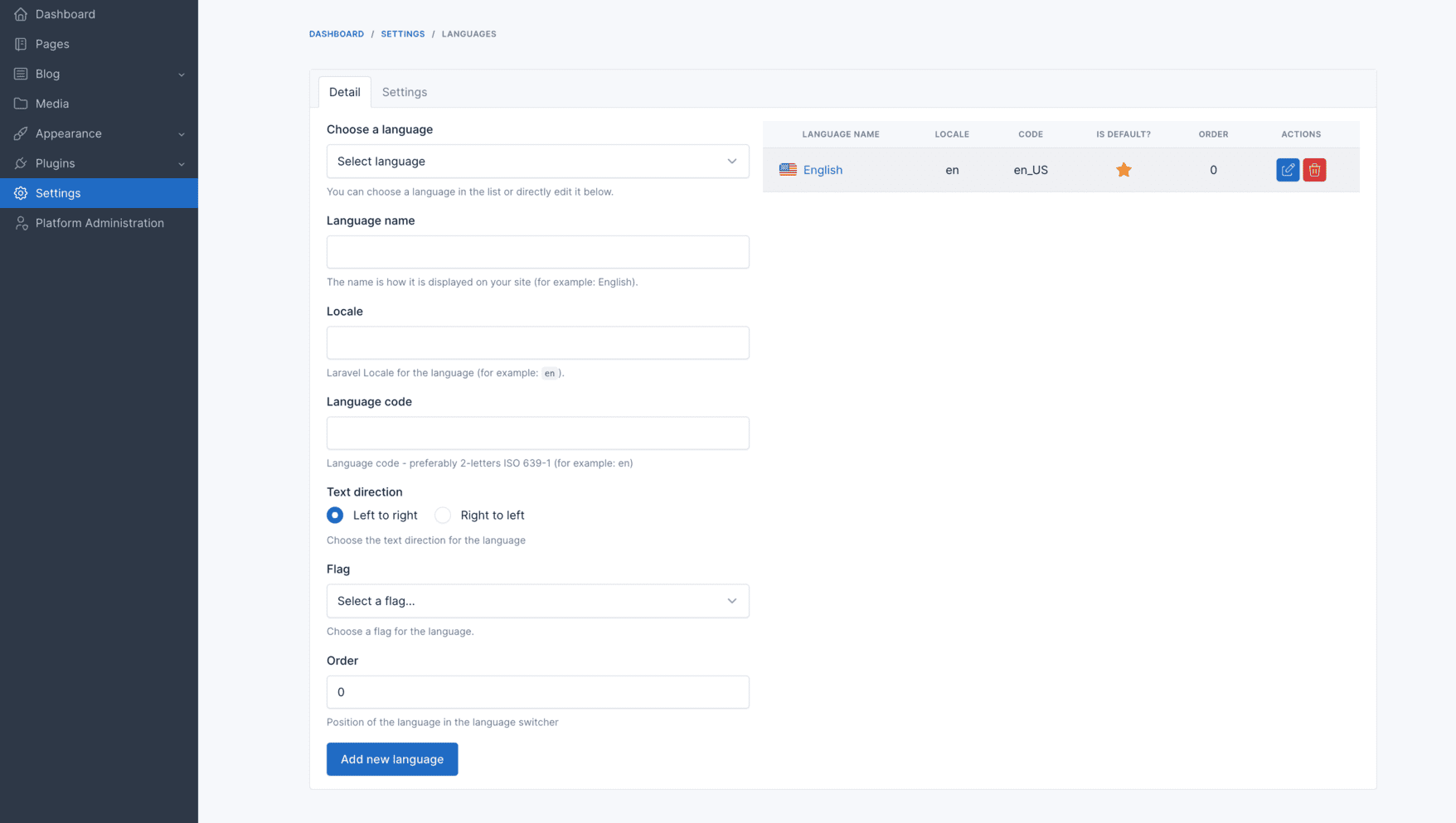
Navigate to admin panel and click to Settings -> Languages.
Changing the Default Language
Adding a New Language
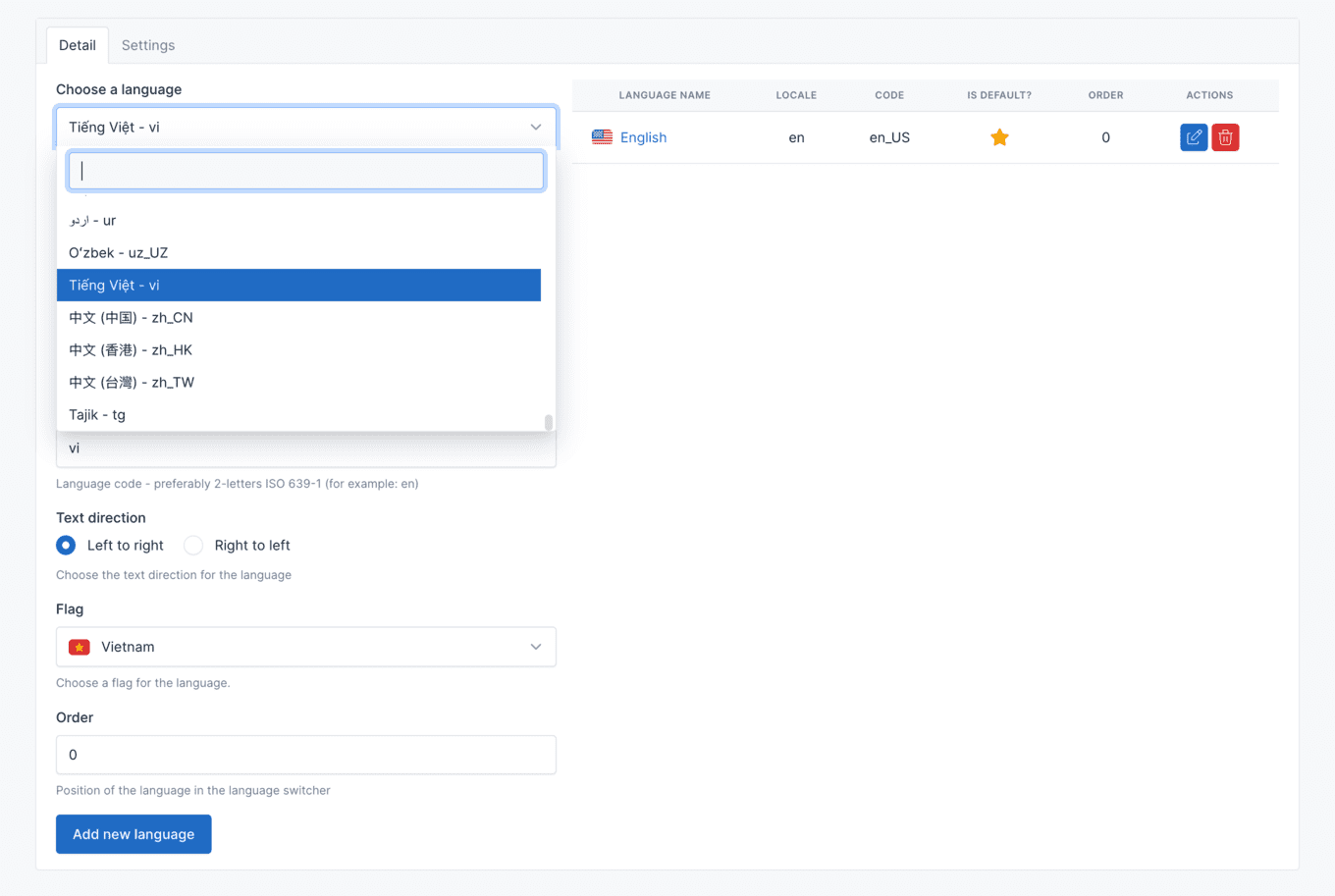
To change the default language, you first need to add the desired language. In this example, we will add **Tiếng Việt ** (Vietnamese) language.
Setting the Default Language
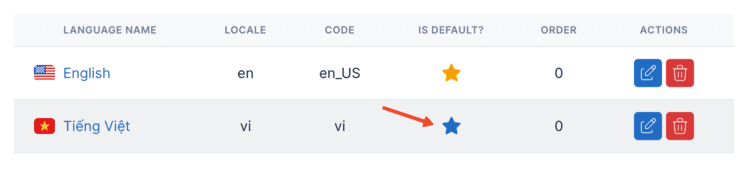
Once the language is added, click on the Is default? button in the Tiếng Việt row to make it the default language.
Language Settings
Open Settings → Languages and switch to the Settings tab to control how the switcher behaves:
| Setting | Default | Purpose |
|---|---|---|
| Hide default language in URL | On | The default language is served at /about-us; other languages get a prefix such as /vi/about-us. |
| Language display | All | Show flag + name, flag only, or name only in the switcher. |
| Switcher display | Dropdown | Render the switcher as a dropdown or as an inline list. |
| Hide languages | — | Hide a specific non-default language from the switcher without deleting it. |
| Auto-detect user language | Off | Redirect visitors to the language matching their browser's Accept-Language header. |
Auto-detection overrides your default language
If you set the site's default to a non-English language but visitors keep landing on English, Auto-detect user language is the cause. It reads the browser's Accept-Language header, not the visitor's location, so it is frequently wrong. Turn it off to always serve your configured default.
Translating Content
Each language has its own content record. Open a page, post, or other translatable model, switch the language tab in the editor, and fill in that language's fields. Editing one language does not change another — if it appears to, you are editing the same tab twice.
Slugs are not translated automatically
Switching language changes the locale prefix in the URL (/vi/about-us), but the slug itself is not translated. To get a fully localized URL, edit the slug in each language tab.
For static theme strings ("Read more", "Contact", "Search"), use Settings → Theme Translations. For admin panel strings, use Settings → Other Translations. See Localization.
Shared vs Translatable Fields
When multiple languages are configured, most settings are stored per language. However, visual/design properties (colors, logos, layout styles) typically don't change between languages.
Botble CMS supports marking fields as shared so they are configured once and apply to all languages. Only text content fields need per-language translation.
Theme Options
Theme option fields and sections can be marked as shared using ->shared(). See the Theme Options documentation for details.
Examples of shared fields: primary color, logo image, layout style, social media URLs.
Examples of translatable fields: site title, copyright text, banner heading.
Widgets
Widgets fall back to the default language's configuration when no locale-specific widgets are set. See the Widget documentation for details.
Reducing the Site Back to One Language
Do not deactivate the Language plugin to hide the language switcher
This looks like the obvious fix and it breaks your navigation.
When you add a language, the CMS clones every menu for that language and attaches each clone to the same menu location. The Language plugin is what filters those clones down to the current locale at render time. Deactivate it and the location resolves to all of them at once — your header renders the English, Arabic, Vietnamese, and French menus stacked on top of each other.
If you have already done this, re-activate the plugin. The navigation returns to normal immediately.
Follow this order instead:
- Settings → Languages — delete the extra languages, keeping only the one you want.
- Appearance → Menus — delete the leftover cloned menus. Deleting a language does not delete its cloned menus; they remain until you remove them. Clone slugs carry the language code as a suffix, for example
main-menu-ar,main-menu-vi,main-menu-fr. - Leave the Language plugin active. Once a single language remains, the switcher disappears on its own.
- Clear caches at Platform Administration → Cache Management.
Disabling Multi-language Entirely
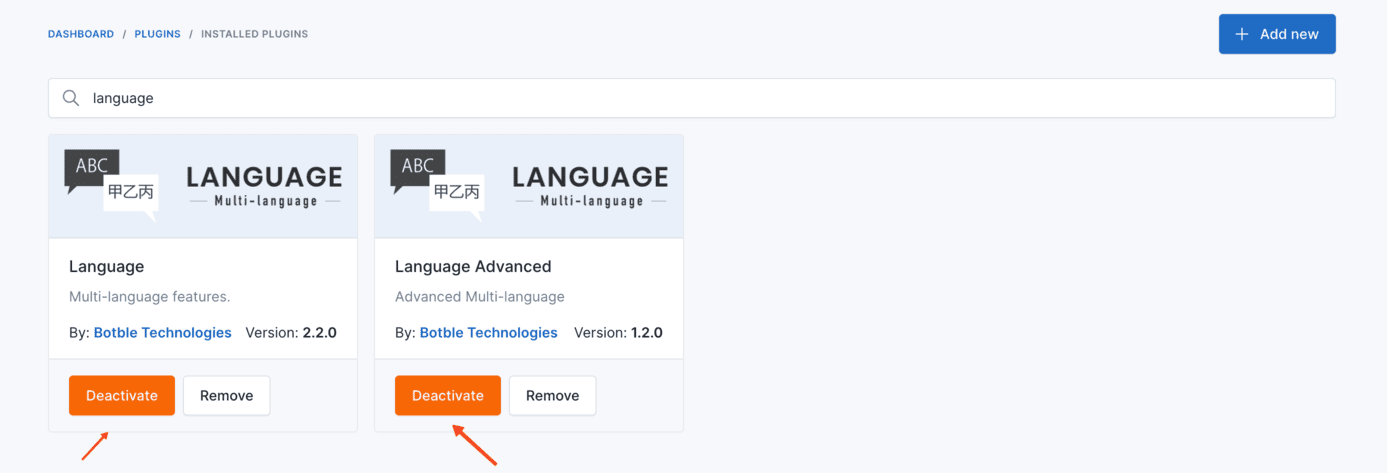
If the site was never translated and you want the plugins gone completely — for example on a fresh install where no language beyond the default was ever added — go to Plugins → Installed Plugins, search for language, and deactivate Language and Language Advanced.
Only do this when no additional languages have ever been added. If they have, follow the section above first, so no cloned menus are left behind.