
Shipping Methods
The shipping methods system provides flexible configuration for shipping rates, zones, and rules to accurately calculate shipping costs at checkout.
Overview
Shofy's shipping system includes:
- Multiple shipping regions - Define shipping rules by country
- Flexible shipping rules - Price-based, weight-based, zipcode-based, or location-based
- Rate calculations - Automatic shipping cost calculation at checkout
- Free shipping - Configure free shipping thresholds
- City-specific rates - Set different rates for specific cities
- Store locations - Link shipments to physical store locations
Accessing Shipping Settings
Navigate to Ecommerce -> Settings -> Shipping in the admin panel.
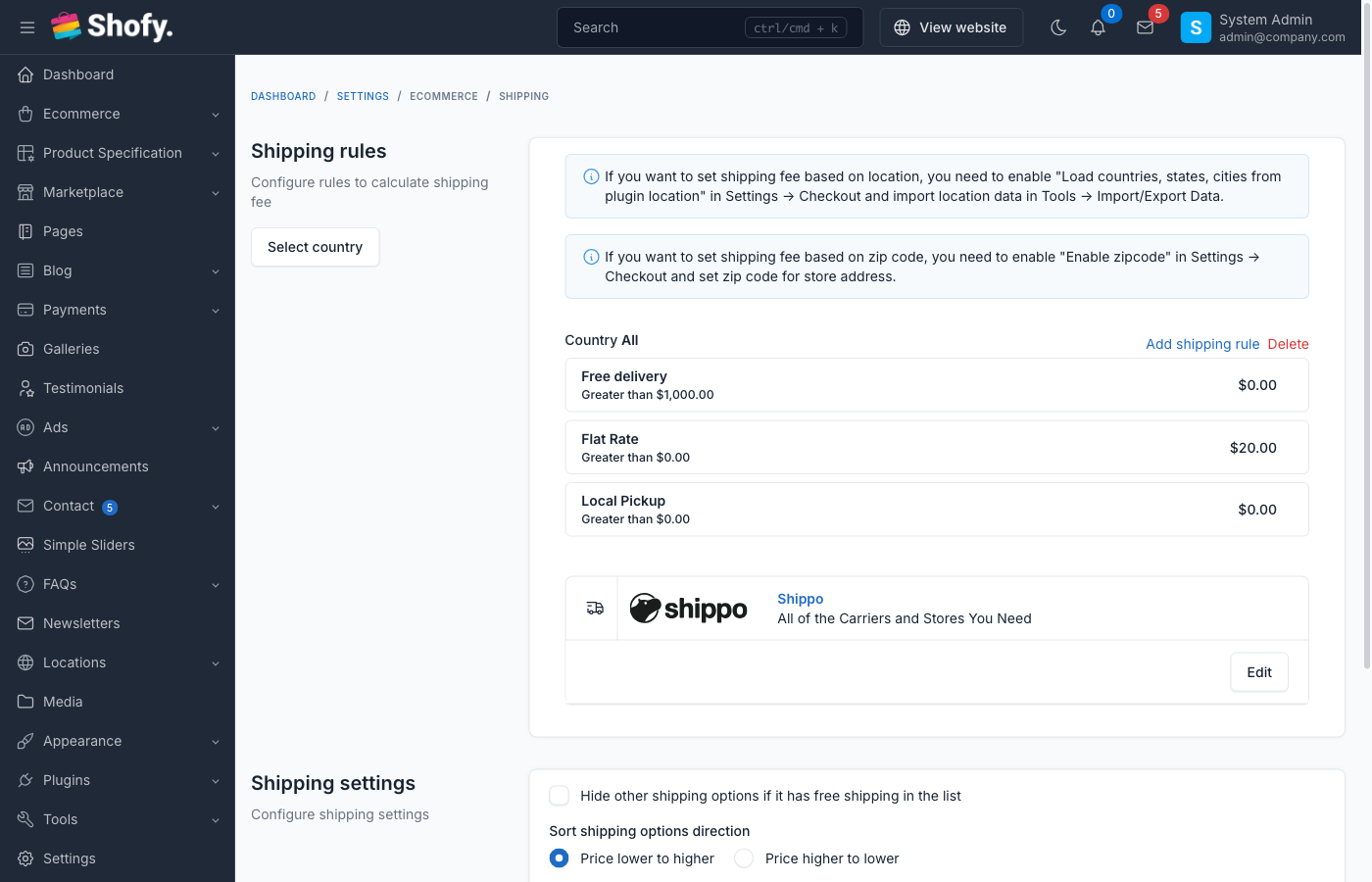
Default Shipping Setup
When you first set up the store, a default shipping region is created for "All locations" with a basic delivery rule.
The default configuration includes:
- Region: All locations (no specific country)
- Rule type: Based on price
- Default shipping rate
TIP
The default region applies to all countries not explicitly configured with their own shipping rules.
Shipping Regions
Shipping regions let you define different shipping rules for different countries or groups of countries.
Creating a Shipping Region
- Click Add new region button
- Select country (or leave empty for "All locations")
- Click Create
- System creates region with default delivery rule
Region Hierarchy
- Specific country rules - Applied first if customer's country matches
- All locations rule - Applied as fallback if no country-specific rule exists
Example:
United States (specific rules) -> Used for US orders
United Kingdom (specific rules) -> Used for UK orders
All locations (default) -> Used for all other countries
Deleting Regions
To delete a shipping region:
- Find region in shipping list
- Click Delete icon
- Confirm deletion
- All shipping rules for that region are deleted
WARNING
Deleting a region removes all its shipping rules. This cannot be undone.
Shipping Rules
Each shipping region can have multiple shipping rules. Rules define how shipping costs are calculated based on order characteristics.
Rule Types
1. Based on Price
Calculate shipping based on order subtotal.
Configuration:
- From: Minimum order amount
- To: Maximum order amount (or leave empty for no maximum)
- Shipping cost: Fixed rate for this price range
Example:
From: $0   To: $50   Cost: $5.00
From: $50  To: $100  Cost: $3.00
From: $100 To: -     Cost: Free
Use cases:
- Encourage larger orders with lower rates
- Free shipping over threshold
- Standard flat rate shipping
2. Based on Weight
Calculate shipping based on total order weight.
Configuration:
- From: Minimum weight (in configured weight unit)
- To: Maximum weight
- Shipping cost: Fixed rate for this weight range
Example (using grams):
From: 0g     To: 500g   Cost: $5.00
From: 500g   To: 1000g  Cost: $8.00
From: 1000g  To: -      Cost: $12.00
Use cases:
- Heavy item surcharges
- Lightweight item discounts
- Tiered shipping by package size
Weight Unit
The weight unit is configured at Ecommerce -> Settings -> Standard & Formats. Common units: grams, kg, oz, lbs.
3. Based on Zipcode
Calculate shipping based on customer's postal code. Supports both single zip codes and zip code ranges.
Configuration:
- Base rate: Default shipping cost
- Rule items: Define zip code ranges with adjustment prices
- Name (optional): A descriptive label for the rule item (e.g., "Downtown Area", "South Region")
- Zip code from: Start of the zip code range
- Zip code to: End of the zip code range (leave empty for exact match)
- Adjustment price: Amount to add/subtract from the base rate
Example:
Base rate: $5.00

Rule items:
Name: "Metro Area"      | 10000 - 19999 -> -$1.00 (Urban discount)
Name: "Remote West"     | 90000 - 92000 -> +$2.00 (Surcharge)
Name: "Exact Location"  | 30301         -> +$0.50
Use cases:
- Rural area surcharges
- Metropolitan area discounts
- Zone-based pricing
- Regional delivery zones (e.g., Brazilian CEP ranges)
Zip Code Formatting
Zip codes are automatically normalized to numeric-only format when saved. Hyphens, dots, and spaces are stripped (e.g., "14403-860" becomes "14403860"). This ensures correct numeric range matching regardless of input format.
Requirements
- Only available for specific country regions (not "All locations")
- Requires zipcode to be enabled in checkout settings
4. Based on Location
Calculate shipping based on customer's city or state.
Configuration:
- Base rate: Default shipping cost
- City adjustments: Add/subtract amounts for specific cities
Example:
Base rate: $5.00

City adjustments:
New York -> +$2.00
Los Angeles -> +$1.50
Chicago -> +$0.50
Use cases:
- City-specific delivery fees
- Regional pricing
- Metropolitan vs suburban rates
Requirements
- Only available for specific country regions
- Requires Location plugin to be active
- Must have countries, states, and cities configured
5. Based on Zipcode and Weight
Combines zipcode range matching and weight-based calculations.
Configuration:
- From weight: Minimum weight
- To weight: Maximum weight
- Base rate: Default shipping cost for this weight range
- Rule items: Zip code ranges with adjustment prices (same as "Based on Zipcode")
Example:
Weight: 0-500g
Base rate: $5.00

Rule items:
Name: "Remote West" | 90000 - 92000 -> +$2.00
Name: "Urban East"  | 10000 - 19999 -> -$1.00
Use cases:
- Complex shipping scenarios
- Courier-based pricing
- High-accuracy cost calculations
Creating Shipping Rules
To add a new shipping rule:
- Navigate to shipping settings
- Find the region
- Click Add new rule button
- Fill rule details:
- Rule name: Descriptive name (e.g., "Standard Delivery", "Express Shipping")
- Type: Select rule type
- From: Minimum value (price/weight)
- To: Maximum value (empty for unlimited)
- Shipping cost: Base rate
- Click Create
- Configure city/zipcode adjustments (if applicable)
Editing Shipping Rules
To modify a shipping rule:
- Find the rule in shipping list
- Click Edit icon
- Update rule details
- Configure city/zipcode adjustments
- Click Save
Deleting Shipping Rules
To delete a shipping rule:
- Find rule in shipping list
- Click Delete icon
- Confirm deletion
WARNING
If you delete all rules for a region, the region is automatically deleted.
City & Zipcode Adjustments
For rules that support location-based adjustments, you can configure specific rates for cities or zipcodes.
Adding Adjustments
- Edit a shipping rule with location support
- Scroll to city/zipcode adjustments section
- Find city/zipcode in list
- Set adjustment:
- Positive value: Adds to base rate (surcharge)
- Negative value: Subtracts from base rate (discount)
- Zero: Uses base rate
- Disable: Location not available for shipping
Example adjustments:
Base rate: $5.00

Los Angeles: +$2.00 -> Total: $7.00
San Francisco: +$1.50 -> Total: $6.50
San Diego: $0.00 -> Total: $5.00
Remote Area: Disabled -> Not available
Bulk Configuration
When editing rules with many locations:
- Set common adjustments first
- Fine-tune specific locations
- Disable unavailable areas
- Save changes
Free Shipping
Threshold-Based Free Shipping
Use price-based rules to offer free shipping:
Method 1: Separate rule
Rule 1: From $0 to $100 -> $5.00
Rule 2: From $100 to - -> $0.00 (Free)
Method 2: High threshold
From $0 to $150 -> $8.00
From $150 to - -> Free
Coupon-Based Free Shipping
Configure free shipping coupons at Ecommerce -> Promotions -> Coupons:
- Create new coupon
- Select Free shipping
- Set minimum order (optional)
- Save coupon
When applied, shipping cost becomes $0 regardless of shipping rules.
Shipping Calculation Logic
How Shipping is Calculated
- Customer location determined - Country, state, city, zipcode from checkout form
- Region selected - Specific country region or "All locations" fallback
- Matching rule found - First rule matching order characteristics
- Base rate retrieved - From the matching rule
- Adjustments applied - City/zipcode adjustments added to base rate
- Final cost calculated - Total shipping cost displayed
Multiple Rules Priority
If multiple rules match, the system uses:
- Most specific rule - Country-specific over "All locations"
- First matching rule - In order of creation
- Rule with tighter range - More specific ranges take precedence
Example Calculation
Order details:
- Subtotal: $75
- Weight: 800g
- Country: United States
- Zipcode: 90001
Available rules:
- US - Based on price: $0-$50 -> $5, $50-$100 -> $3, $100+ -> Free
- US - Based on weight: 0-500g -> $5, 500-1000g -> $8
- All locations - Based on price: $0+ -> $10
Calculation:
- Country-specific rules available (US)
- Order is $75 (matches rule 1: $50-$100)
- Shipping cost: $3.00
Digital Products
Digital products (downloads) don't require shipping:
- Automatically excluded from shipping calculation
- If order contains only digital products, no shipping charged
- Mixed orders (physical + digital) charge shipping only for physical items
TIP
Enable digital products at Ecommerce -> Settings -> Digital Products.
Store Locations
Link shipments to physical store locations for:
- Pickup points
- Regional warehouses
- Fulfillment centers
Configure at Ecommerce -> Store Locators:
- Create store locations
- Enable Is shipping location
- When creating shipments, select store location
Benefits:
- Track which location fulfilled order
- Multi-warehouse inventory management
- Regional shipping optimization
Shipping Tax
You can apply tax to shipping fees in addition to product taxes.
Enabling Shipping Tax
Navigate to Ecommerce -> Settings -> Tax.
Toggle Tax on shipping fee to ON.
When enabled:
- Shipping costs are taxed using the same tax rules as products
- Tax amount on shipping appears separately in the order summary
- Both product tax and shipping tax are tracked individually
TIP
Shipping tax is calculated based on the customer's location, using the same tax rules configured for product taxes.
Shipment Tracking
After an order is placed, you can manage shipment details and tracking information.
Shipment Fields
| Field | Description |
|---|---|
| Shipping Company Name | Carrier name (e.g., FedEx, DHL, UPS, local courier) |
| Tracking ID | Tracking number from the carrier |
| Tracking Link | URL for customers to track their shipment |
| Estimate Date Shipped | Expected shipping date |
| Date Shipped | Actual shipping date |
| Note | Internal notes for the shipment |
Shipment Status Workflow
Shipments follow a defined status workflow:
Not Approved → Approved → Pending
  → Arrange Shipment → Ready to be Shipped Out
    → Picking → Picked → Delivering → Delivered
Special statuses: Delay Picking, Not Picked, Not Delivered, Audited, Canceled
COD (Cash On Delivery)
For COD orders, track payment collection:
- Pending - COD payment not yet collected
- Completed - COD payment collected from customer
Marketplace Shipping (Vendor Panel)
The marketplace plugin provides shipping management options for vendors.
Admin Shipping Settings for Marketplace
Navigate to Marketplace -> Settings:
| Setting | Description |
|---|---|
| Allow vendor manage shipping | Vendors can update shipment status from their dashboard |
| Charge shipping per vendor | Calculate and charge shipping separately for each vendor in the cart |
How Per-Vendor Shipping Works
When Charge shipping per vendor is enabled:
- Each vendor's products are grouped separately in the cart
- Shipping is calculated independently per vendor
- Customer sees shipping options/costs for each vendor
- Total shipping = sum of all vendor shipping costs
Example:
Vendor A (2 items) - Standard Delivery: $5.00
Vendor B (1 item) - Express Shipping: $12.00
Total Shipping: $17.00
Vendor Shipment Management
Vendors access shipments at: Vendor Dashboard -> Shipments
When "Allow vendor manage shipping" is ON:
- Vendors can update any shipment status
- Manage COD payment status
- Add tracking information (tracking ID, carrier name, tracking link)
- Update shipping dates
When "Allow vendor manage shipping" is OFF (default):
- Vendors can only set status to:
Arrange ShipmentReady to be Shipped Out
- Full shipment management remains with admin
TIP
For most marketplaces, keep vendor shipping management OFF and handle fulfillment centrally. Enable it only when vendors ship their own products.
Vendor Shipping Rules
When Allow vendor manage shipping is enabled, vendors can also create their own shipping rules from their vendor dashboard, following the same rule types (price-based, weight-based, etc.) as the admin.
Advanced Shipping Methods
For more advanced shipping needs, Shofy supports:
Shipping by Location Plugin
Enables detailed city/state-based shipping rules.
See: Shipping by Location Documentation
Shippo Integration
Connect to Shippo for real-time carrier rates and label printing.
See: Shippo Integration Documentation
Third-Party Carriers
Integrate with:
- FedEx
- UPS
- USPS
- DHL
- Local carriers
TIP
Third-party integrations require separate plugins or customization.
Shipping at Checkout
Customer Experience
- Customer adds products to cart
- Proceeds to checkout
- Enters shipping address
- System calculates shipping options
- Customer selects shipping method
- Shipping cost added to order total
Multiple Shipping Options
If you configure multiple shipping rules (e.g., Standard and Express), customers can choose their preferred method at checkout.
Example:
Standard Delivery (3-5 days) - $5.00
Express Shipping (1-2 days) - $15.00
Configuration Tips
Setting Up New Store
- Start simple - Begin with flat rate shipping for all locations
- Test checkout - Verify shipping appears correctly
- Add country rules - Configure top destination countries
- Refine rates - Adjust based on actual carrier costs
- Monitor costs - Track if shipping covers actual expenses
Optimizing Shipping Costs
- Negotiate carrier rates - Use shipping volume for better rates
- Use weight tiers - Align with carrier's weight breaks
- Offer free shipping strategically - Set threshold above average order value
- Regional pricing - Charge more for remote areas
- Bundle products - Encourage multi-item orders with better shipping rates
Common Configurations
Basic flat rate:
All locations
Based on price: $0 to - -> $5.00
Tiered with free shipping:
All locations
Rule 1: $0 to $50 -> $7.00
Rule 2: $50 to $100 -> $4.00
Rule 3: $100 to - -> Free
Weight-based domestic:
United States
Based on weight:
0-500g -> $5.00
500-1000g -> $8.00
1000g+ -> $12.00
International premium:
All locations (excluding specific countries)
Based on price: $0 to - -> $25.00
Restricting Delivery to Specific Zones
You can restrict delivery to only certain areas (cities, states, or zip code ranges) so that customers outside those zones cannot place orders.
Using Location-Based Rules
- Go to
Ecommerce->Shipping - Create or select a country-specific shipping region (e.g., "Sri Lanka")
- Add a shipping rule with type "Based on Location"
- Set the base shipping price
- Add rule items for each state/city you want to deliver to:
- Select the state and optionally a city
- Set an adjustment price (e.g., +$5 for remote areas, or $0 for no adjustment)
- Toggle items enabled/disabled individually
Requirements
- The Location plugin must be active
- Load countries, states, and cities from the Location plugin must be enabled in
Ecommerce->Settings->General - Countries, states, and cities must be imported via
Locations->Bulk Import
Using Zip Code-Based Rules
- Enable zip codes in
Ecommerce->Settings->General - Create a shipping rule with type "Based on Zip Code" or "Based on Zip Code and Weight"
- Add rule items with zip code ranges (
Zip code fromtoZip code to) for deliverable areas - Optionally give each rule item a Name for easy identification (e.g., "Sao Paulo Metro Area")
Blocking Delivery Outside Your Zones
Key Concept
If you only define shipping rules for specific locations/zones and do not set a catch-all "All locations" rule, customers outside those zones will see no shipping options at checkout — effectively blocking delivery to unlisted areas.
Example setup to deliver only within Colombo and Kandy:
Region: Sri Lanka
Rule: Based on Location - "Local Delivery" - $5.00

Rule items:
  Western Province, Colombo -> +$0.00 (Total: $5.00)
  Central Province, Kandy   -> +$2.00 (Total: $7.00)
  (no other locations added)
Customers in Galle or Jaffna will not see any shipping options at checkout and cannot complete their order.
Troubleshooting
No Shipping Options at Checkout
Check:
- At least one shipping region exists
- Region has at least one active shipping rule
- Rule ranges cover customer's order (price/weight)
- Customer's country is covered by a region
- Products are not all digital products
Incorrect Shipping Cost
Verify:
- Rule type matches what you're testing (price vs weight)
- Rule ranges don't have gaps
- City/zipcode adjustments are correct
- Weight unit matches products
- No conflicting rules
Shipping Too Expensive
Options:
- Lower base rates
- Add free shipping threshold
- Create promotional rates for specific regions
- Use weight-based rules for lighter items
- Absorb some shipping cost in product price
Cannot Create Location-Based Rules
Requirements:
- Must select specific country (not "All locations")
- Location plugin must be active
- Countries and cities must be configured
- Zipcode must be enabled in settings
Best Practices
Keep it simple - Start with basic rules, add complexity only if needed
Test thoroughly - Place test orders from different locations
Cover all scenarios - Ensure every order can calculate shipping
Use realistic ranges - Base ranges on actual order patterns
Monitor shipping costs - Track if charges cover actual shipping expenses
Communicate clearly - Display shipping policies on your site
Update regularly - Adjust rates when carrier costs change
Provide options - Offer standard and express shipping when possible
Consider margins - Factor shipping costs into product pricing
Use analytics - Track which shipping options customers prefer
Frequently Asked Questions
Can I offer both flat rate and calculated shipping?
Yes. Create multiple rules with different types. Customers will see all matching options at checkout.
How do I charge exact carrier rates?
Use Shippo integration or similar carrier plugins for real-time rate calculation from carriers.
Can I hide certain shipping methods?
Yes. Delete or disable rules you don't want to offer. Only active rules appear at checkout.
What happens if no shipping rule matches?
Checkout will show an error. Always ensure rules cover all possible order scenarios.
Can I charge handling fees?
Yes. Add handling fees to your shipping rates, or create separate line items in order processing.
Can I limit delivery to specific cities or zones?
Yes. Use "Based on Location" or "Based on Zip Code" rules and only add items for the areas you deliver to. Do not create a catch-all "All locations" rule — customers outside your listed zones will not see any shipping options. See Restricting Delivery to Specific Zones above.
How do I test shipping calculations?
Place test orders with different amounts/weights, use different addresses, check calculated rates.
Can vendors create their own shipping rules?
Only if "Allow vendor manage shipping" is enabled in Marketplace -> Settings. When enabled, vendors can create shipping rules from their vendor dashboard.
Is shipping charged separately for each vendor?
Yes, if "Charge shipping per vendor" is enabled. Each vendor's products calculate shipping independently. When disabled, shipping is calculated once for the entire order.
Can I add tax to shipping fees?
Yes. Enable "Tax on shipping fee" in Ecommerce -> Settings -> Tax. The shipping fee will be taxed using the same location-based tax rules as products.
How do zip code ranges work for shipping?
When using "Based on Zip Code" rules, you can define zip code ranges (e.g., 10000-19999) in rule items. The system matches the customer's zip code against these ranges using numeric comparison to determine shipping cost. This allows zone-based pricing without creating rules for every individual zip code.
Each rule item can have an optional Name field to help identify the zone (e.g., "Downtown Area", "South Region"). If no name is set, the system auto-generates a display name from the zip code range.
TIP
Zip codes with formatting (hyphens, dots, spaces) are automatically normalized. For example, Brazilian CEP "14403-860" is stored and matched as "14403860".