
Product Variations
Product variations allow you to offer the same product in different configurations (size, color, material, etc.). Each variation can have its own price, SKU, stock level, and images.
Overview
The variation system consists of:
- Attribute Sets - Groups of attributes (e.g., "Size", "Color")
- Attributes - Individual values (e.g., "Small", "Red")
- Variations - Specific combinations (e.g., "Red T-Shirt - Small")
- Per-Variation Data - Each variation has unique pricing, inventory, and images
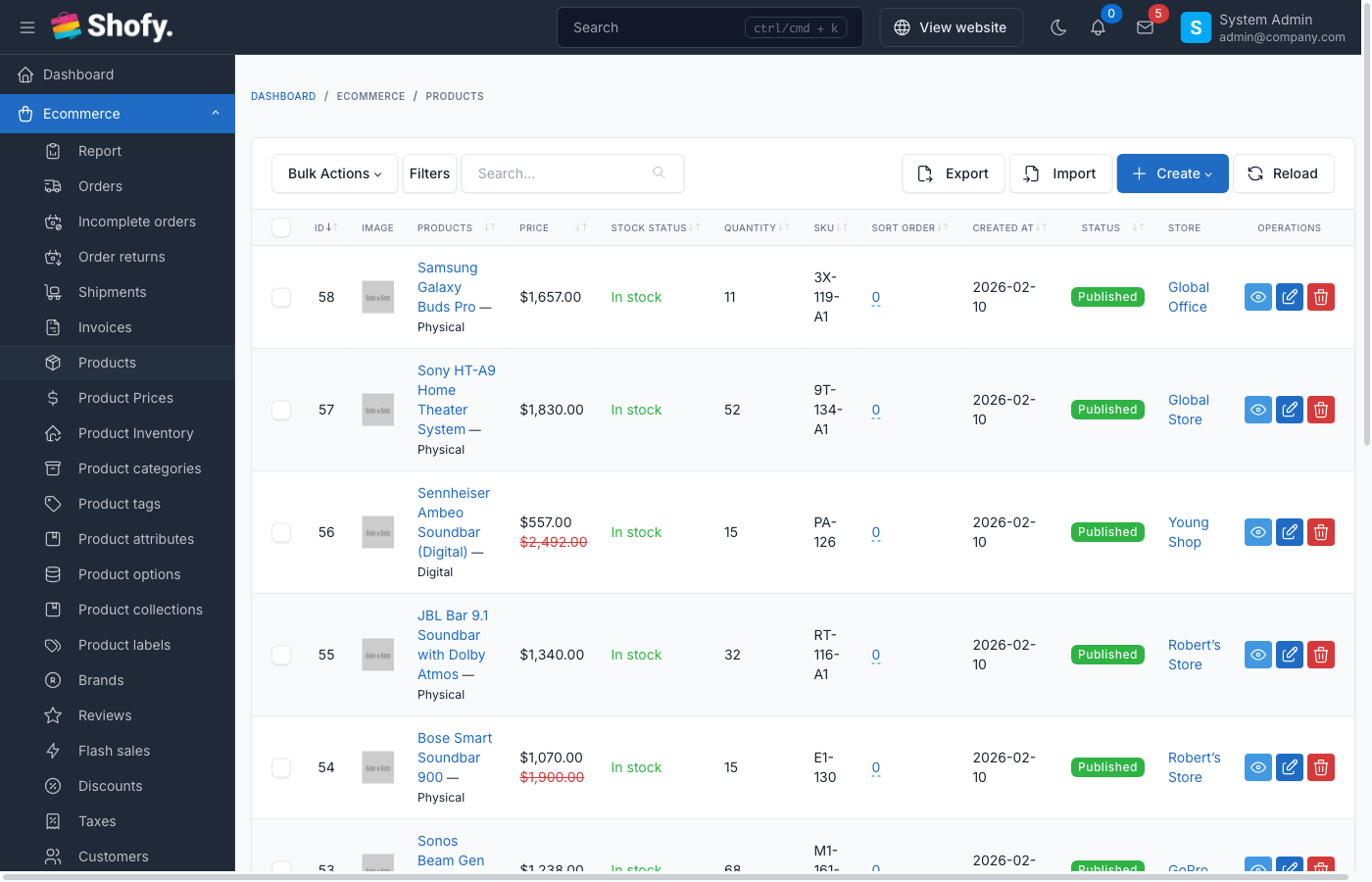
Creating Attribute Sets
Before adding variations, create reusable attribute sets.
Navigate to Ecommerce -> Attributes in the admin panel.
- Click Create
- Enter attribute set details:
- Title - Name of the attribute (e.g., "Size", "Color")
- Slug - Auto-generated URL-friendly identifier
- Status - Published/Draft
- Display Layout - How attributes display on product pages
- Order - Display priority
- Configure options:
- Is searchable - Allow filtering by this attribute
- Is comparable - Include in product comparison
- Use in product listing - Show in category/search filters
- Use image from variation - Display variation images for this attribute
- Click Save
Adding Attribute Values
After creating an attribute set, add specific values:
- Open the attribute set
- Scroll to Attributes section
- Click Add new attribute
- Fill in details:
- Title - Value name (e.g., "Small", "Red")
- Slug - Auto-generated
- Color - Color code for visual swatches (optional)
- Image - Image for this attribute (optional)
- Order - Display order
- Repeat for all values
- Click Save
TIP
For color attributes, use hex codes (e.g., #FF0000 for red) to display color swatches instead of text.
Assigning Attributes to Products
- Navigate to
Ecommerce->Products - Open or create a product
- Scroll to Attributes section
- Select attribute sets you want to use (e.g., Size, Color)
- Click Save
This product can now have variations based on these attributes.
Creating Product Variations
After assigning attribute sets:
- Stay on the product edit page
- Scroll to Variations section
- Click Add new variation
- Select attribute combination (e.g., Color: Red, Size: Small)
- Configure variation-specific settings:
Variation Settings
| Setting | Description |
|---|---|
| SKU | Unique identifier for this variation |
| Price | Base price (inherits from parent if empty) |
| Sale Price | Discounted price (optional) |
| Quantity | Stock level for this variation |
| With storehouse management | Enable/disable stock tracking |
| Stock Status | In stock / Out of stock |
| Image | Main image for this variation |
| Images Gallery | Additional images |
| Weight, Length, Width, Height | Shipping dimensions |
| Cost per item | Your cost (for profit tracking) |
| Barcode | Barcode/EAN for inventory |
| Is default | Set as the default selected variation |
- Click Save variation
- Repeat for all combinations
TIP
Use the Generate all variations button to automatically create variations for all attribute combinations. You can then edit individual variations.
Auto-Generating SKUs
When creating variations, enable Auto-generate SKU to create SKUs automatically:
Format: {parent_sku}-{attribute1_slug}-{attribute2_slug}
Example: TSHIRT-RED-SMALL
Variation Images
Each variation can have its own images:
- Individual variation images - Upload images per variation
- Attribute-based images - Enable "Use image from variation" in attribute set settings, then the system displays the appropriate variation image when that attribute is selected
Managing Variation Inventory
Per-Variation Stock
Each variation tracks its own inventory:
- Enable storehouse management for the variation
- Set Quantity for each variation
- System automatically updates stock on orders
- Configure Allow checkout when out of stock per variation
Default Variation
Mark one variation as Default to:
- Display by default on product pages
- Use its price/image as the main product price/image
- Provide a starting point for customer selection
Bulk Operations
Export Variations
Navigate to Ecommerce -> Products -> Export:
- Select export format (CSV/Excel)
- Export includes both products and variations
- Variations have
import_type=variation
Import Variations
Navigate to Ecommerce -> Products -> Import:
- Download the template
- Fill in product rows (
import_type=product) - Fill in variation rows (
import_type=variation) - Variation rows must have:
nameorslugmatching parent productproduct_attributesin formatAttributeSet:Value(e.g.,Size:Small,Color:Red)skuand other variation-specific data
- Upload and import
WARNING
Variations must reference an existing parent product. Import parent products first, then variations.
Attribute Set Categories
You can limit which attribute sets are available for specific product categories:
- Navigate to
Ecommerce->Attributes - Open an attribute set
- Scroll to Categories section
- Select categories where this attribute applies
- Click Save
When editing products in those categories, only relevant attribute sets appear.
Troubleshooting
Variations not displaying on frontend
- Check attribute set status - Must be "Published"
- Verify attributes assigned - Product must have attribute sets selected
- Check variation status - Variations inherit parent product status
- Clear cache - Run
php artisan cache:clear
"Generate all variations" button not working
- Verify attribute sets - Product must have at least one attribute set assigned
- Check for existing variations - Button only generates missing combinations
- Attribute values required - Attribute sets need at least one attribute value
Images not showing for variations
- Upload variation images - Each variation needs its own images
- Check "Use image from variation" - Enable in attribute set if using attribute-based images
- Set default variation - Ensure one variation is marked as default
Best Practices
- Plan attribute structure - Create all attribute sets before adding products
- Use consistent naming - Keep attribute names uniform across products
- Set default variations - Always mark one variation as default
- Optimize images - Use appropriate image sizes for each variation
- Auto-generate SKUs - Use consistent SKU patterns for easier inventory management
- Test before bulk import - Import a few test variations before bulk operations
- Monitor stock levels - Enable storehouse management for accurate inventory tracking